
Instant Answers Report
1. Overview
The Instant Answers Report provides insights into how users interact with Instant Answers channels across the platform. It helps track user engagement by showing the number of queries raised, active users, and usage trends over a selected period.
The report supports both organization-level monitoring and team-level visibility, depending on the user’s role and access.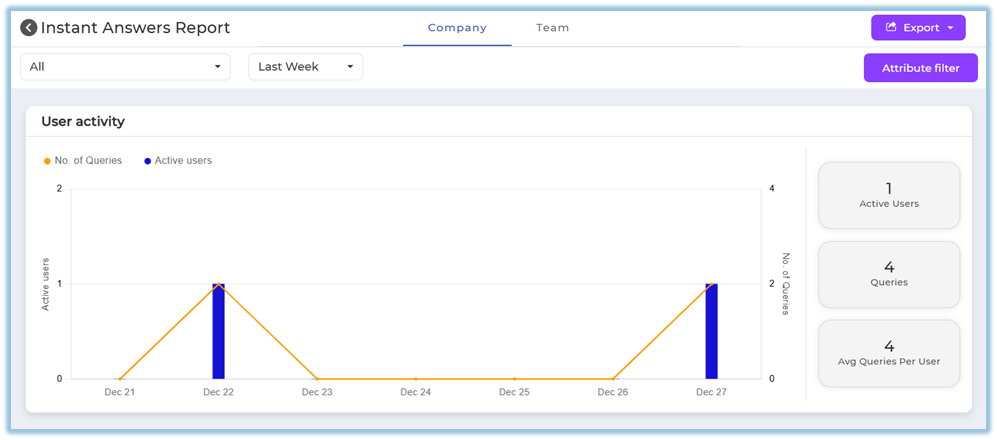
2. When to Use
Use the Instant Answers Report when you want to:
-
Monitor overall adoption of Instant Answers across the organization
-
Understand how frequently users are raising queries
-
Track active users over time
-
Analyze usage trends by channel and time period
-
Review engagement at a team level for Managers, Trainers, and Mentors
-
Export data for analysis and review
3. Concepts
-
Instant Answers Channel
A configured knowledge channel used by users to raise queries and receive instant responses. -
Active Users
Users who have raised at least one query during the selected timeline. -
Queries
Total number of questions raised by users in Instant Answers. -
Average Queries per User
Average number of queries raised per active user. -
Company Tab
Organization-wide view available to Admin users. -
Team Tab
Restricted view available only to Managers, Trainers, and Mentors for their mapped users. -
Attribute Filters
Filters that allow report data to be refined using user attributes such as designation, department, country, manager, trainer, mentor, etc.
4. Set Up Guide
-
NoOpenconfigurationtheismainrequirednavigation menu from the homepage. -
Navigate to
enablethe Reports section. -
Click on Instant Answers Report.
-
View the list of all configured Instant Answers
Report.channels displayed in the report. -
TheSelectreportabecomestimeavailablerangeautomaticallysuchwhen:as:-
InstantThisAnswers channels are createdweek -
UsersLaststart interacting with those channelsweek -
UserThisroles and mappings (Manager / Trainer / Mentor) are configured in User Setup
Access toCompanyandTeamtabs is controlled by user role and mapping.5. User ViewCompany Tab (Admin View)Visible toAdmin usersmonth-
ShowsLastorganization-wide Instant Answers usagemonth -
DisplaysThiscombined data across all users and channelsquarter -
LastIncludes:User activity trend (queries vs active users)quarter-
sixSummaryLastmetrics:Active Usersmonths-
12TotalLastQueries Average Queries per User
If an Admin isalso assignedas a Manager, Trainer, or Mentor, theTeam tab will be visible in addition to the Company tab.Company Tab (Admin View)Visible toAdmin usersShowsorganization-wide Instant Answers usageDisplays combined data across all users and channelsIncludes:User activity trend (queries vs active users)Summary metrics:Active UsersTotal QueriesAverage Queries per User
If an Admin isalso assignedas a Manager, Trainer, or Mentor, theTeam tab will be visible in addition to the Company tab.6. ReportingThe Instant Answers Report provides the following reporting capabilities:User Activity TrendsVisual trend showing:Number of QueriesActive Usersmonths
-
dataDisplayed overReview theselecteddashboardtimeline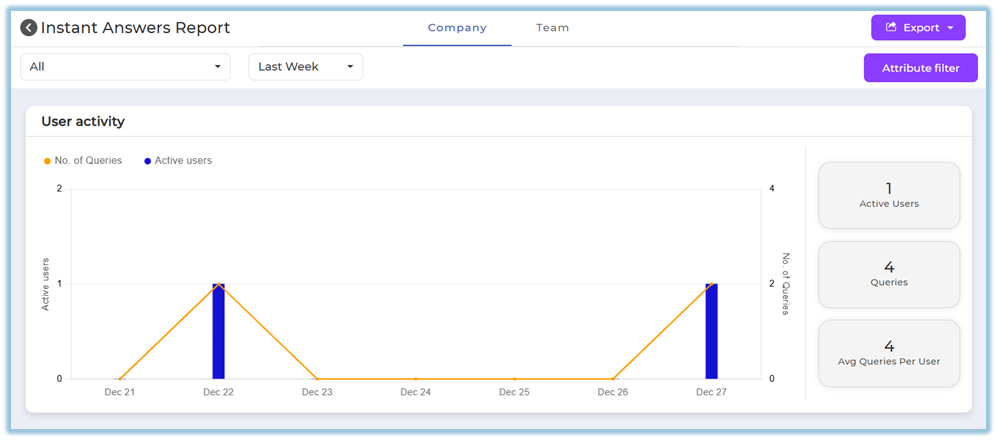
Timeline-Based AnalysisData can be viewed for:This Week / Last WeekThis Month / Last MonthThis Quarter / Last QuarterLast 6 MonthsLast 12 Months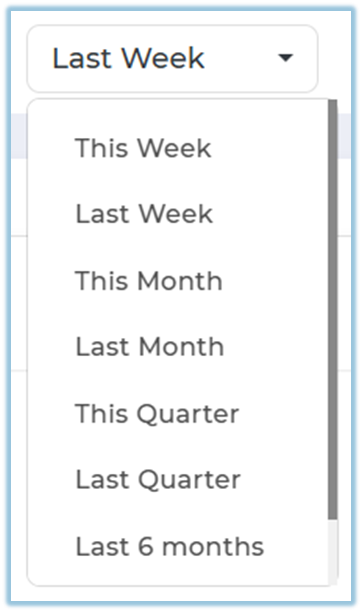
timeThe report dynamically updatesupdated based on the selectedtimeline.Channel-Level AnalysisUsers can view data across:All channelsrange.-
toIndividualClickInstantAttributeAnswersFilterchannels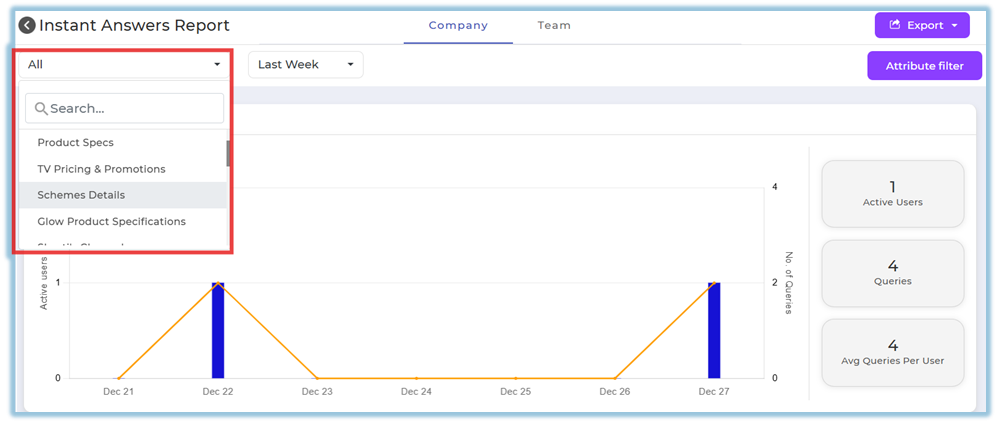 refine
Attribute-Based FilteringReport data can be filteredreport using user attributes such as:-
Designation
-
Department
-
Country
-
StateCoach/emailCity -
Trainer email
-
Manager
Emailemail -
Trainer EmailState -
Mentor (Coach) Email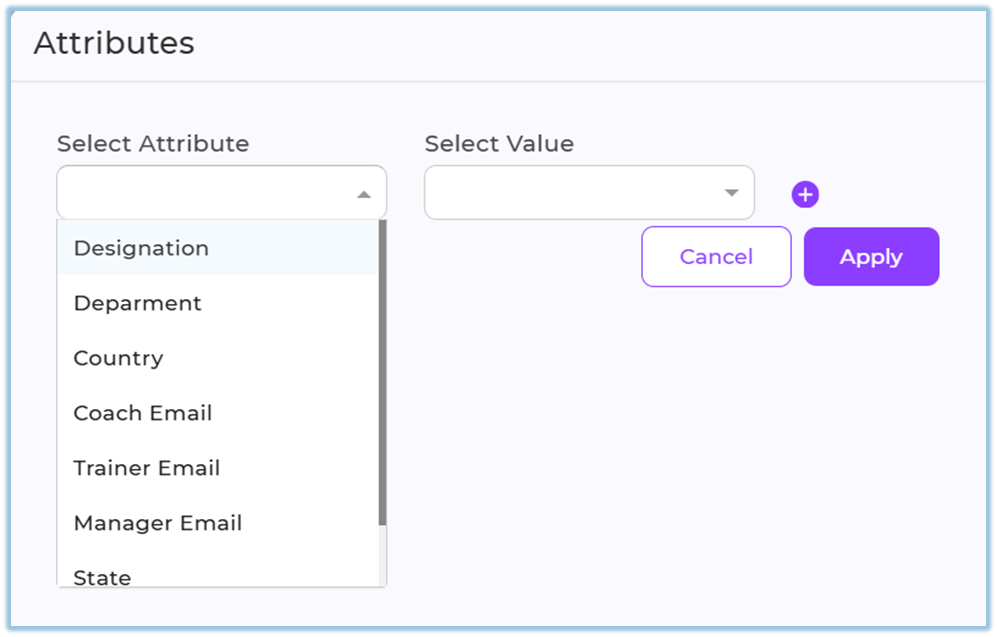
-
-
MultipleSelectattributesthe required attribute values and apply the filter to update the dashboard. -
Click Export to download the filtered report as an Excel file.
5. User View
Admins can see only the Company tab by default, which displays Instant Answers usage across all users and channels.
If an admin is also assigned as a manager, trainer, or mentor, they can additionally see the Team tab.
Managers, trainers, and mentors see the Team tab, which displays the same report layout but restricted to their mapped users only.
6. Reporting
-
The Instant Answers Report displays:
-
User activity across Instant Answers channels
-
Number of queries raised
-
Count of active users
-
-
Data can be
appliedfilteredtogetherbytotimerefinerangeinsights.and user attributes.Export -
Reports can be
exporteddownloadedinasXLSXExcelformatfiles for offline review or sharing. -
ExportedThedatareportrespectsisappliedaccessedfiltersviaandReportstimeline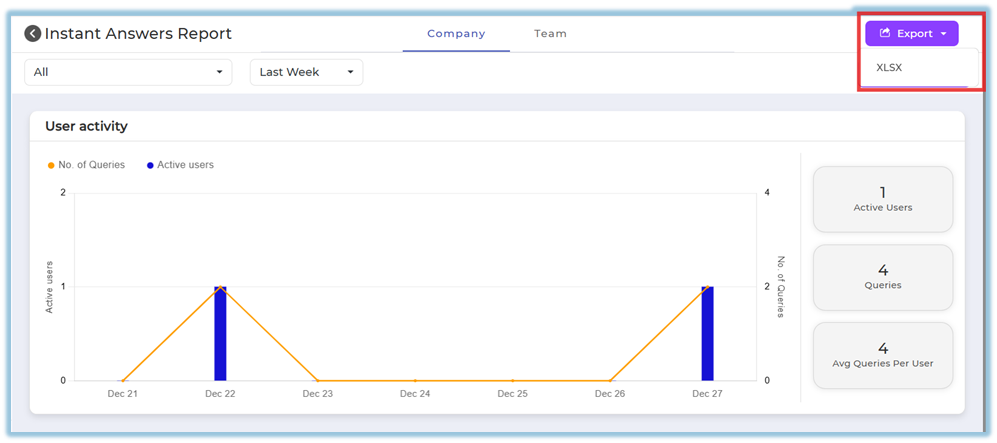
7. Best Practices
-
RegularlyApplymonitorattributeInstantfiltersAnswersto analyze usagetobyassessdepartmentknowledgeoradoptionrole. -
Use
attributelongerfilterstimetorangesunderstand(lastengagement by departmentquarter orrolelast 12 months) for trend analysis. -
EncourageExportManagers,reportsTrainers,regularlyandifMentorshistoricaltocomparisonreviewisthe Team tab weeklyrequired. -
TrackReviewaveragebothqueriesquerypercountuserand active users together toidentifyunderstandactivetruevs underutilized teams Use exported reports for monthly or quarterly reviewsengagement.
8. TroubleshootingRelated Links / FAQs
FAQ
Who can view the Team tab?
Only users assigned as Manager,managers, Trainer,trainers, or Mentor can see it.
Q. Why does the report show zero values?No queries were raised during the selected timeline or filters.
Q. Why can’t I see certain users?Team usersmentors can view onlythe usersTeam mapped to them.tab.
9. Related Links
User Management Dashboard ReportLearning of the Day ReportModule Completion ReportsLearning Pathway ReportsMonthly Activity Report
10. Version Notes
Last Updated: 31 Dec 2025