
User Setup
1. Overview
User Setup is used to add, manage, and organize users in the platform. It allows administrators to invite users, control access, assign roles, and define reporting relationships such as Manager, Trainer, and Mentor. This ensures structured user data, accurate reporting, and controlled access across the system.
2. When to Use
Use User Setup when you need to:
-
Invite new users (single or bulk)
-
Track user login and access status
-
Block users who have exited the organization
-
Assign Managers, Trainers, and Mentors
-
Configure user attributes for reports
-
Maintain designations and roles consistently
3. Concepts
-
Registered – User account has been created
-
Logged In – User has logged into the platform at least once
-
Not Logged In – User account created but login not completed
-
Blocked – User access is disabled
-
Pending Requests – Users waiting for approval
-
Role – Access level (All, User, Admin, Creator)
-
Attributes – User details used for filtering and reporting
4. Set Up Guide
Path: Menu → Settings Centre → User Setup
https://converse.bsharpcorp.com/celebrate/settings_center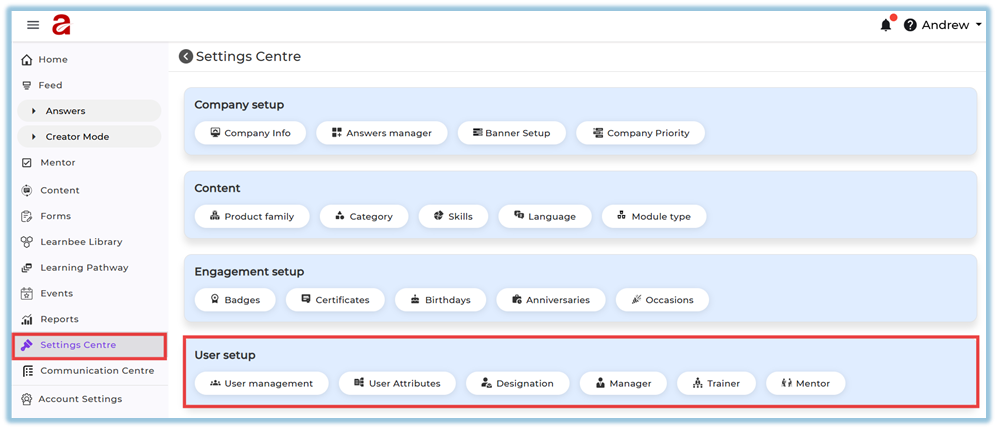 Under User Setup, you will see:
-
User Management
-
User Attributes
-
Designation
-
Manager
-
Trainer
-
Mentor
4.1. User Management
View User Status
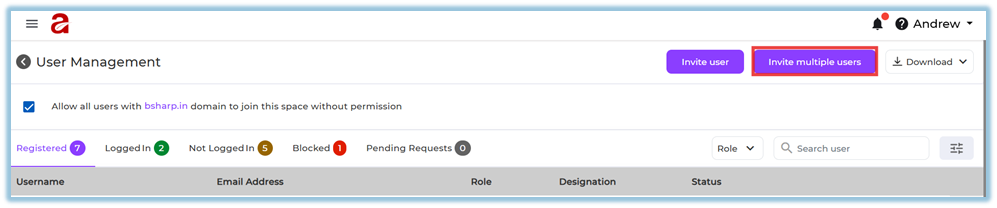
The User Management page displays users under different tabs:
https://converse.bsharpcorp.com/celebrate/user_management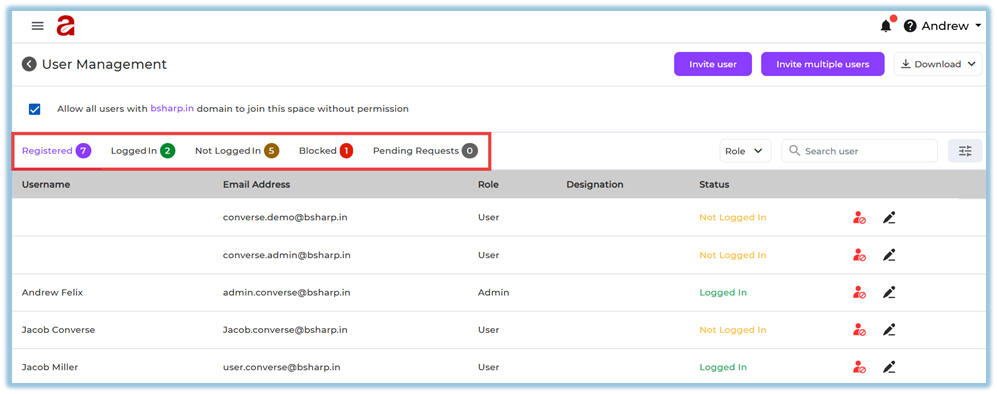
-
Registered
-
Logged In
-
Not Logged In
-
Blocked
-
Pending Requests
Each tab shows the count of users in that category.
Search & Filter Users
You can:
-
Search users by name or email
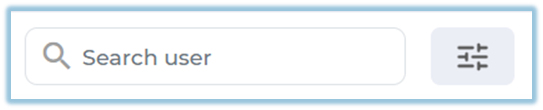
-
Filter users by Role (All, User, Admin, Creator)
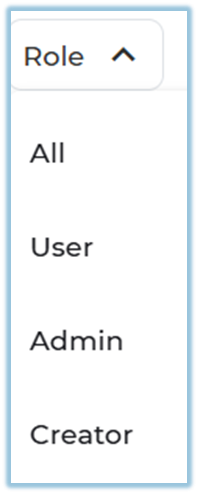
-
Use advanced filters to search by:
-
First Name
-
Last Name
-
Email ID
-
Mobile Number
-
Designation
-
Country
-
Date of Birth
-
Date of Joining
-
Manager
-
Trainer

-
Invite a Single User
-
Click Invite User

-
Enter user details:
-
First Name
-
Last Name
-
Mobile Number
-
Date of Birth
-
Email ID
-
Hired On date
-
Country, State, City
-
Designation
-
Manager Email Address
-
Trainer Email Address (optional)
-
Mentor Email Address (optional)
-
-
Click Send Invite

-
User receives an invitation notification
Invite Multiple Users (Bulk Upload)
-
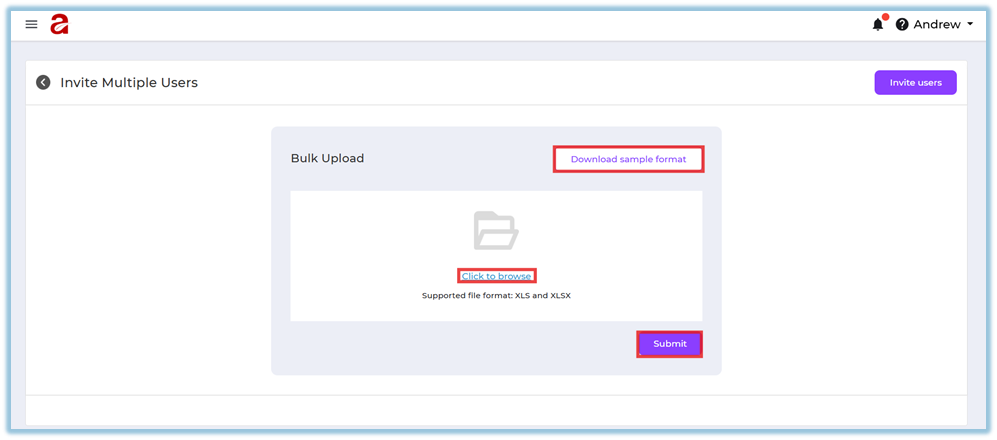
Click Invite Multiple Users
-
Download the sample format
-
Fill in user details in the file
-
Upload the completed file
-
Click Submit
-
System displays:
-
Success message if upload is valid
-
Error details if any records fail
-
-
The error file can be downloaded.
Download User Data
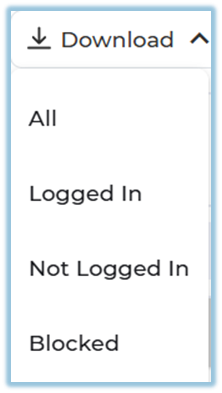
Admins can download:
-
All users
-
Logged-in users
-
Not logged-in users
-
Blocked users
4.2 User Attributes
User Attributes control what user information is available for reports.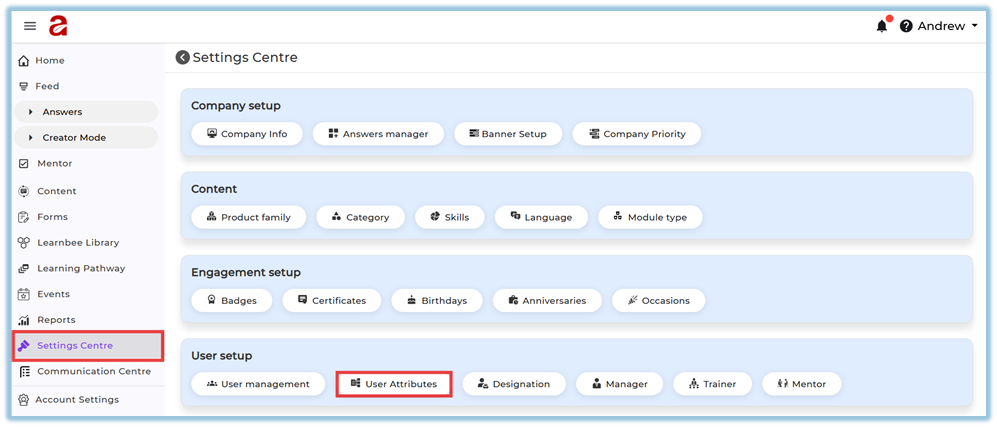
Attribute Visibility
-
Green eye icon → Attribute included in reports
-
Red eye icon → Attribute excluded from reports
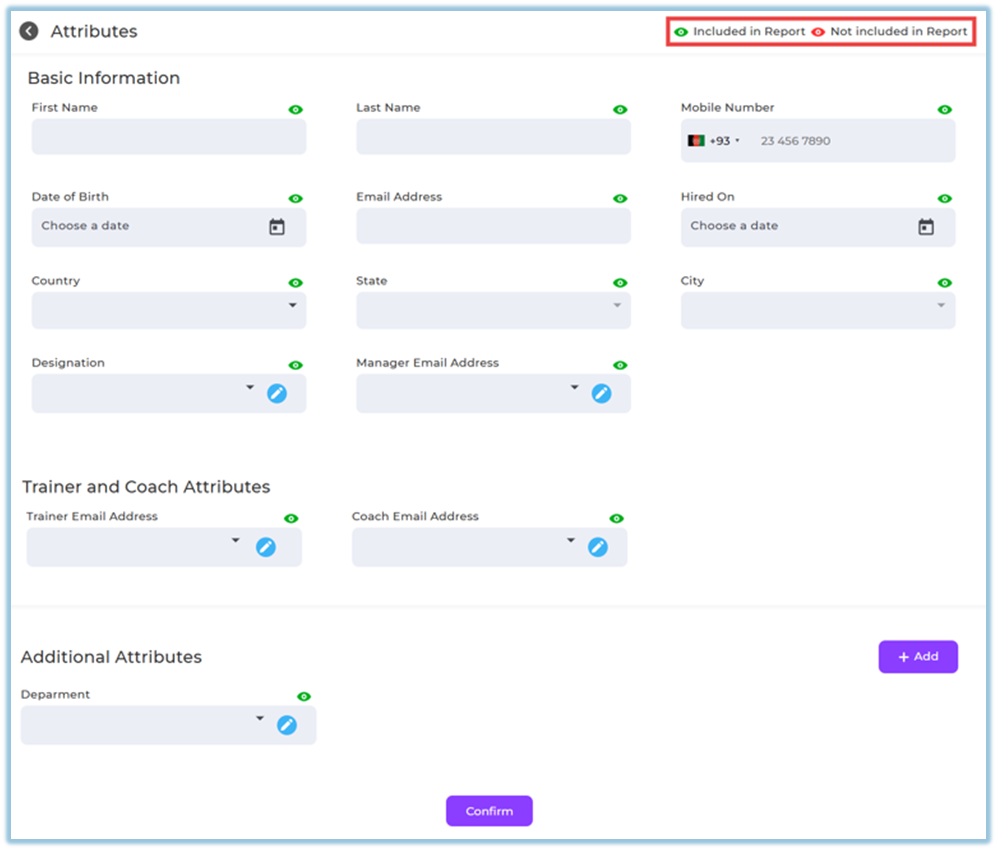
This applies to:
-
Basic attributes
-
Trainer and Mentor attributes
-
Additional attributes
Add Additional Attributes
-
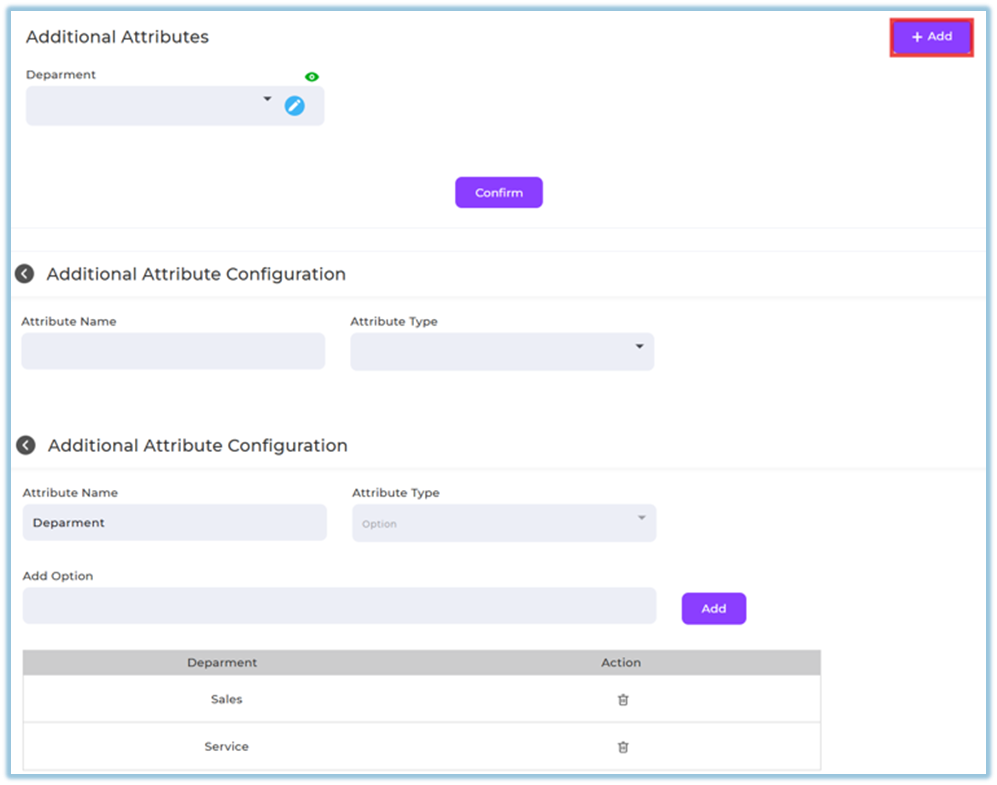
Click Add under Additional Attributes
-
Enter:
-
Attribute Name
-
Attribute Type
-
-
Save and confirm
4.3 Designation
Designations define user roles shown across the platform.
https://converse.bsharpcorp.com/celebrate/settings_center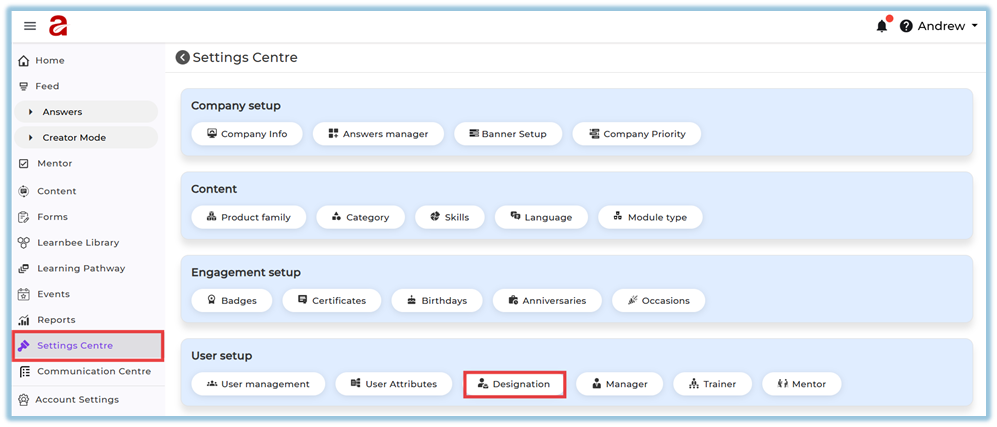
Add Designation
-
Enter designation name
-
Click Add

Usage Notes
-
Designations appear in user creation dropdowns
-
For bulk uploads, designation text must exactly match what is configured
-
Designations can be reordered or removed if needed
4.4. Manager Setup
-
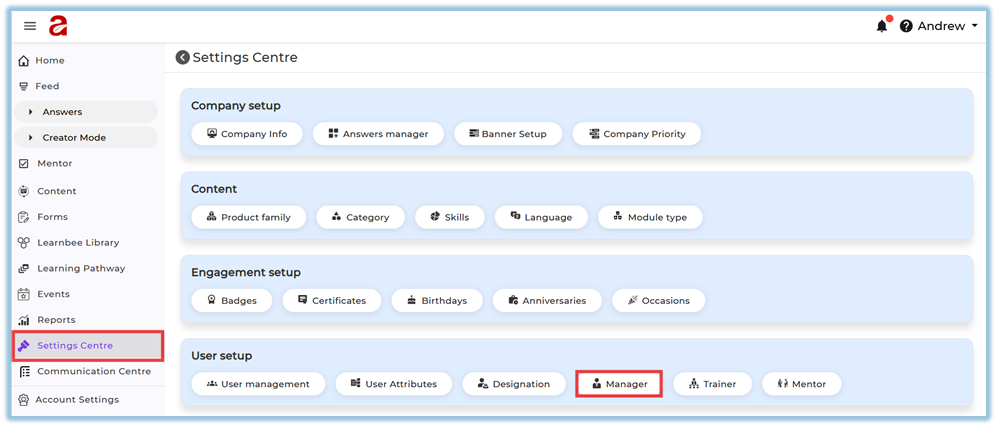
Go to Settings Centre → User Setup → Manager
-
Click Select Manager
-
From the dropdown, select a logged-in user who should act as a Manager
-
Click Add

This action makes the selected user a Manager in the system.
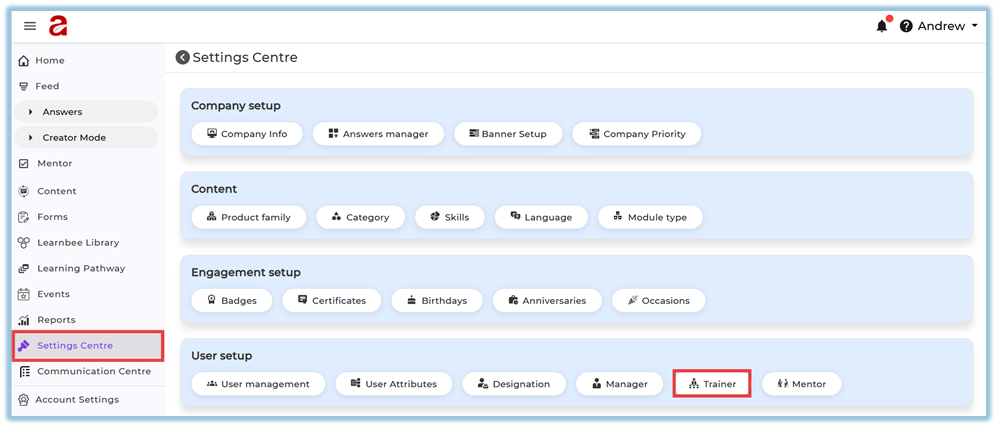
4.5. Trainer Setup
-
Go to Settings Centre → User Setup → Trainer
-
Click Select Trainer
-
From the dropdown, select a logged-in user who should act as a Trainer
-
Click Add
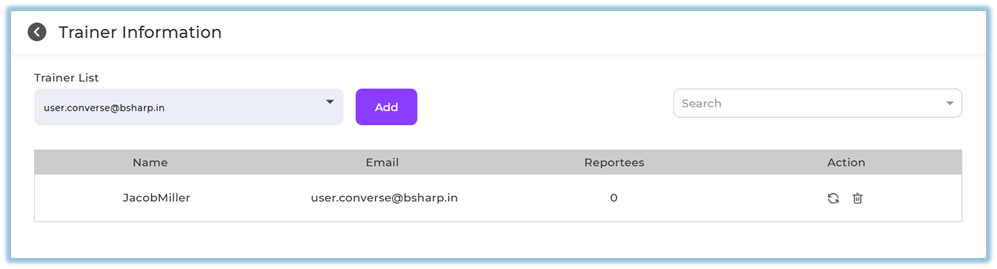
The selected user is now enabled as a Trainer.
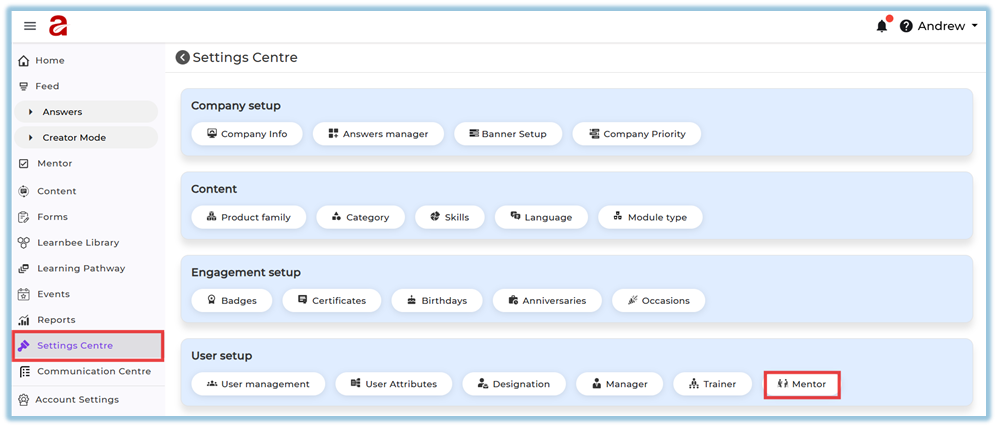
4.6. Mentor Setup
-
Go to Settings Centre → User Setup → Mentor
-
Click Select Mentor
-
From the dropdown, select a logged-in user who should act as a Mentor
-
Click Add
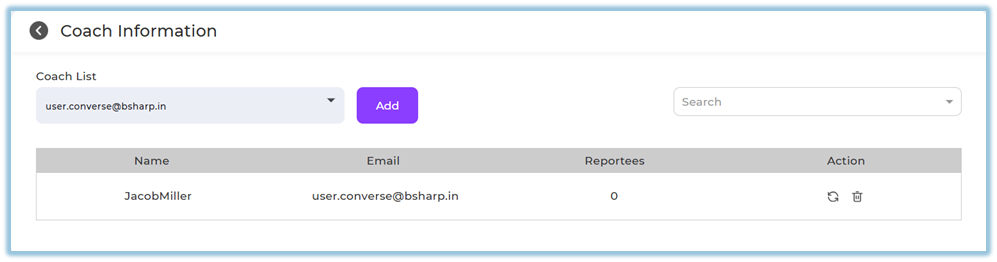
The selected user is now enabled as a Mentor.
How to Assign Manager / Trainer / Mentor to Users
You can assign roles in two ways:
Option A: While Creating a New User
-
Go to User Management → Invite User
-
Fill in user details
-
Select Manager / Trainer / Mentor email as required
-
Click Send Invite
Option B: For Existing Users
-
Go to User Management
-
Open the user profile
-
Select Manager / Trainer / Mentor under the respective fields

-
Click Save
5. User View
Admin View
Admins can view and manage user details from:
-
User Management → User Profile
-
Account Settings → Profile
From here, admins can:
-
View full user details
-
Edit profile information
-
Assign or change Manager / Trainer / Mentor
-
Block or unblock users
End User View
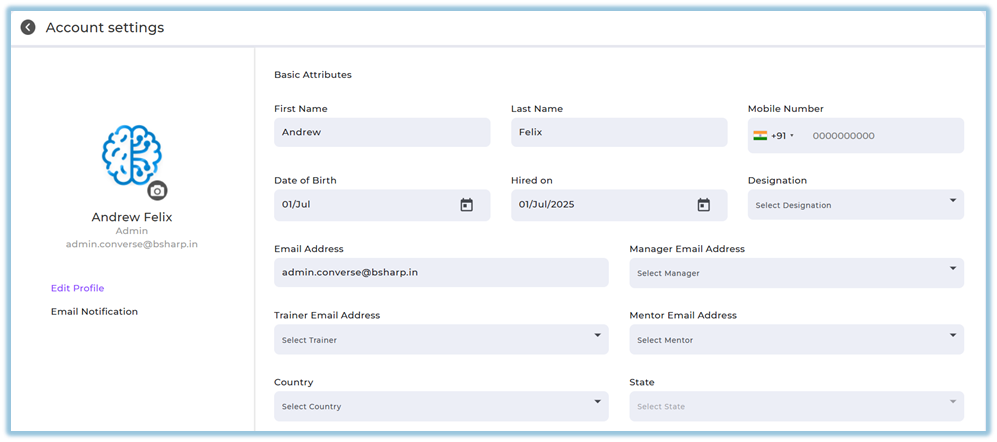
Users can view their details under Profile → Account Settings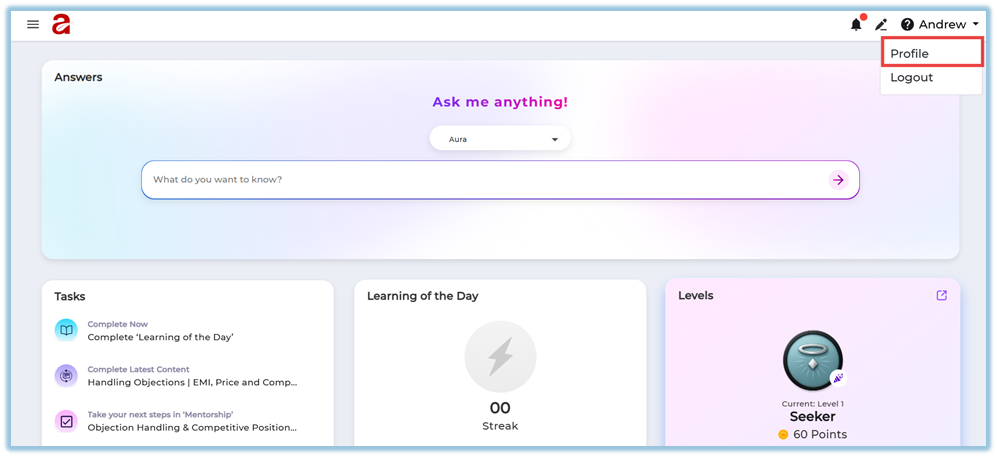
-
Basic information
-
Designation and role
-
Manager, Trainer, Mentor
-
Country, state, city
-
Additional attributes
6. Reporting
-
Only attributes marked with 🟢 (Included in Report) will appear in reports.
-
Reporting accuracy depends on proper user setup and assignments.
7. Best Practices
-
Keep user attributes clean and consistent
-
Block users who have exited the organization
-
Ensure designations match during bulk uploads
-
Assign managers, trainers, and mentors before launching learning
8. Related Links / FAQs
9. Version Notes
Last Updated: 30 Dec 2025