
How do I configure a calendar widget?
Overview
A calendar widget lays your data out on a calendar grid, so you can see how records are distributed across dates at a glance.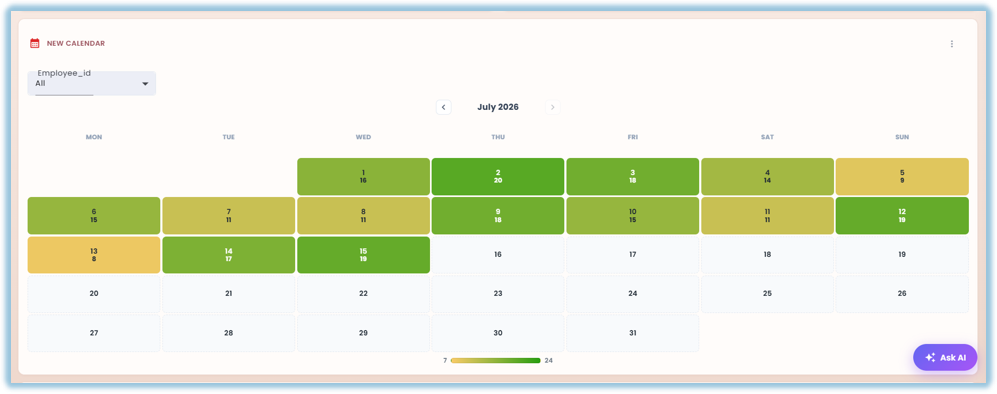
When to Use
Use this feature when:
- You want to see how records are spread across dates — submissions, visits, or any dated activity
- You want a day-by-day or month-by-month view instead of a table or chart
Concepts
- Calendar Widget – A month-grid widget built from one Date column; each day shows either a heatmap-shaded metric or a status, depending on whether an Entity is pinned to a single value
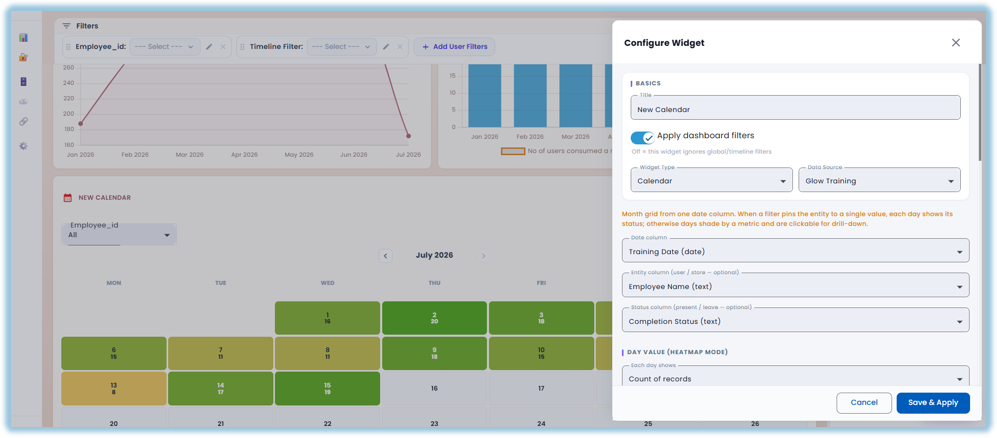
- Date Column – Required: the date field the calendar grid is built from
- Entity Column – Optional: a user or store-type field (such as Employee Name); when a filter pins this to a single value, the calendar switches to State mode and shows each day's Status instead of a heatmap metric
- Status Column – Optional: a present/leave-type field (such as Completion Status) used in State mode, once each value is mapped under Status Colors
- Heatmap Mode – The calendar's default view when no single Entity is pinned: each day shades by the metric set under Day Value, and is clickable for drill-down
- State Mode – The calendar's view once a filter pins the Entity to one value: each day shows its Status color instead of a heatmap shade
- Day Value (Heatmap Mode) – "Each day shows" sets the aggregation shaded on each day in Heatmap mode, such as Count of records
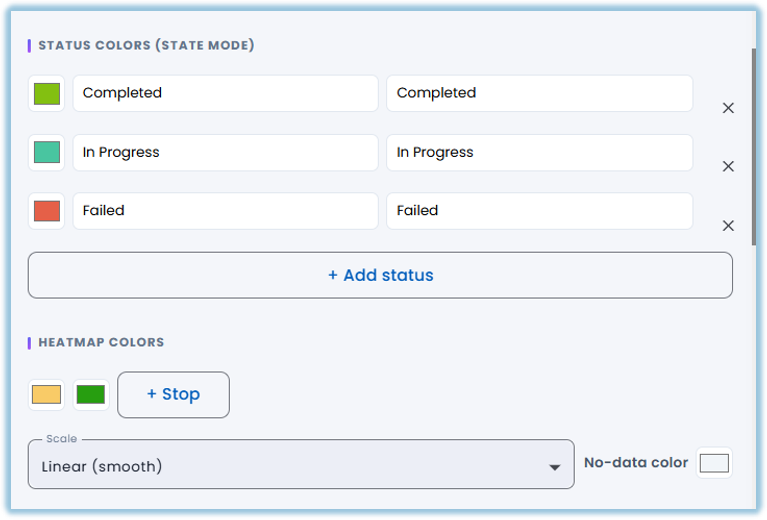
- Status Colors (State Mode) – The color you assign to each Status value, added one at a time with + Add status
- Heatmap Colors – The color gradient used to shade days in Heatmap mode — its stops, a Scale (such as Linear (smooth)), and a No-data color for days with nothing to show
- Summary Strip – An optional row of summary cards shown alongside the calendar, turned on or off under Summary Cards
Set Up Guide
- Go to a dashboard and click Add Widget, then set the Title, Apply Dashboard Filters, Widget Type (Calendar), and Data Source as usual
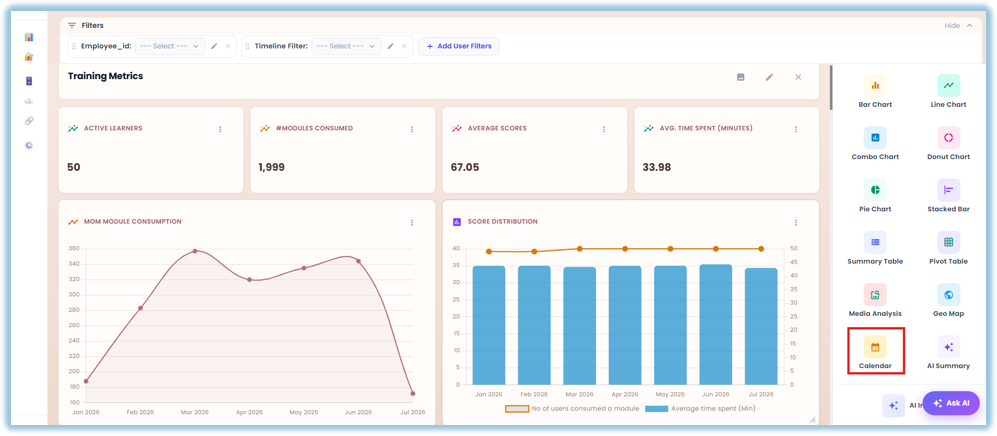
- Choose the Date column — the field the calendar grid is built from
- Optionally choose an Entity column (a user or store field) and a Status column — together these drive State mode, where pinning a filter to one entity shows each day's status instead of a heatmap
- Under Day Value (Heatmap Mode), set "Each day shows" — the aggregation shaded on each day when no single entity is pinned, such as Count of records
- Under Status Colors (State Mode), click + Add status for each Status value and assign it a color
- Under Heatmap Colors, set the gradient stops, the Scale, and a No-data color for days with nothing to show
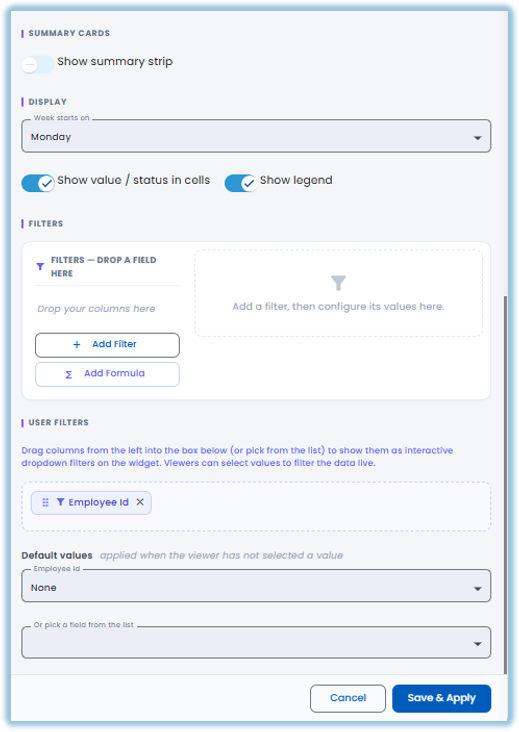
- Under Summary Cards, turn on Show summary strip if you want a row of summary cards alongside the calendar
- Under Display, set Week Starts On, and turn Show value/status in cells and Show legend on or off
- Add any Filters you want the calendar to respect, and set up User Filters — with Default Values — if you want viewers to adjust them
- Click Save & Apply
Best Practices
- Set both an Entity column and a Status column together — State mode only kicks in once a filter pins the Entity to one value and every status has a color under Status Colors, so setting only one keeps the calendar in Heatmap mode
- Give every Status a distinct color under Status Colors — an unmapped or duplicate-colored status is hard to tell apart on the grid
- Set a deliberate No-data color under Heatmap Colors — it's how you tell "zero" apart from "no data at all" on days with nothing recorded
- Double-check the Date, Entity, and Status columns after reopening a saved calendar widget — these have reset on reopen in the past, so confirm they're still set the way you want before saving again
Related Links/FAQs
- What widget types are available in Vantage?
- How do I configure a summary table or pivot table widget?
- How do I configure a geo map widget?
FAQs
What's the difference between Heatmap mode and State mode?
Heatmap mode (the default) shades each day by the metric you choose under Day Value. State mode replaces that with a color per status, and only turns on once a filter pins the Entity column to a single value.
Do I need to set an Entity and Status column?
No — both are optional. Without them, the calendar stays in Heatmap mode, shading each day by the Day Value metric.
Can viewers filter the calendar themselves?
Yes — add columns under User Filters to expose them as dropdown filters, with an optional Default Value for before the viewer picks one.
Version Notes
Last Updated: Oct 2026