
How to use Classroom?
1. Overview
The Classroom module allows organizations to manage instructor-led training through Admin and Learner views. It supports course creation, trainer assignment, document sharing, session management, learner participation, and training progress tracking within the Converse platform.
2. When to Use
- When creating and managing classroom-based training programs.
- When assigning trainers and uploading course-related documents.
- When learners need to attend scheduled training sessions and review completed sessions.
- When tracking classroom sessions, attendance, and learner participation.
3. Concepts
4. Set Up Guide
Access Classroom
- Open the Menu from the left navigation panel.
- Select Classroom.
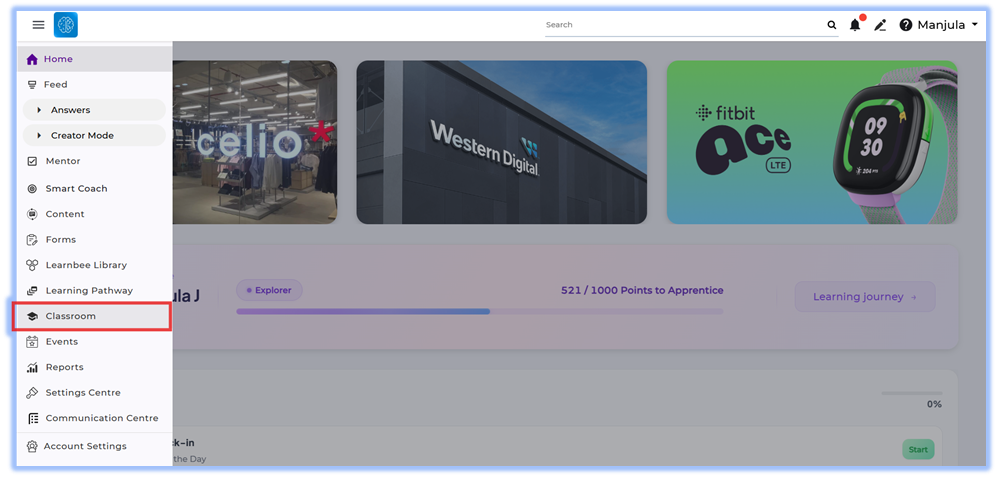
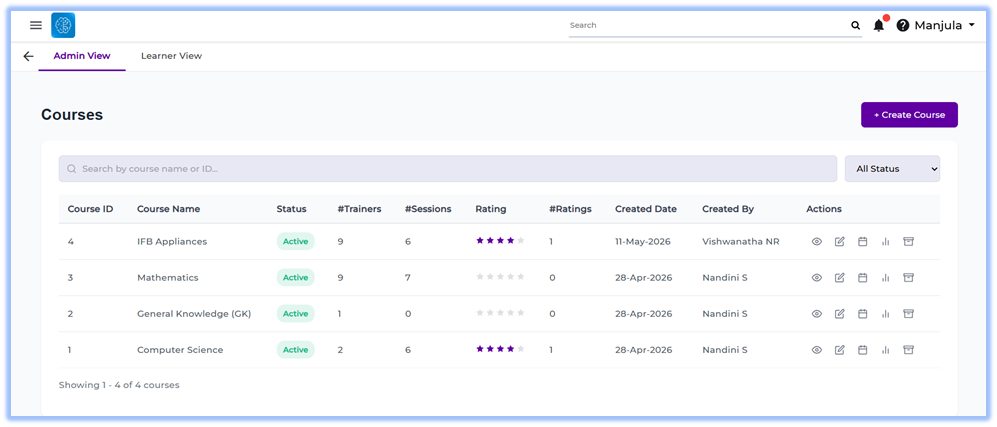
- Open the Admin View tab.
Create a Course
- Click + Create Course.
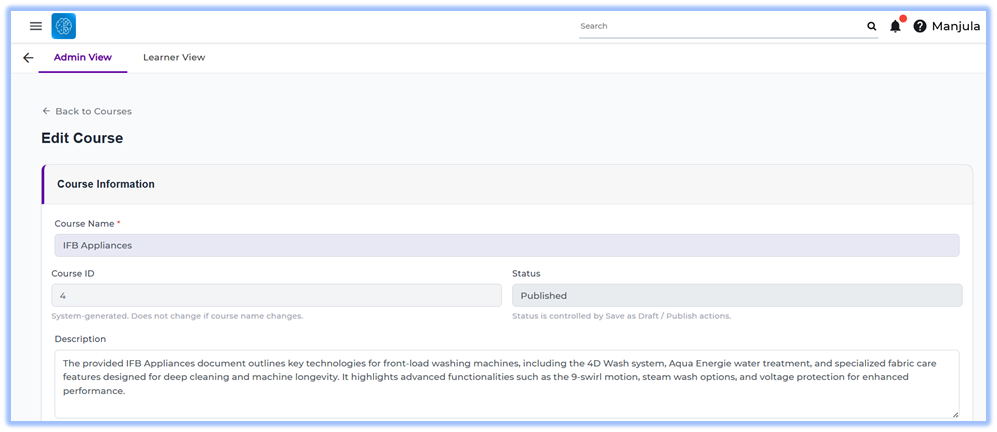
- Enter the Course Name.
- Review the system-generated Course ID.
- Enter the Description.
Configure Course Details
- Select the required Skill.
- Select the required Sub-skill.
- Select the required Product Family.
- Select the required Product.
Upload Documents
- Navigate to the Documents section.
- Click + Upload Document.
- Upload the required course documents.
Supported documents shown in the UI include:
- PDF documents
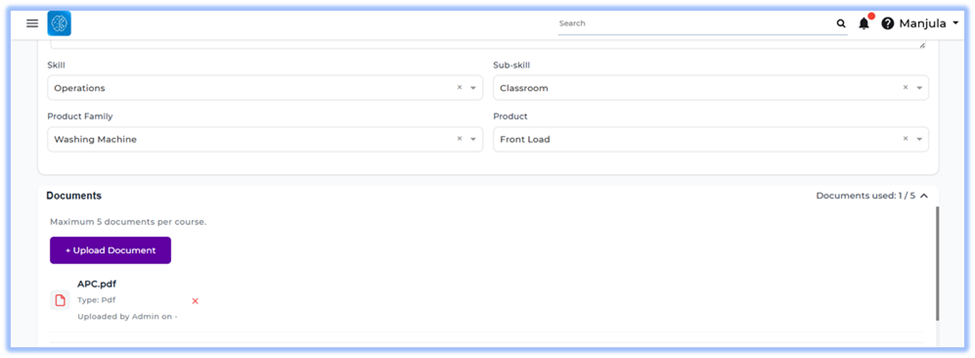
- Review uploaded documents in the document list.
Configure Trainer Access
- Enable Allow trainers to upload documents if trainer uploads are required.
- Navigate to the Invite Trainers section.
- Select one of the following options:
- Invite All Trainers
- Invite Specific Trainers
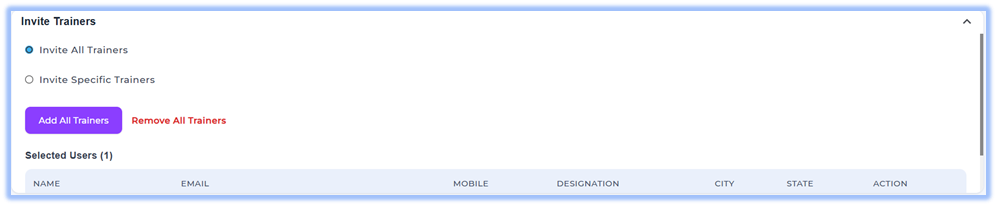
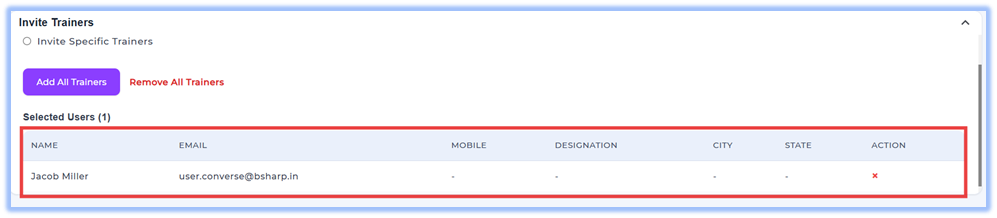
- Click Add All Trainers if inviting all trainers.
- Review trainers under the Selected Users table.
Save or Publish the Course
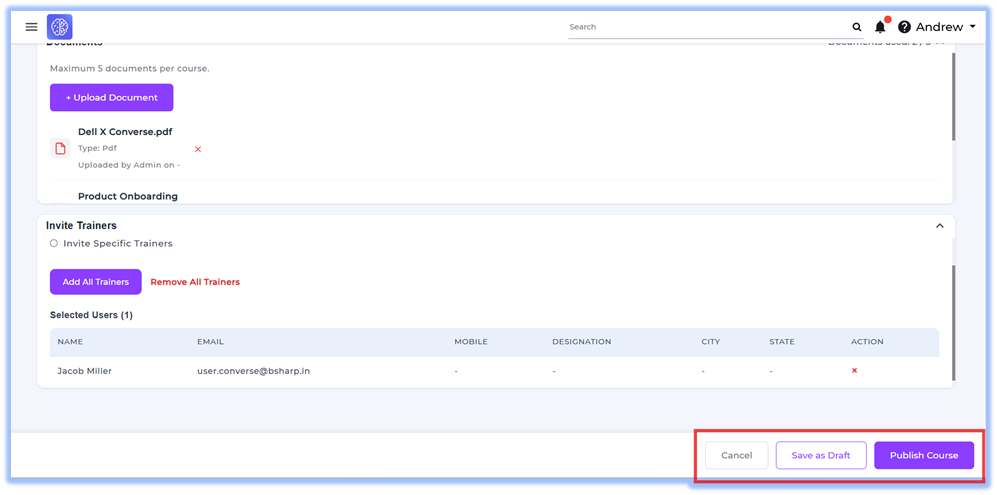
- Click Save as Draft to save the course without publishing.
- Click Publish Course to make the course active.
Access Learner View
- Open the Learner View tab.
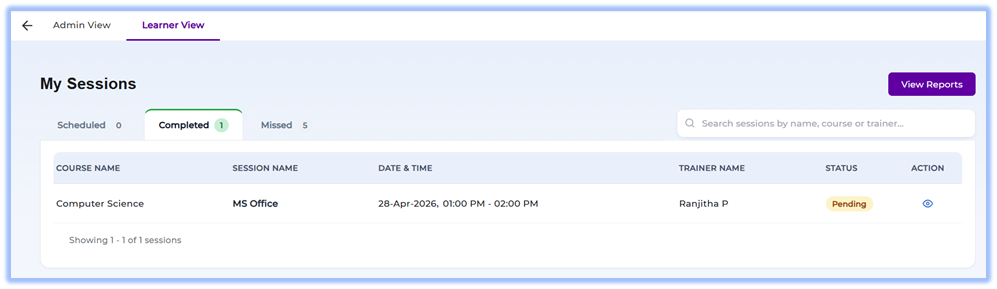
- Review learner session categories:
- Scheduled Sessions
- Completed Sessions
- Missed Sessions
- Click View Session to open a session.
- Click View Reports to access learner reports.
5. User View
Admins can view all created courses, trainer assignments, uploaded documents, session counts, ratings, and course status from the Classroom dashboard.
Learners can access sessions through the Learner View tab, where sessions are grouped under:
- Scheduled Sessions
- Completed Sessions
- Missed Sessions
Each session displays:
- Course Name
- Session Name
- Date & Time
- Trainer Name
- Session Status
- Invite Status
Learners can open sessions using the View Session option.
6. Reporting
The Classroom module includes reporting access through the View Reports option available in the Learner View.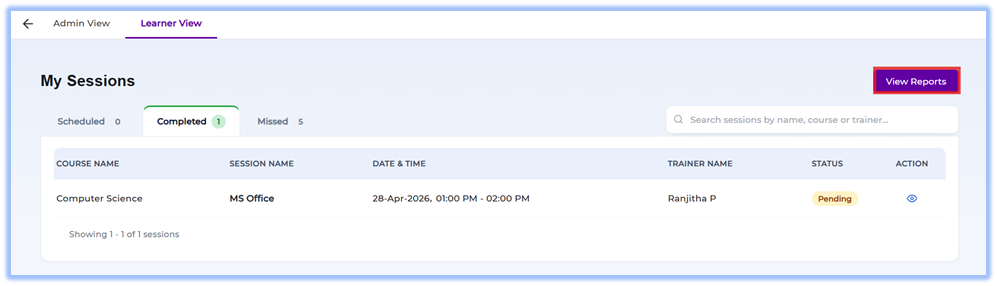
The source also specifies the following report types:
- Session-level reports
- Trainer-level reports
- Detailed session reports
These reports include:
- Learner participation
- Attendance information
- Document engagement
- Learner scores
7. Best Practices
- Upload all required course documents before publishing the course.
- Verify trainer assignments before scheduling sessions.
- Use Draft status while configuring incomplete courses.
- Review learner session categories regularly to track participation.
- Keep course information updated for accurate reporting.
8. Related Links / FAQs
Q: Where can Classroom be accessed?
A: Classroom can be accessed from Menu → Classroom.
Q: What are the available Classroom tabs?
A: The module includes:
- Admin View
- Learner View
Q: Can trainers upload documents?
A: Yes. Admins can enable Allow trainers to upload documents.
Q: What session categories are visible in Learner View?
A: Learners can view:
- Scheduled Sessions
- Completed Sessions
- Missed Sessions
Q: Can courses be saved without publishing?
A: Yes. Courses can be saved using Save as Draft.
9. Version Notes
Last Updated: 22 May 2026
No Comments