
How do I access LearnBee, Quiz Bank, and Poll Templates?
Overview
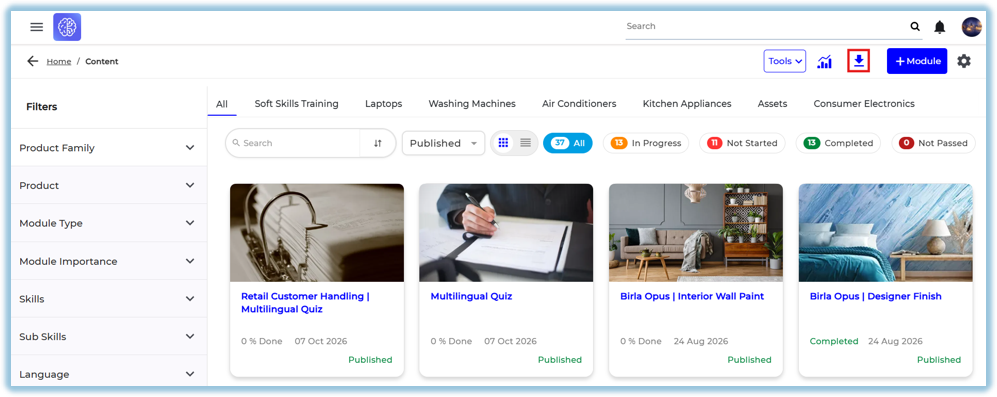
The Content screen toolbar gives quick access to the tools for building and managing training content: the Tools dropdown (LearnBee, Quiz Bank, Poll Templates), the analytics icon (module performance reports), the download icon (export module data), +Module (create a new module), and the settings gear (manage Skill, Product Family, Module Type, and Module Language lists).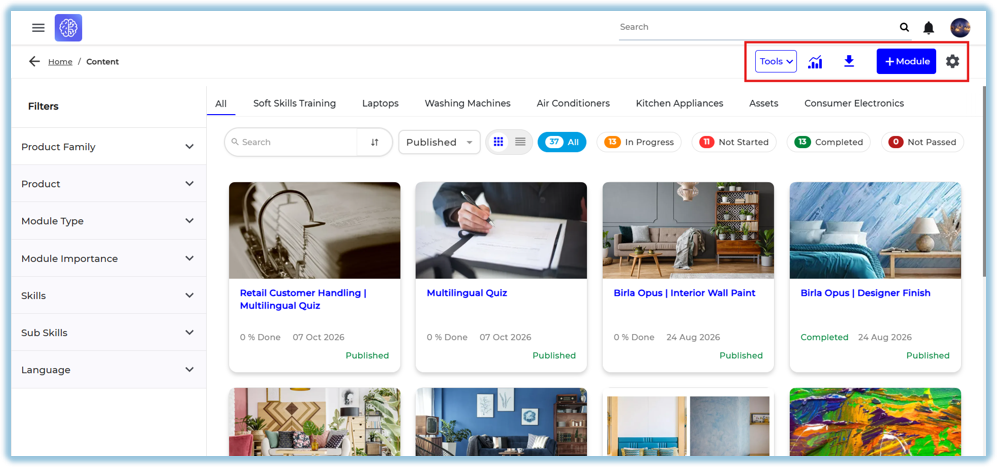
When to Use
Use this feature when:
- You want to create or manage courses in LearnB
- You want to build or review quizzes in Quiz Bank
- You want to create a poll — using AI, from scratch, or from an Excel upload
- You want to view a module's completion and performance data
- You want to export module or report data
- You want to add a new module
- You want to manage the Skill, Product Family, Module Type, or Module Language lists used across modules
Concepts
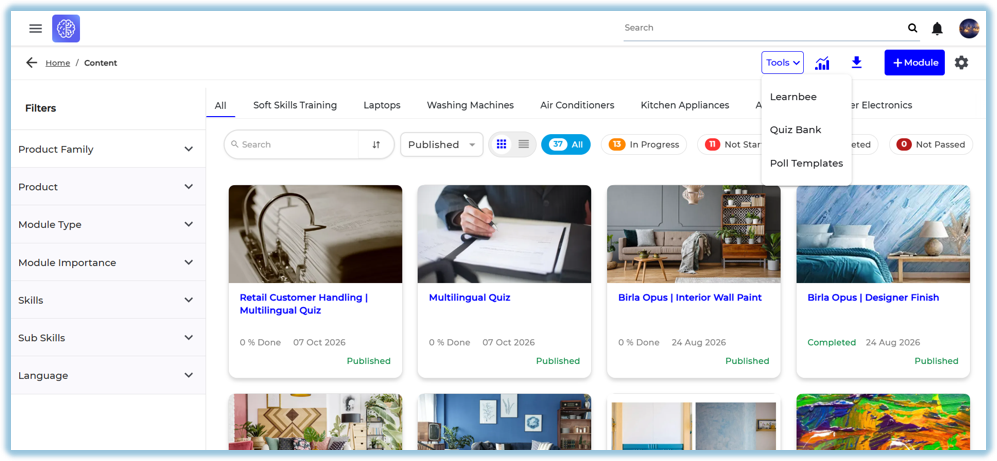
- Tools dropdown – Toolbar menu with LearnB, Quiz Bank, and Poll Templates
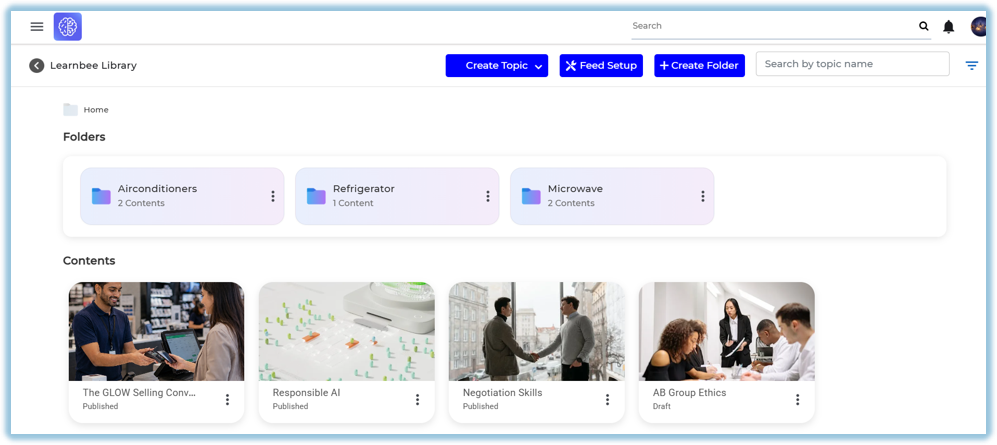
- LearnB – The course library where you create and manage learning content, organized into folders
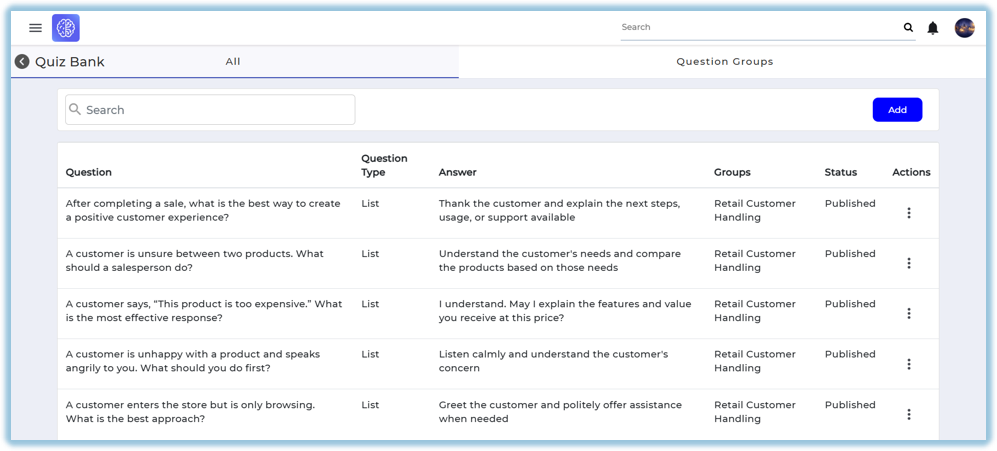
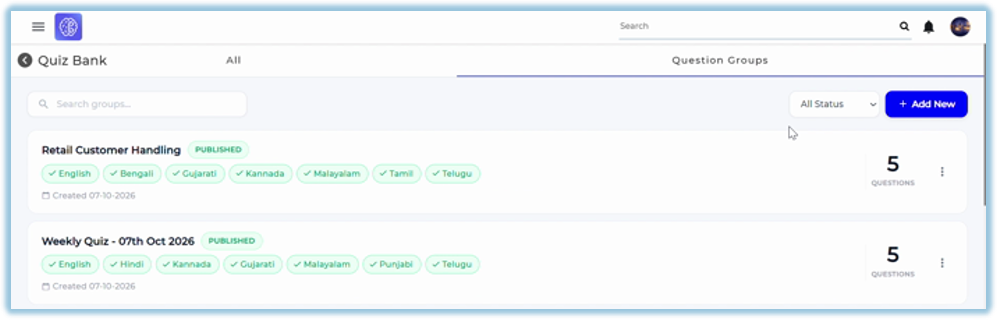
- Quiz Bank – Where quizzes are listed and created, with All (flat question list) and Question Groups (grouped by quiz) tabs
- Poll Templates – Where polls are listed and created, in three ways: Generate with AI, From Scratch, or From Excel Uploader
- Question Group – A named set of questions created together under Quiz Bank, which can be assigned to users
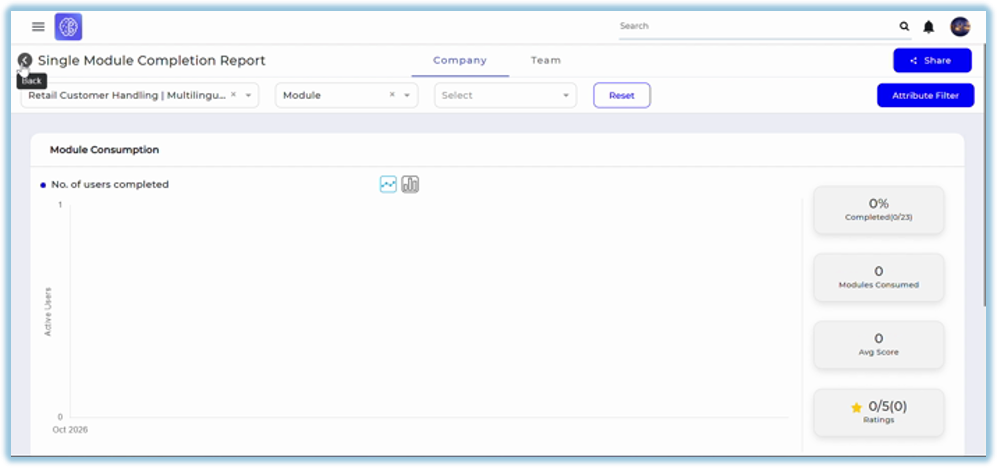
- Single Module Completion Report – Opened from the analytics icon; shows a module's % completed, users completed, modules consumed, average score, and ratings
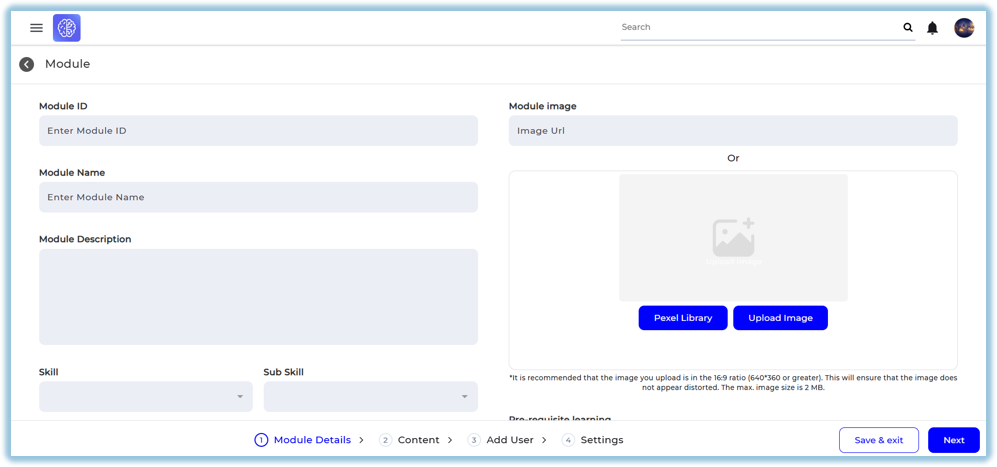
- +Module – Opens a 4-step wizard (Module Details, Content, Add User, Settings) to create a new module
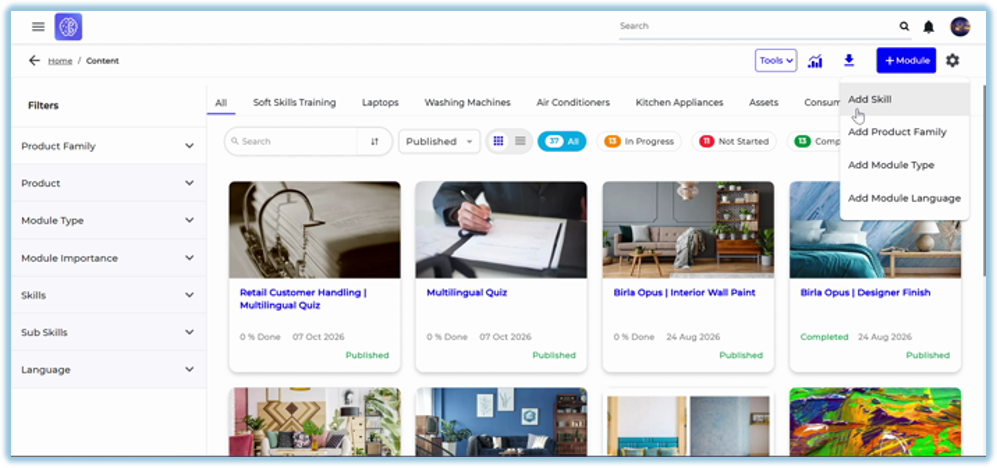
- Settings gear – Opens a dropdown to add a Skill, Product Family, Module Type, or Module Language — separate from the +Module wizard
Set Up Guide
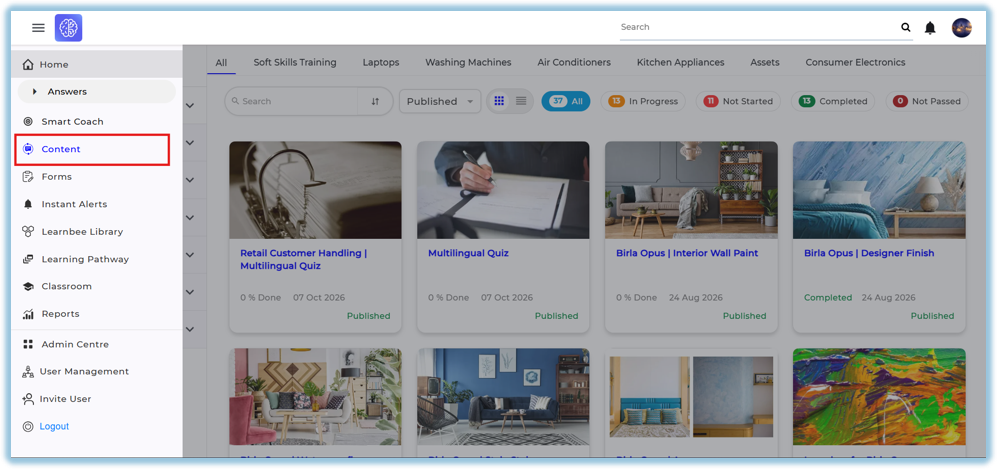
- From the Home Page, go to Content from the left menu
- Click Tools in the top-right toolbar
A. LearnBee
- Click LearnBee to open the library, where you create and manage course content in folders.
B. Quiz Bank
- Click Quiz Bank to see your quizzes.
- The All tab lists every question in a flat list.
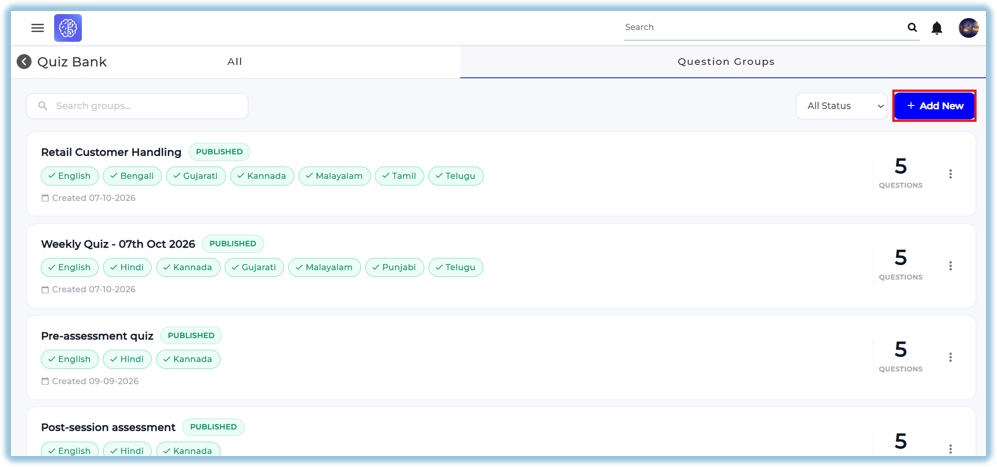
- The Question Groups tab lists quizzes as named groups, searchable by status (Published, Unpublished, Draft).
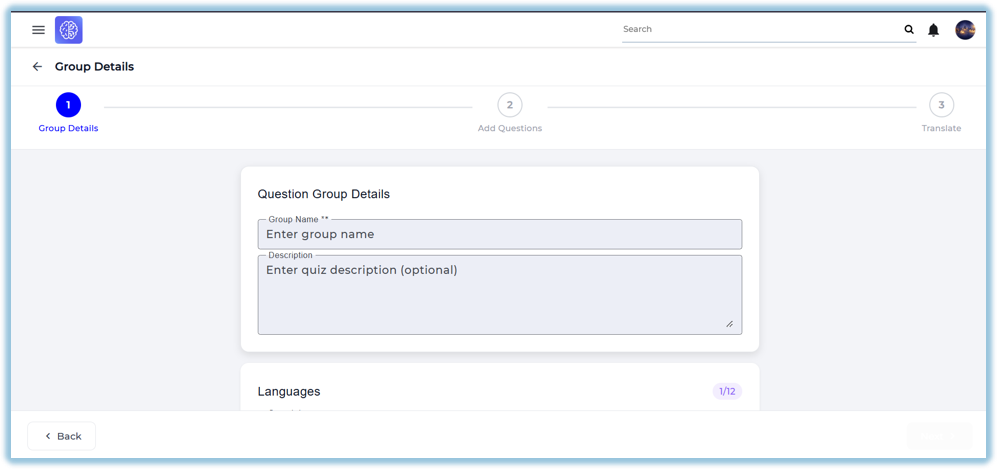
- Click Add New on Question Groups to open Group Details: name the group, add a description, and choose languages.
- Add Questions, then Translate each language, then Create Group.
C. Poll Templates
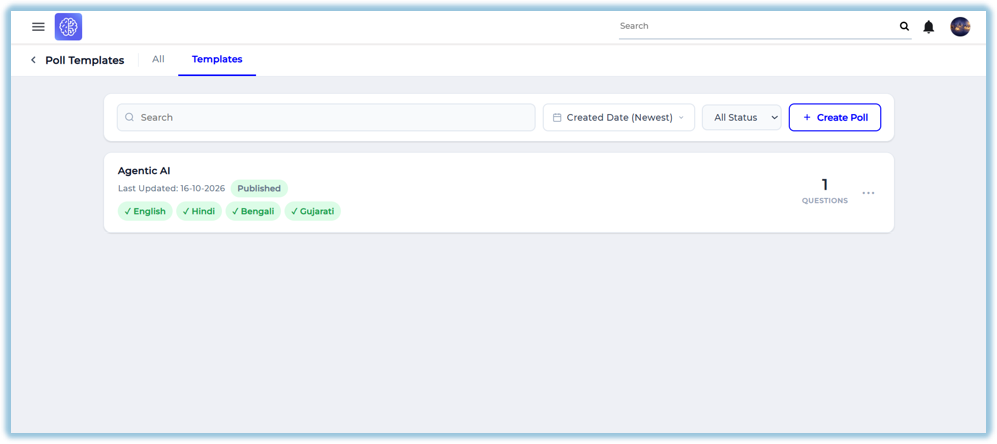
- Click Poll Templates to see your polls, searchable by status and created date.
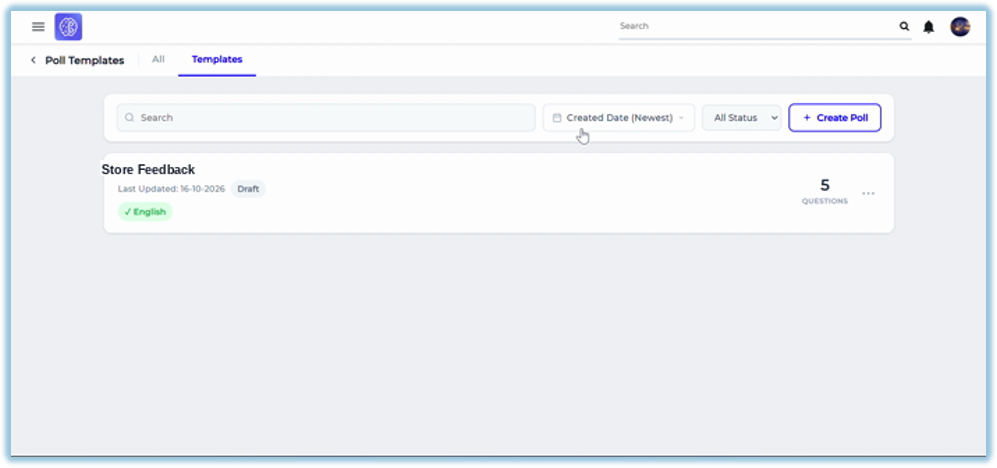
- Click Create Poll and choose a method: Generate with AI, From Scratch, or Excel Uploader.
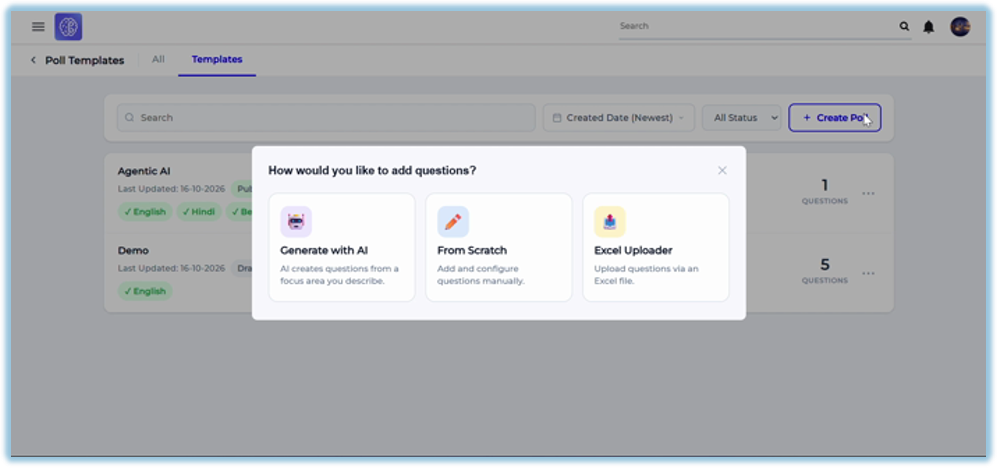
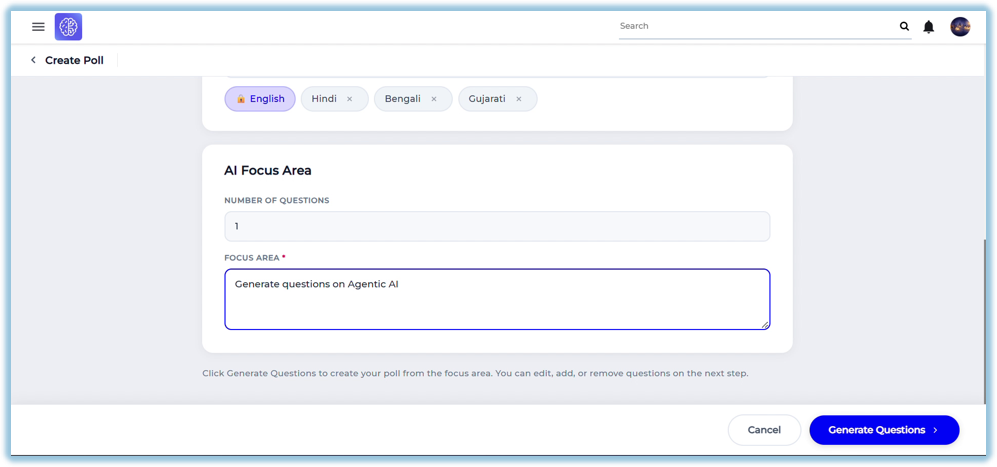
- Generate with AI — enter poll name, description, and languages, then set the number of questions and a focus area (e.g. "Generate questions on Agentic AI") → Generate Questions.
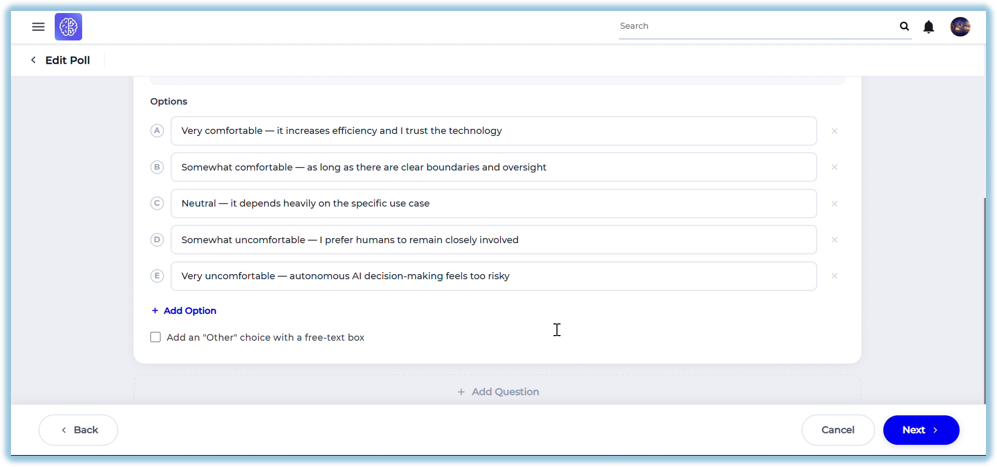
- Review and edit the AI-generated question and options → Next → translate into each language → Create Group.
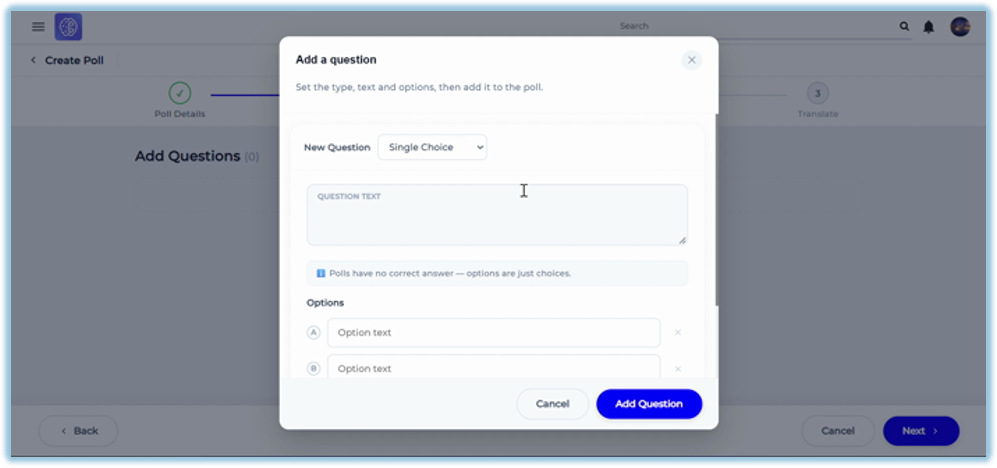
- From Scratch — enter poll name, description, and languages → Add Question, choose a question type (Single Choice, Multiple Choice, Short Text, Long Text, Numeric, Rating Scale, Likert Scale), and enter the text and options → Next → translate → publish.
- From Excel Uploader — enter poll name, description, and languages → download the template, fill it in, then click the upload area to import it.
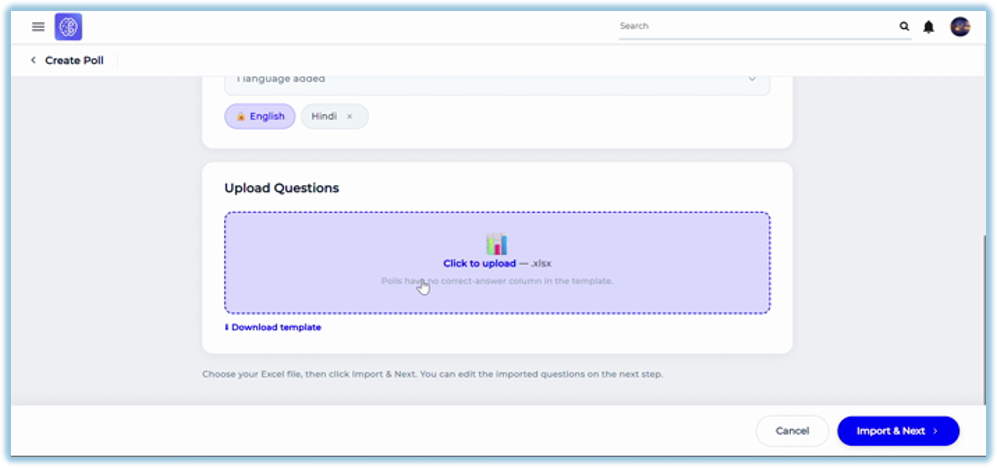
- Click Import & Next → review the imported questions → translate → publish. Published and draft polls both appear in Poll Templates.
- Click the analytics (report) icon to open the Single Module Completion Report for a module — shows % completed, users completed, modules consumed, average score, and ratings.
- Click the download icon to export the report, then choose a file type and location in the Save As dialog.
- Click +Module to add a new module through a 4-step wizard: Module Details (ID, name, description, image, skill/sub-skill) → Content → Add User → Settings.
- Click the settings gear to manage the dropdown lists used across modules: Add Skill, Add Product Family, Add Module Type, or Add Module Language.
Related Links / FAQs
FAQs
What's the difference between Quiz Bank and Poll Templates?
Quiz Bank is for graded quizzes; Poll Templates are for ungraded polls, with AI, scratch, or Excel creation options.
Can I translate a poll after publishing?
Translate before publishing — languages are set when you create the poll.
How many languages can a poll support?
Up to 12.
Where do I assign a poll's question group?
After creating the group, assign it to users from the Question Groups tab.
Does the settings gear create a module?
No — it manages the Skill, Product Family, Module Type, and Module Language lists used across all modules. To add a module itself, use +Module.
Version Notes
Last Updated: Oct 2026
No Comments