
Product Filters
1. Overview
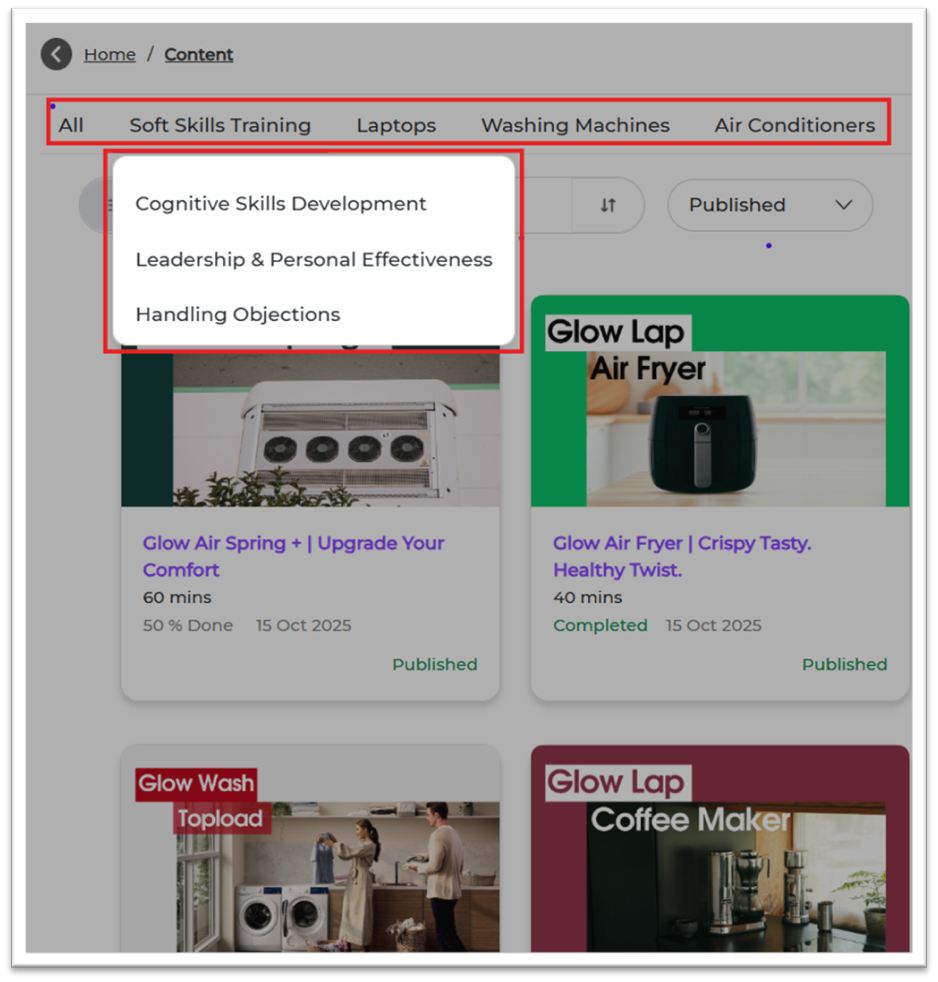
Product Filters help you group training modules based on products. This makes it easy for learners to search, filter, and find the right content.
Example:
- Product: Washing Machine
- Sub-Products: Front Load, Top Load
2. When to Use
Use this feature when you want to:
- Group modules according to product categories
- Assign learning specific to certain product lines
- Provide product-based learning for sales/service teams
- Enable better filtering in Content and Reports
3. Concepts
- Product: Main product category
- Sub-Product: Detailed category under a product
- Module Tagging: Mapping modules to the right Product & Sub-Product
- Filter: Used by learners to find product-specific content
4. Product Setup Guide
Step 1 — Where to Go
1. Login to Bsharp Converse
https://converse.bsharpcorp.com/celebrate/signin
2. Go to Settings Centre
https://converse.bsharpcorp.com/celebrate/settings_center
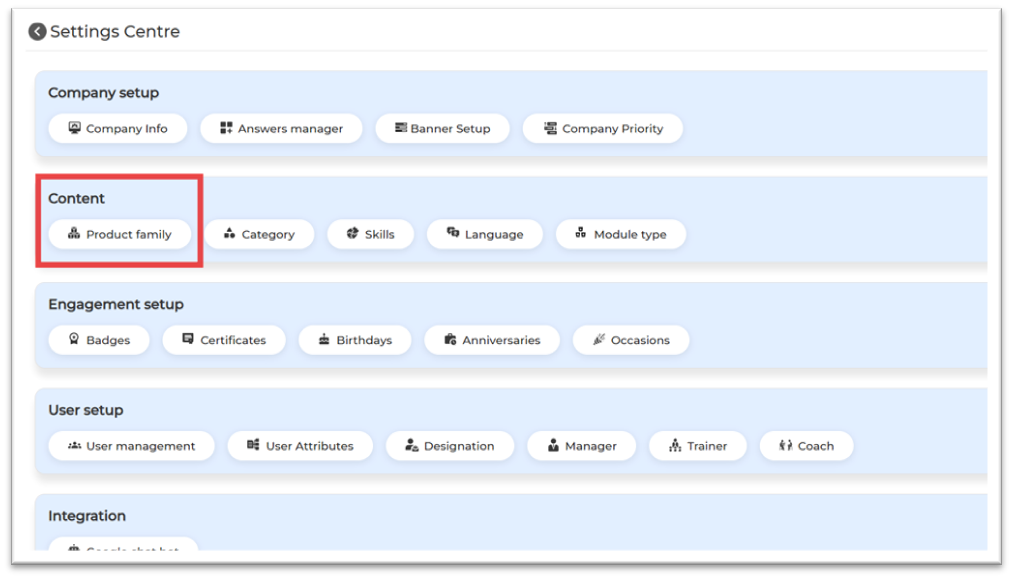
3. Under Content → Product Family
https://converse.bsharpcorp.com/celebrate/product-configuration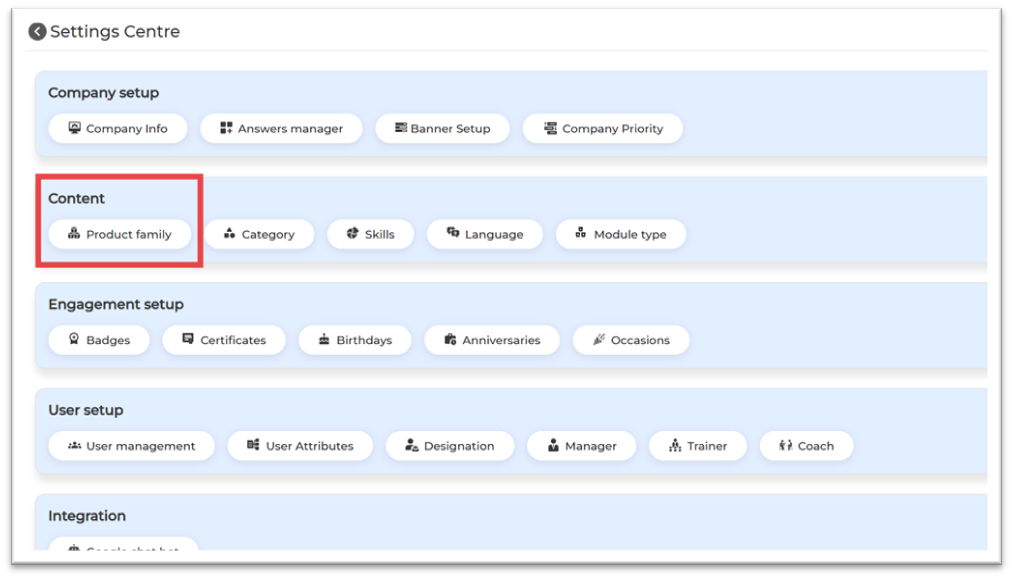
Step 2: Create Product Family and Product
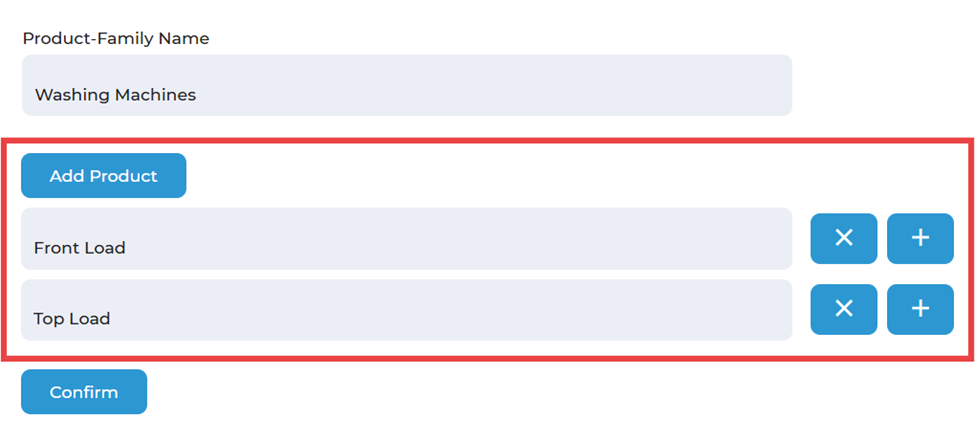
1. Click the Add Product Family button to begin creating a new product category.
2. Enter the name of the Product Family in the provided field.
Example, you can enter Washing Machine as the Product Family.
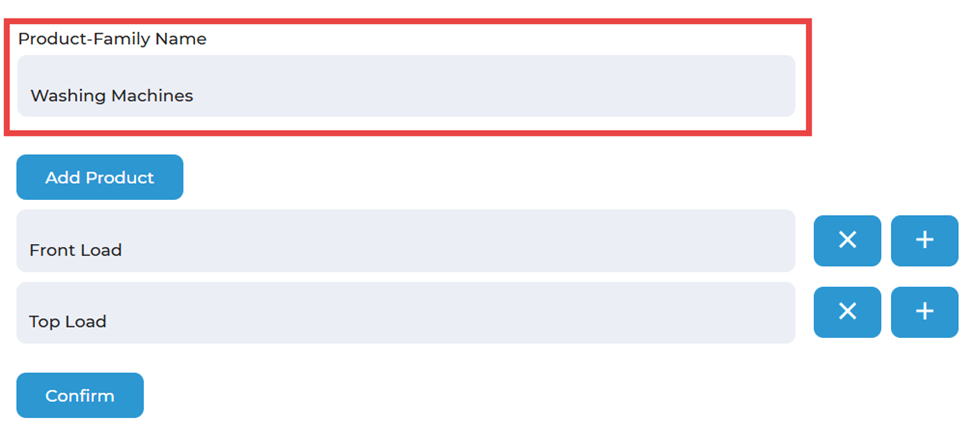
3. Click the Add Product button to create sub-categories under the main product.
4. Enter the names of the sub-products in the input fields that appear.
For example, you may enter sub-product names such as Front Load and Top Load.
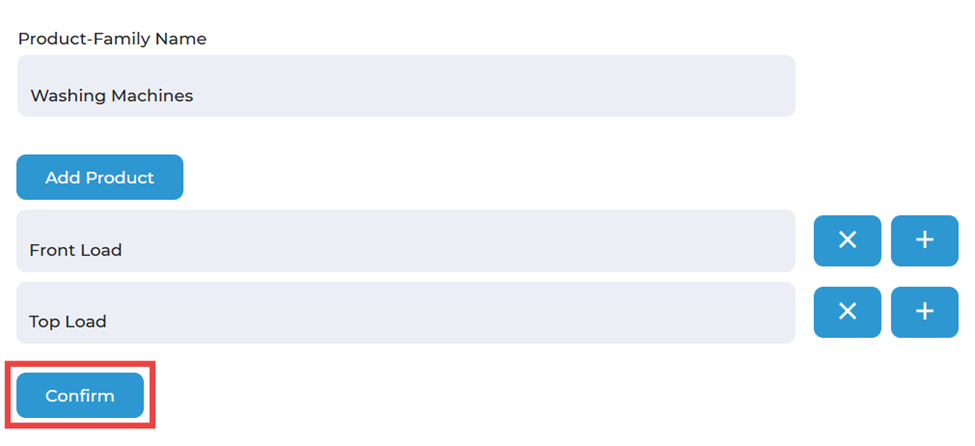
5. Click the Confirm button to save the product and its associated sub-products.
https://converse.bsharpcorp.com/celebrate/add-product-family?data=303
5. Product Mapping in Module Setup
This section explains how to map a Product Family and Sub-Product to modules. This helps learners filter and access the correct modules quickly.
Step 1: Open Content
-
Go to Content from the left panel on the home page. This section displays all modules created in the platform.
-
Select the module you want to update.
https://converse.bsharpcorp.com/celebrate/module_list
Step 2: Open Basic Info
-
Once the module opens, go to the Basic Info tab. This area contains the primary details of the module.
-
Here, you will see the fields for Product Family and Product used for product mapping.
https://converse.bsharpcorp.com/celebrate/learning-module-program-page/create-learning-module-component/0/0/0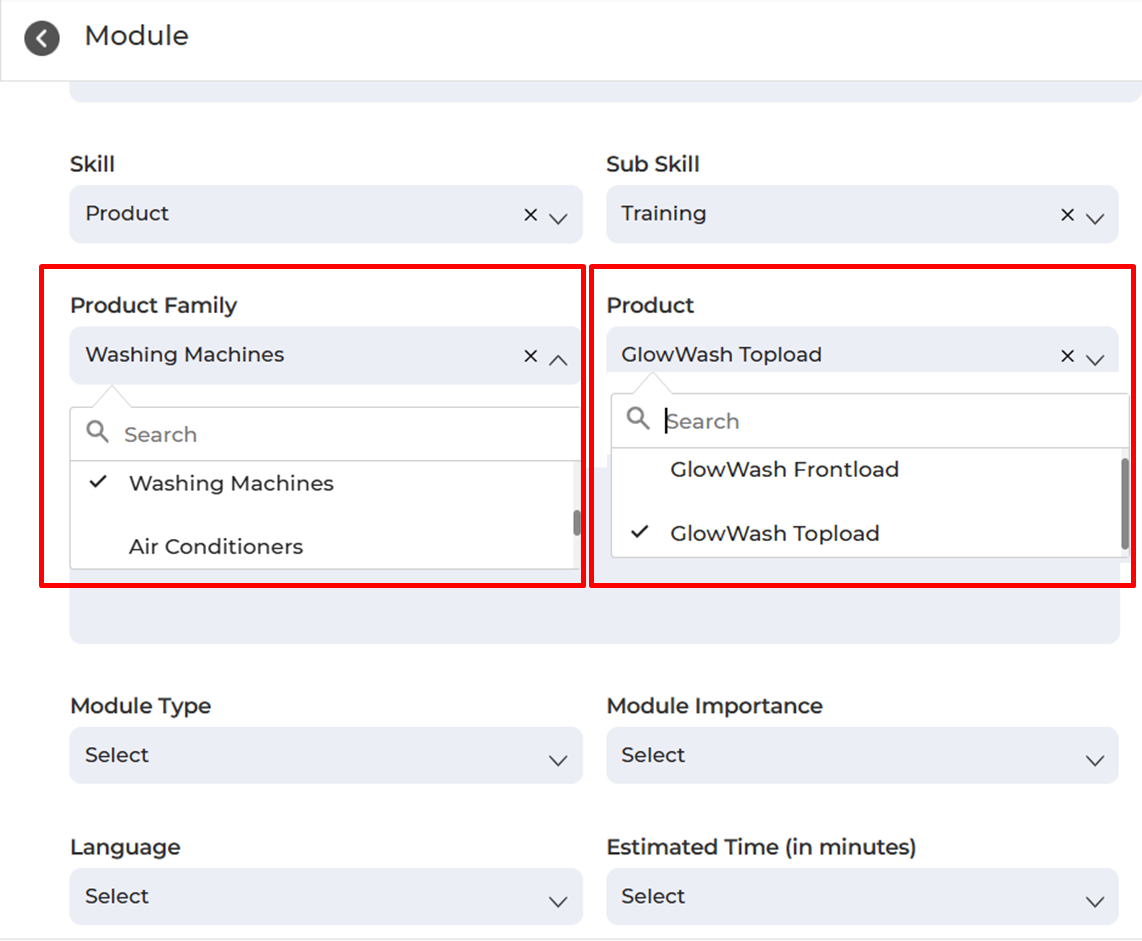
6. User View
Learners will see content grouped under the mapped product and sub-product.
This makes it easy to find product-specific training.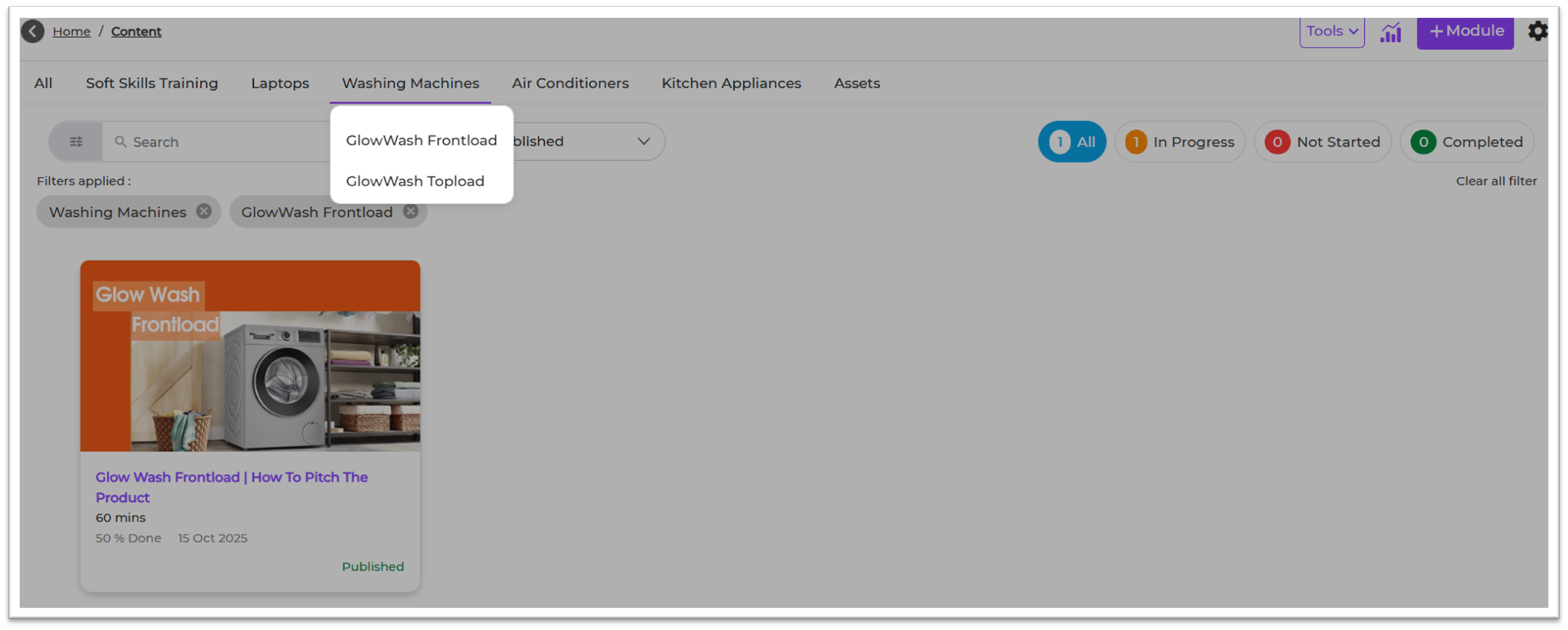
7. Reporting
Product Filters appear in reporting filters. Admins can track:
- Completion by product
- Performance by sub-product
- Time spent on product groups
8. Best Practices
- Use clear product names
- Keep sub-products simple and standard
- Avoid duplicates
- Review monthly
- Ensure all modules are correctly tagged
9. Troubleshooting & FAQs
Q1. Product not showing in module?
Create it first in Settings Centre → Product Family.
Q2. Can I edit product names?
Yes, via Edit → Save.
Q3. Can I add multiple sub-products?
Yes.
Q4. Can one module map to multiple products?
No. A module can map to only one product.
10. Related Links
11. Version Notes
Last Updated: 04 Dec 2025