
Search & Filters
1. Overview
The Search & Filters section helps learners quickly find the right training modules on the platform. It allows learners to search for modules by name, sort the module list, and filter modules based on their status. This makes navigation easy and helps learners save time.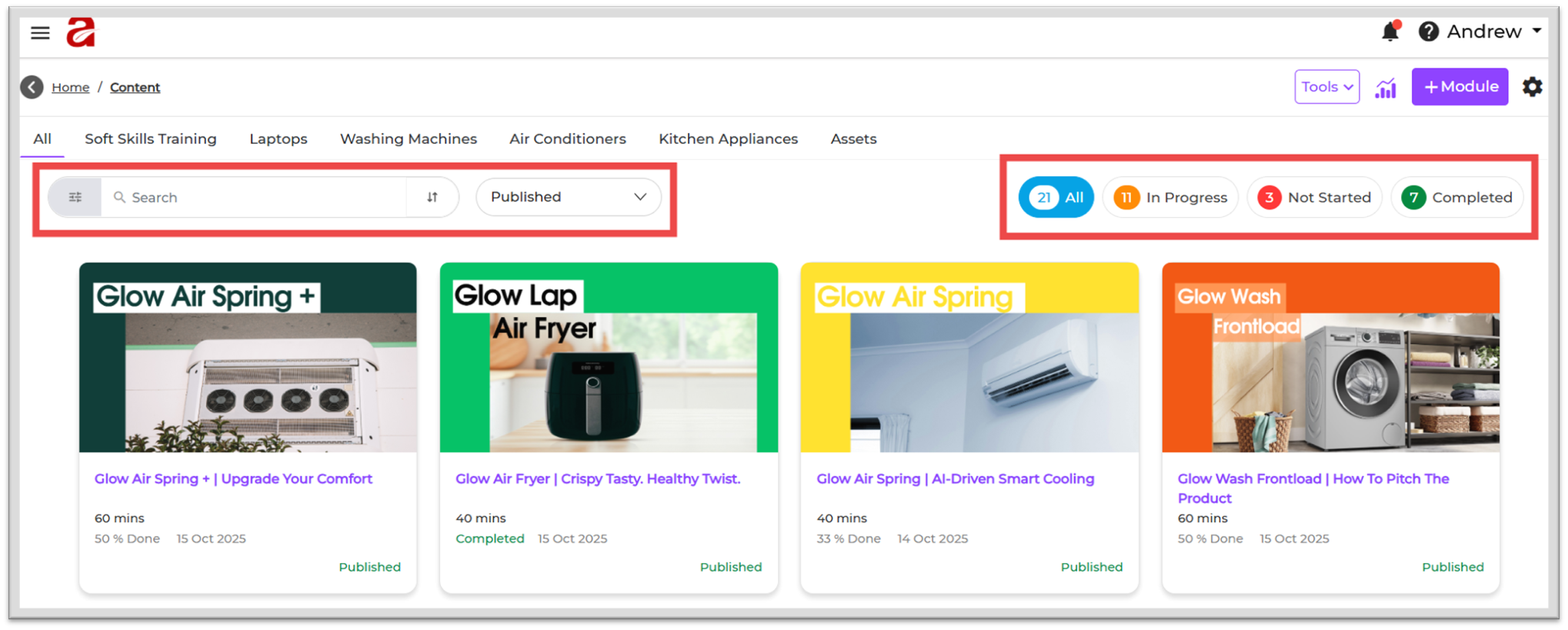
2. When to Use
Learners can use Search & Filters when they want to:
-
Find a specific module without scrolling
-
View modules in a certain order, such as latest first
-
Check only published or completed modules
-
Track pending modules that are not yet started
-
Continue modules that are in progress
These options help learners focus on what they need to learn next.
3. Concepts Explained
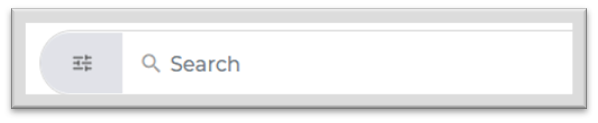
Search Bar
-
The Search Bar allows learners to type any part of the module name.
-
The system will immediately show matching modules.
-
This is useful when there are many modules on the page.
Sort (⇅)
-
Sort helps rearrange the modules.
-
Sorting helps the learner view the most relevant or latest content first.
Status Filter
These filters allow learners to view modules based on their current state.
The available status options are:
-
Published
Modules that are live and ready for learners to start. -
Draft
Modules that are still being created or edited. Learners cannot access these.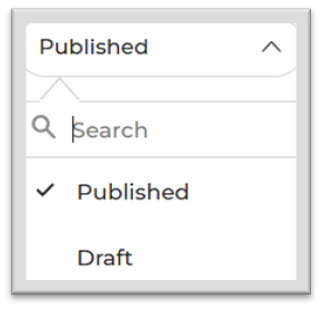
- All
Shows all modules, no matter what stage they are in. -
In Progress
Modules that the learner has already started but has not completed. -
Not Started
Modules that the learner has not opened yet. -
Completed
Modules that the learner has finished.
These filters help learners track their learning journey clearly.
4. Setup Guide
Step 1: Open the Content Page
-
Go to the Content section from the left panel of the homepage.
-
Once you open Content, you will see all modules and the search and filter tools at the top of the screen.
-
The filters are easily accessible and designed for quick navigation.
Step 2: Using the Search Bar
-
Click on the Search Bar and type the name of the module.
-
The list updates automatically and shows matching modules.
-
This helps learners avoid scrolling through long lists.
Step 3: Using Sort (⇅)
- Click the Sort (⇅) icon to rearrange the list of modules.
- You can use it to bring the most relevant or latest modules to the top.
- This makes it easy for you to choose the next module you want to learn.
Step 4: Applying Status Filters
-
Click the Status dropdown to choose a filter.
- The All filter shows everything together including Published, In Progress, Not Started, and Completed modules.
-
Select Published, Draft, In Progress, Not Started, or Completed.
-
The page will show only modules that match the selected status.
-
This helps learners focus on only the modules they want to see.
5. Learner View
When learners use search or filters:
-
The module list updates instantly
-
Only relevant modules appear
-
It becomes easy to track progress and manage learning
-
The learner can move between modules without confusion
This improves the overall learning experience.
6. Reporting
Using Search & Filters does not change any reports.
It only makes it easier for learners to find the right modules.
Actual learning progress, completion data, and learner actions are still tracked normally.
7. Best Practices
-
Use the Search Bar when you already know the module name.
-
Use Status Filters to continue pending modules.
-
Clear filters if the module list looks incomplete.
-
Sort the list to view the latest or most important modules first.
-
Use “Completed” filter to check your finished modules.
8. Troubleshooting & FAQs
Q1: I cannot find my module even after searching.
A: Check the spelling or clear all filters.
Q2: Only a few modules are visible. Why?
A: A status filter may be active.
Q3: Why do some modules show “Draft”?
A: They are not published and learners cannot access them.
9. Related Links
10. Version Notes
Updated on: 05 Dec 2025
No Comments