
Create form with JSON using LLM (ChatGPT)
1. Overview
This feature allows admins to create a form by pasting JSON content instead of manually adding questions. The system reads the JSON and automatically builds the form layout in the form designer, where it can be reviewed and updated before assigning it to users.
2. When to Use
-
When you already have a form structure generated in JSON format using ChatGPT
-
When you want to build a form faster without manually adding each field
-
When you need control over both the form layout and its underlying structure
-
When you want to preview and refine a form before assigning it to users
3. Concepts
-
Forms section – The area where all draft and published forms are listed
-
JSON Editor – A workspace used to paste or edit JSON code that defines the form
-
Designer – A visual editor where the generated form structure is displayed
-
Preview – A view to see how the form appears to end users before publishing
-
Themes – Styling options for colors, fonts, and overall appearance
-
Logic – Rules that control question flow and navigation
-
Form status page – The page used to manage build status, user assignment, and publishing
4. Set Up Guide
-
Go to the menu bar and click Forms.
https://converse.bsharpcorp.com/form_builder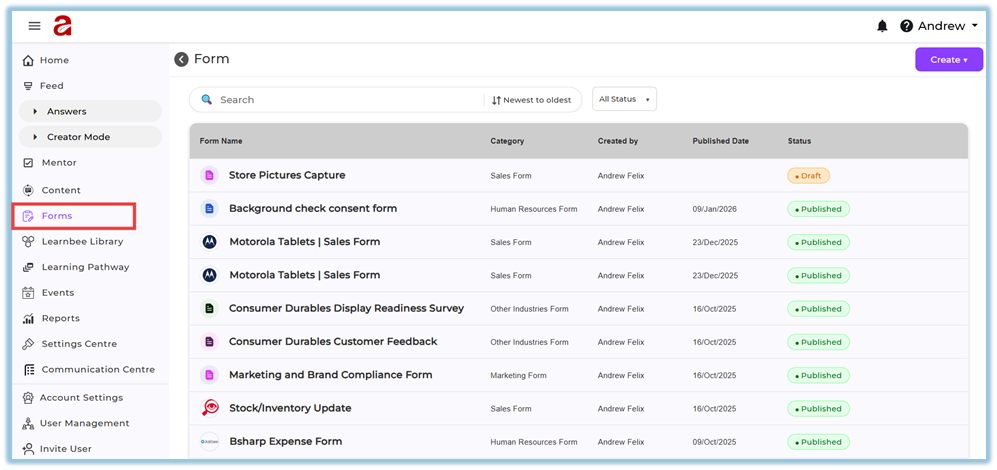
-
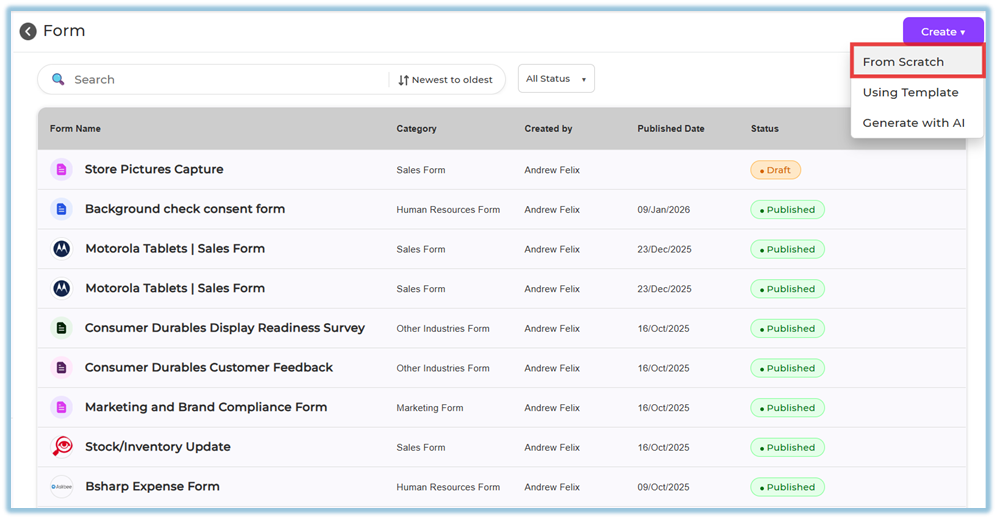
In the Forms section, click Create in the top-right corner.
-
Select From Scratch.
-
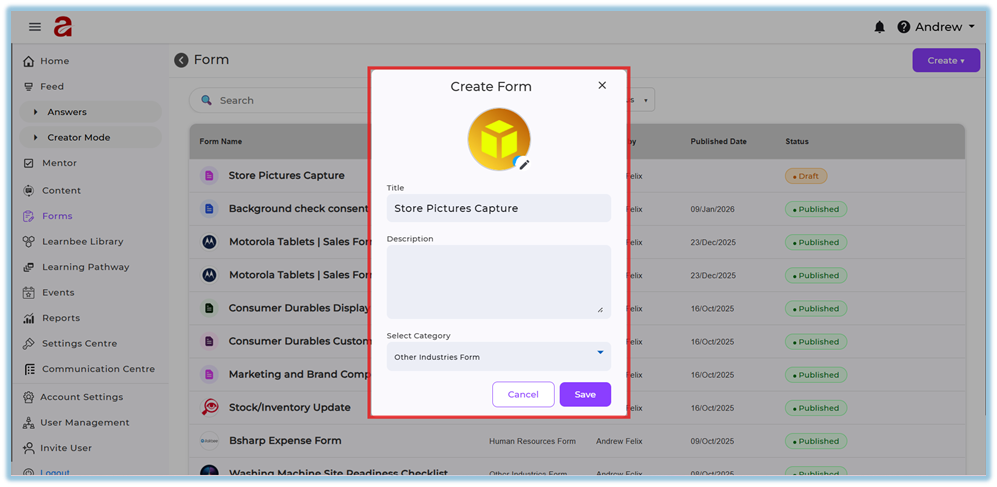
Enter the form name, description, and category, then save.
-
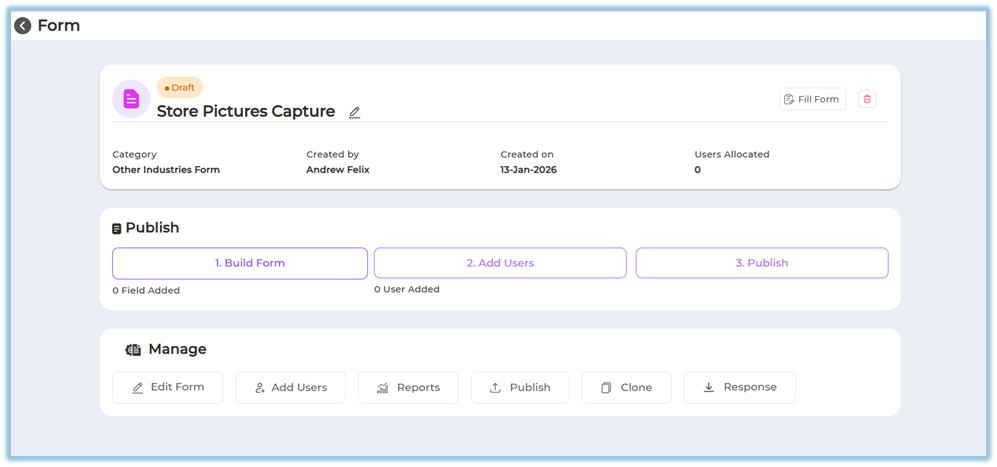
You will be redirected to the form status page.
- Click Build Form.
-
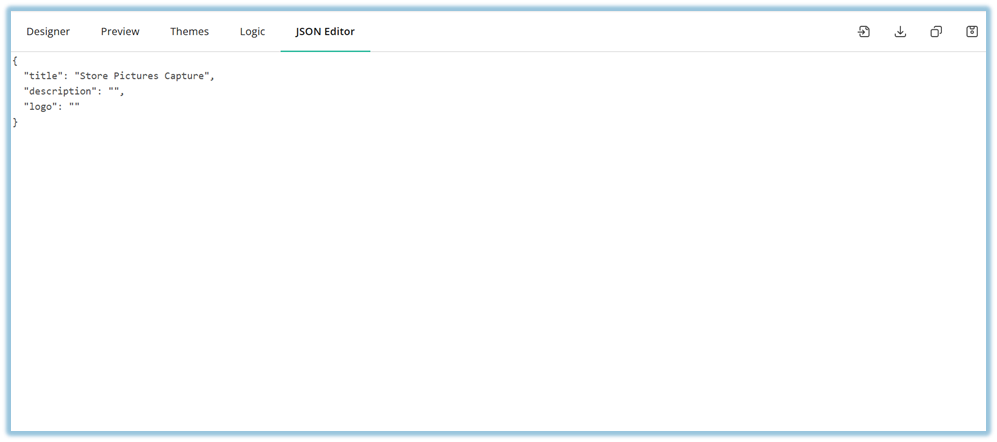
In the form builder, select the JSON Editor tab.
-
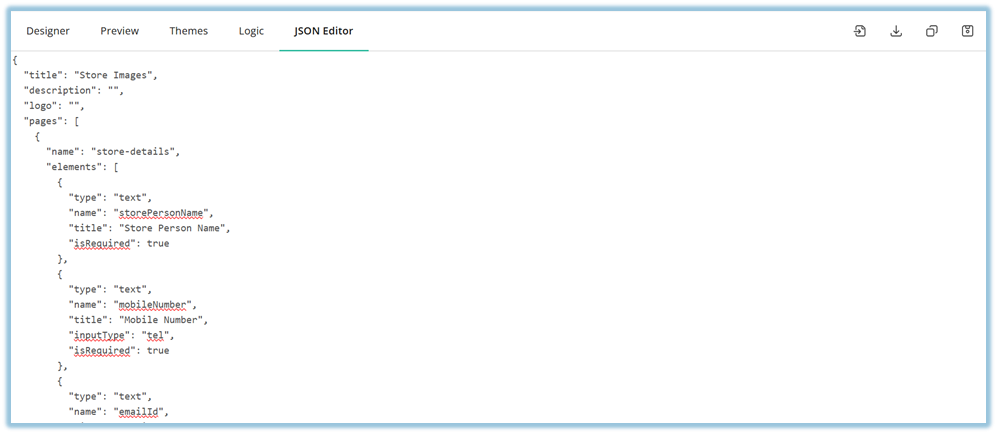
Paste the JSON code generated using ChatGPT or another LLM into the editor.
-
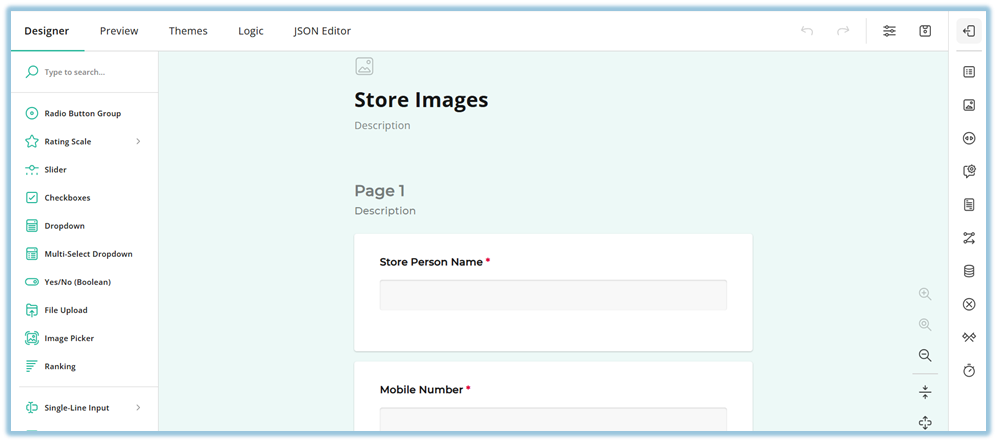
View the form automatically generated in the Designer section based on the pasted JSON.
-
Make any required changes directly in the Designer; the JSON updates automatically.
-
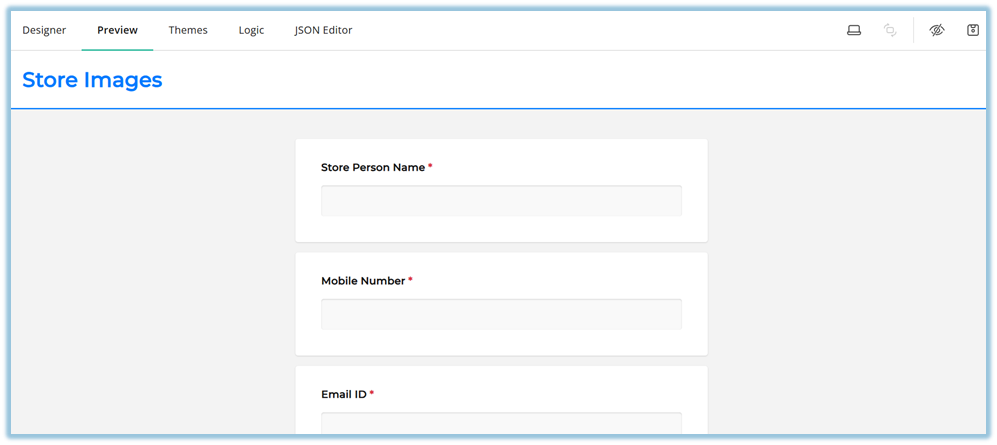
Use Preview to review how the form appears to users.
-
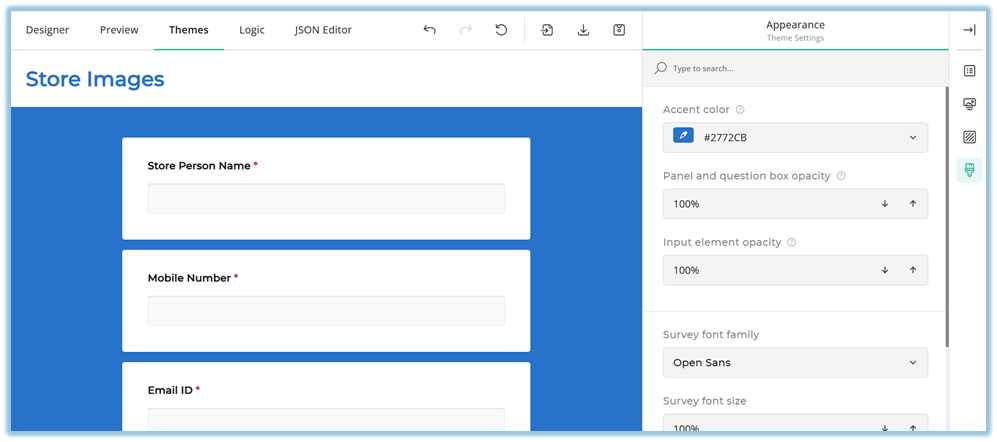
Open Themes to update colors, fonts, and visual styling if required.
-
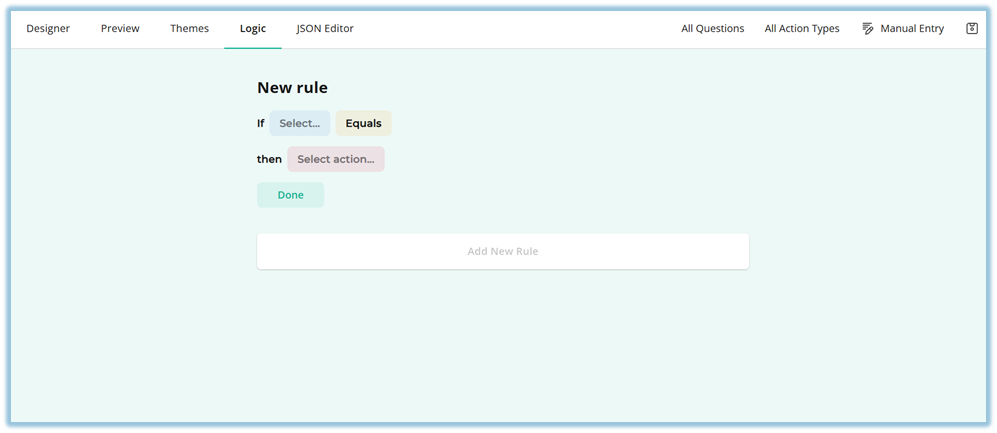
Open Logic to configure rules that control question behavior or navigation.
-
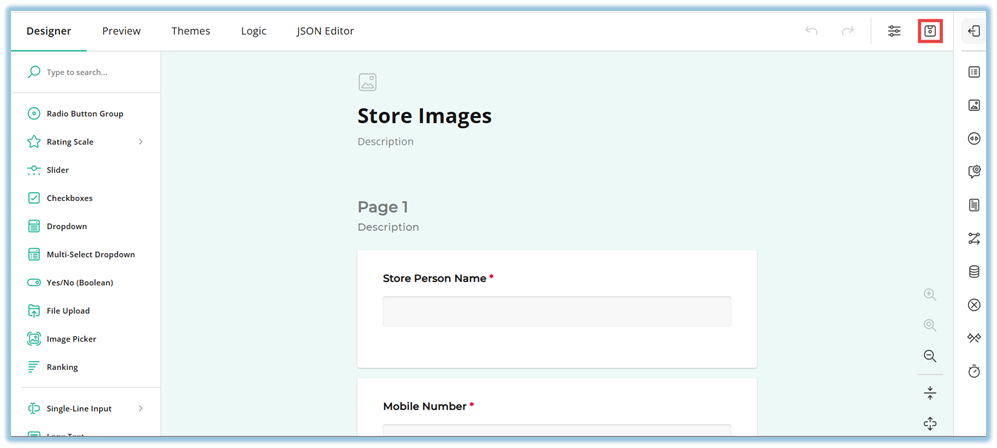
Click Save to store the form changes.
-
After saving, you are redirected to the form status page showing Build Form, Add Users, and Publish steps.

-
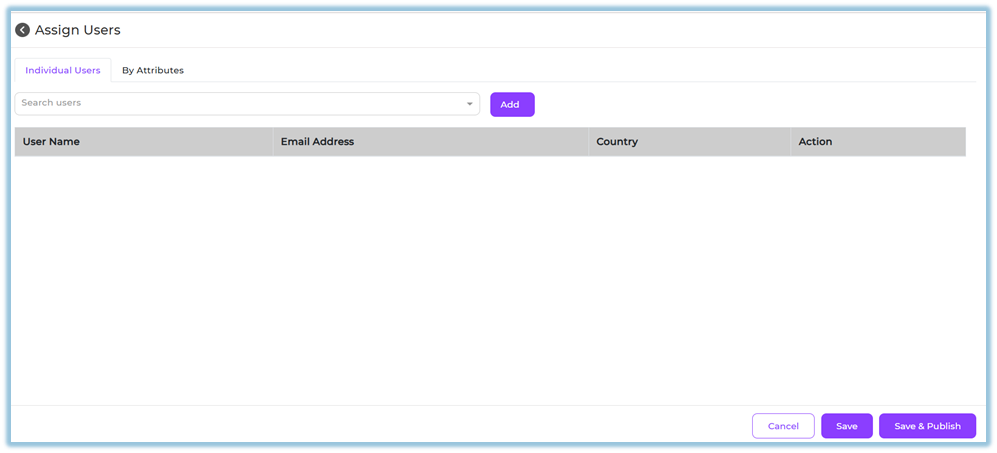
Click Add Users and assign users either individually or by attributes.
-
Click Save or Save & Publish based on whether the form is ready for publishing.
5. User View
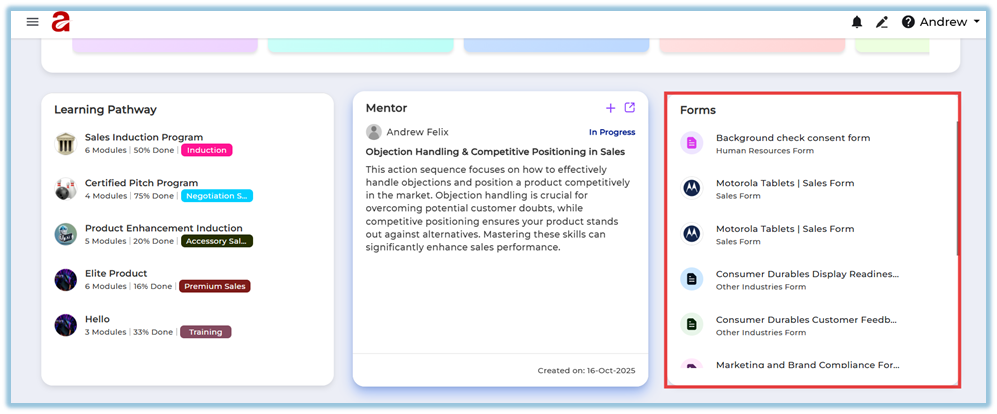
Once the form is published and assigned, users can see it on their Home page under the Forms section. Users can open the form, view the configured questions, and submit their responses based on the defined structure and logic.
6. Reporting
Once a form is published, reporting and response actions are available from the Manage section of the form.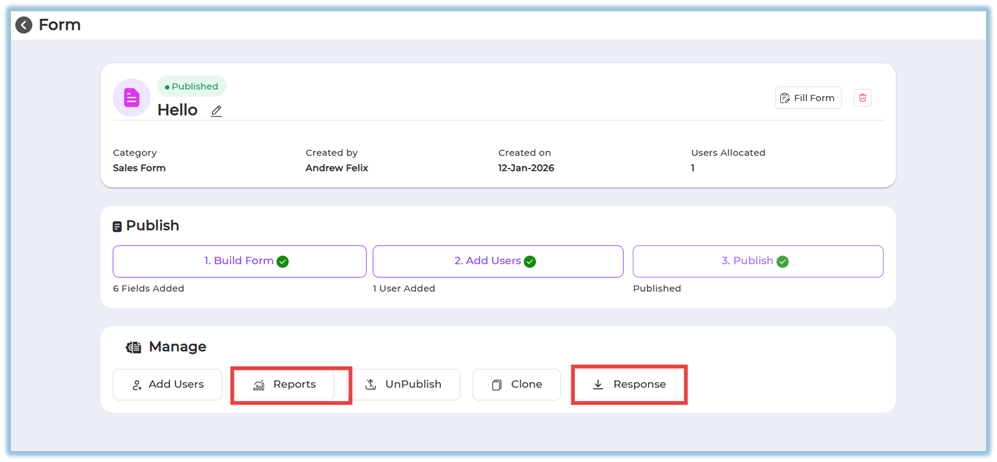
-
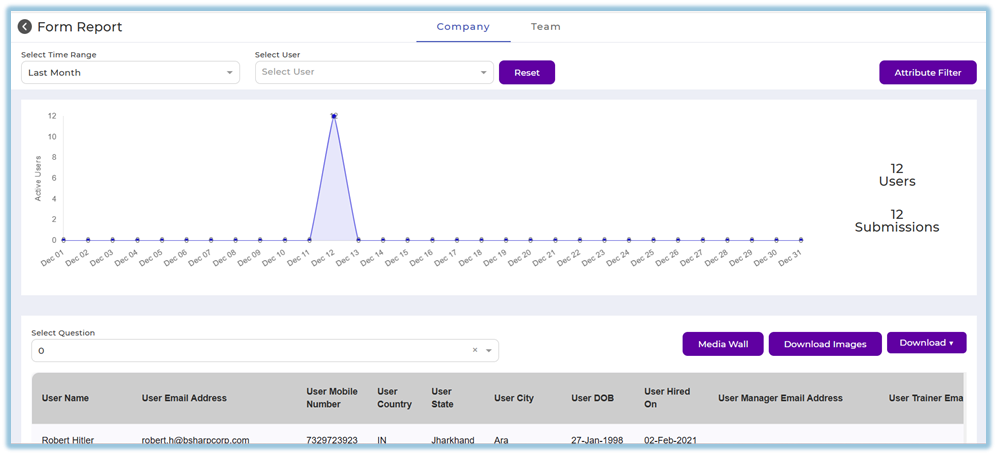
Reports – Opens the Form Report dashboard to view submission trends, active users, and question-level insights.
-
Response – Allows admins to download the submitted form responses for offline review and record keeping.
Report Views
-
Company tab – Shows organization-wide form submission data and is visible only to admins.
-
Team tab – Shows team-level form submission data and is accessible only to users with manager, trainer, or mentor access.
Report Filters and Actions
-
Filter reports by time range and user.
-
Use Attribute Filter to refine data based on user attributes.
-
Select a question to view question-specific data.
-
Use Media Wall to view uploaded images.
-
Use Download Images to export image responses.
-
Use Download to export form data.
7. Best Practices
-
Validate JSON format before pasting it into the JSON Editor
-
Use Designer for visual adjustments instead of editing raw JSON where possible
-
Always preview the form before assigning users
-
Save the form before navigating away from the editor
8. Related Links / FAQs
Q: Can I edit the form after pasting JSON?
Yes. You can edit the form in the Designer, and the JSON updates automatically.
Q: What happens after I click Save?
You are redirected to the form status page, where you can add users and publish.
Q: Can I preview the form before publishing?
Yes. The Preview tab shows how the form appears to users.
9. Version Notes
Last Updated: 13 Jan 2026
No Comments