
Smart Coach
1. Overview
Smart Coach is an AI-enabled learning feature that allows admins to create guided, scenario-based learning experiences using uploaded documents, evaluation rubrics, and AI-driven interactions.
It enables learners to practice through Knowledge Cards, Quiz Cards, and Role Plays, helping them build skills through both knowledge and real-world application.
2. When to Use
-
When admins want to create guided, AI-driven learning experiences for teams
-
When learners need scenario-based practice instead of static content
-
When managers and mentors need visibility into learning progress and quality
-
When AI-based evaluation is required for knowledge and scenario responses
3. Concepts
- Smart Coach – AI-driven learning module created by admins
- Knowledge Base – Uploaded document used by AI for learning
- Evaluation Rubrics – Criteria used to evaluate responses
- Knowledge Cards – Informational learning content
- Quiz Cards – Questions to assess understanding
- Role Plays – Scenario-based activities for practical application
- Completion Criteria – Defines required completion conditions
- Answer Mode – Defines response type (Text, Audio, Video)
- Progress Tracking Message – Shows real-time learner progress
- Reattempt / Regenerate – Allows retry or new role play generation
- Company Tab – Admin view of all Smart Coaches
- Team Tab – View for managers, trainers, and mentors
4. Set Up Guide
Access Smart Coach
-
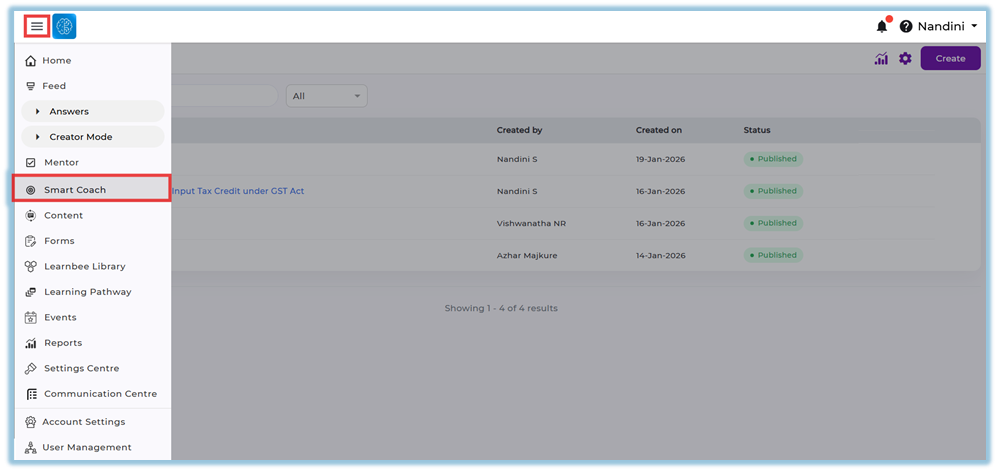
Click the left-side menu bar.
-
Select Smart Coach to open the Smart Coach page.
Create a Smart Coach (Admin Only)
-
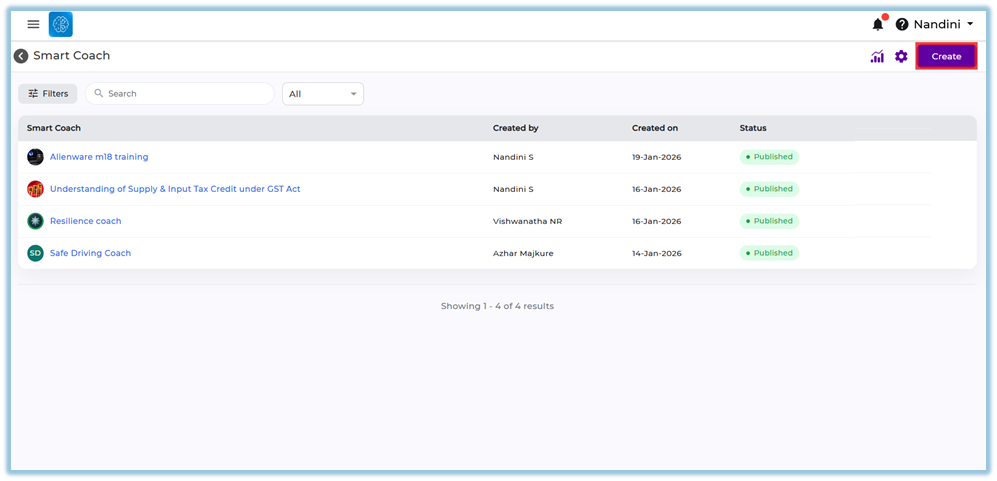
Click Create on the top-right corner.
-
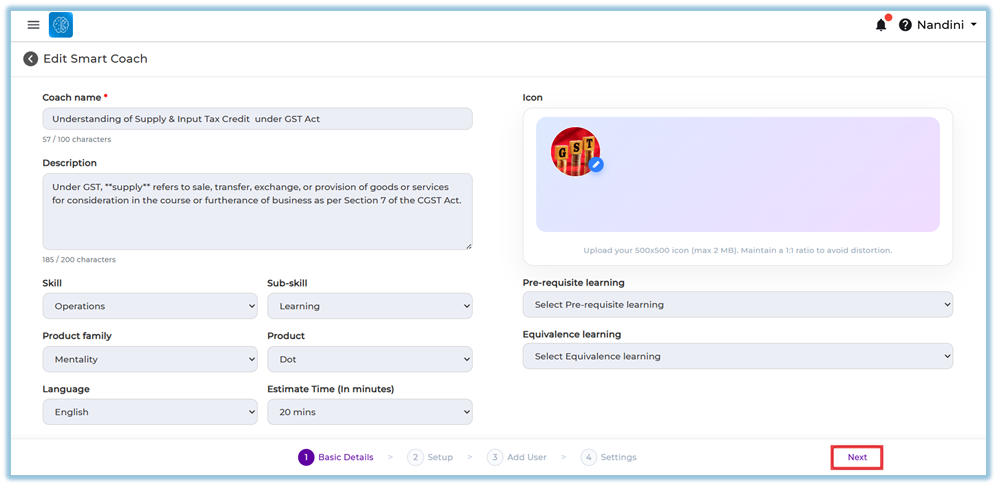
Enter the Coach Name (mandatory).
-
Enter the Description (optional).
-
Select Skill, Sub-skill, Product Family, Product, Language, and Estimated Time.
-
Add Prerequisite Learning or Equivalence Learning if required.
-
Click Edit under the icon section to select or upload an avatar.
-
Click Next to proceed to setup.
Setup Smart Coach
-
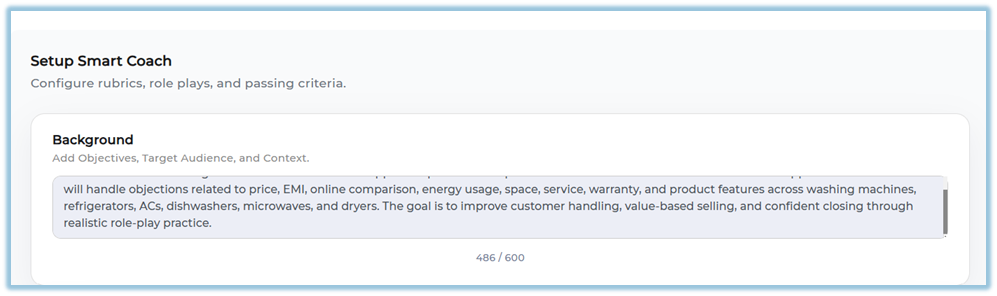
Enter Background
- Add objectives, target audience, and context for the Smart Coach
-
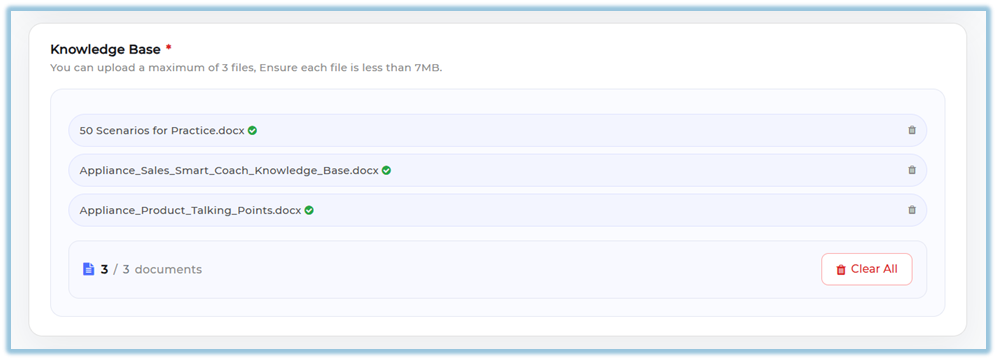
Upload Knowledge Base documents
- You can upload up to 3 files
- Ensure each file is within the allowed size limit
-
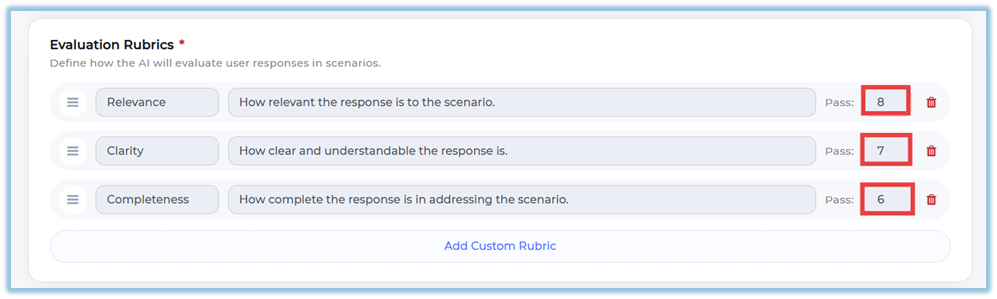
Review and configure Evaluation Rubrics
- Default rubrics include:
- Relevance
- Clarity
- Completeness
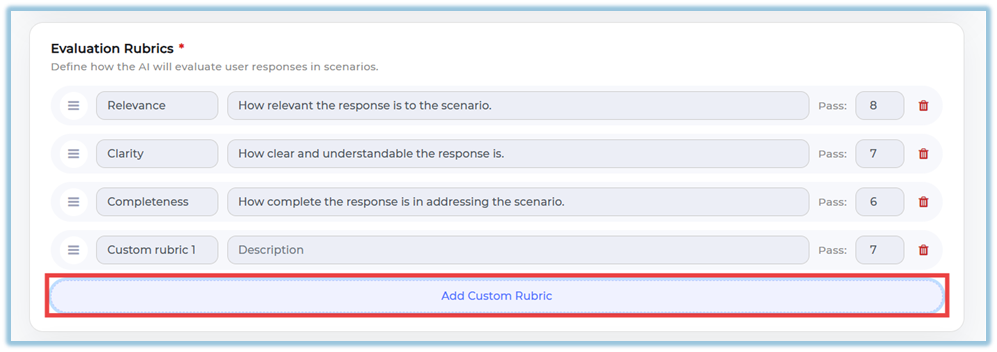
- Add custom rubrics if required
- Default rubrics include:
-
Click Add Custom Rubric (optional)
-
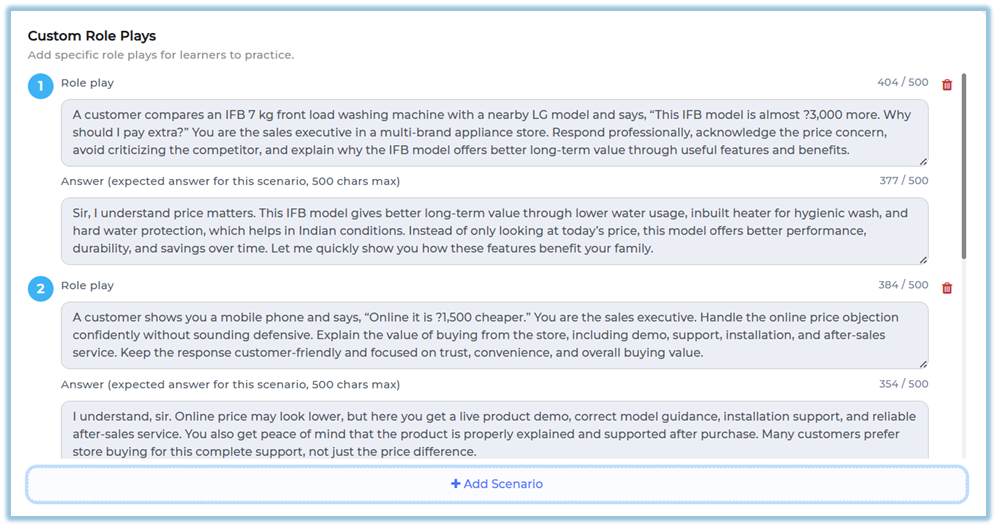
Add Custom Role Plays
- Click to add role plays for learner practice
- Enter:
- Scenario (role play situation)
- Expected answer (optional reference)
Passing Criteria Setup
- Define completion requirements:
- Knowledge cards to view
- Quiz correct answers
- Role plays to complete
- Select Response Types (Answer Mode):
- Text
- Audio
- Video
(Select one or multiple options)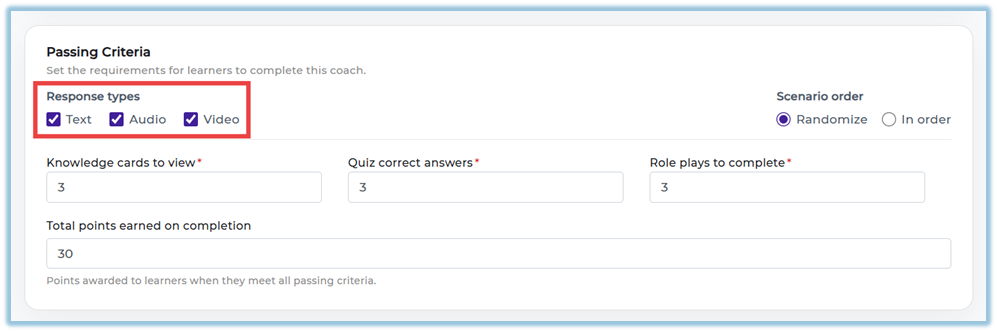
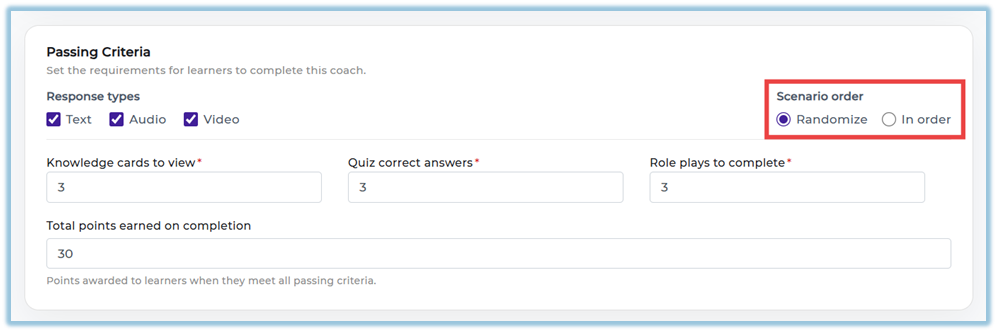
- Select Scenario Order:
- Randomize
- In order
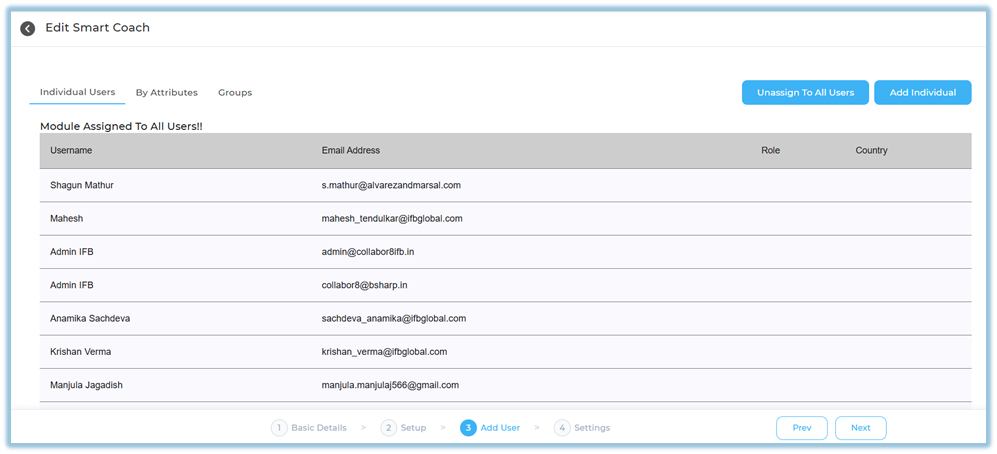
Add Users
-
Choose one of the following:
-
Assign to all users
-
Add individual users
-
Add users by attributes
- Add users by Flex
-
-
Click Save and then Next.
Settings and Publish
-
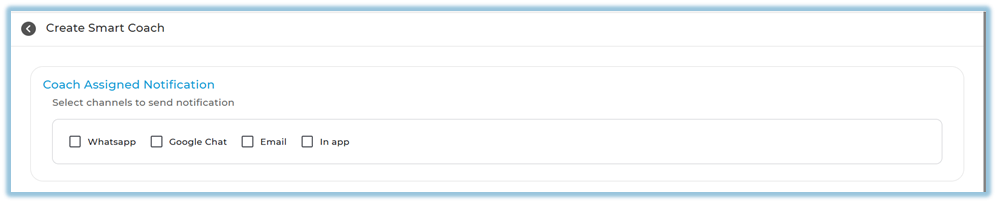
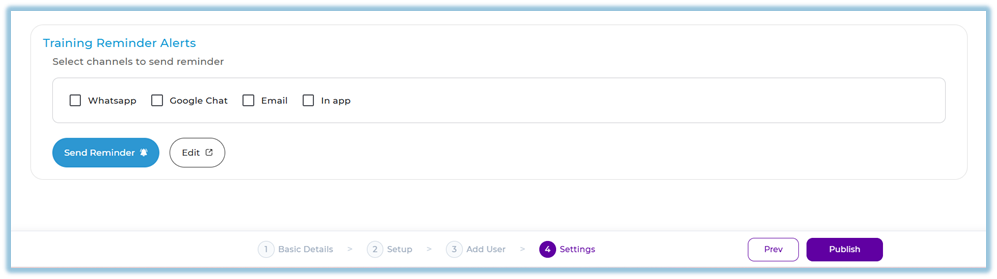
Select notification channels: WhatsApp, Google Chat, Email, In-app.
-
Configure Training Reminder Alerts for incomplete users.
-
Edit reminder message if required.
-
Click Publish to make the Smart Coach live.
Filters
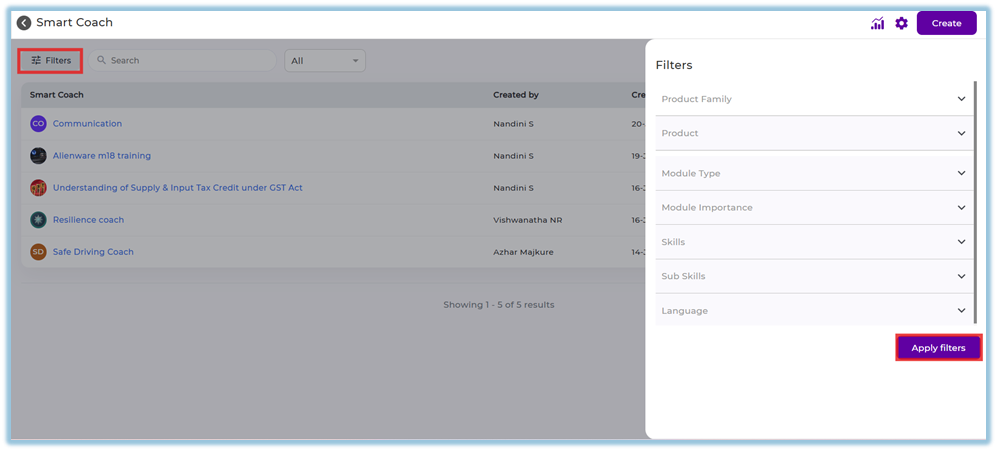
Filters help admins quickly find and manage Smart Coach content based on specific criteria.
-
Product Family / Product – Filter Smart Coach content based on the associated product family or product.
-
Module Type – Narrow results by the type of learning module configured.
-
Module Importance – Filter coaches based on importance levels such as High, Medium, or Low.
-
Skill / Sub-skill – View Smart Coaches mapped to specific skills or sub-skills.
-
Language – Filter Smart Coaches created in a selected language.
-
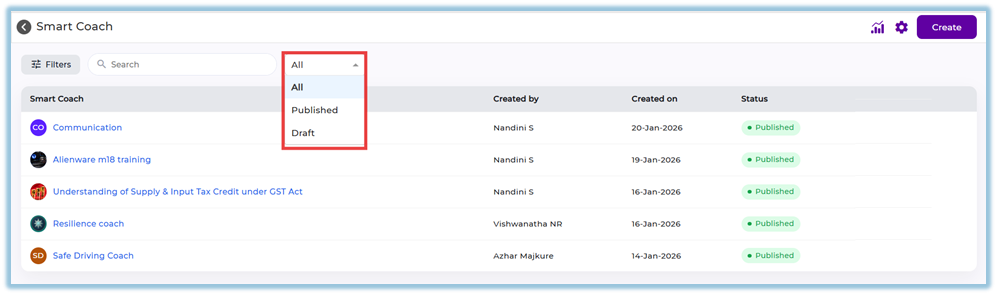
Published Status – View Smart Coaches based on their status, such as Published or Draft.
-
Search – Quickly locate a Smart Coach by entering keywords in the search bar.

5. User View
Smart Coaches appear in a dedicated Smart Coach section on the homepage.
Newly published coaches appear at the top, and users can open a coach to complete Knowledge Cards, quizzes, and role-play-based learning.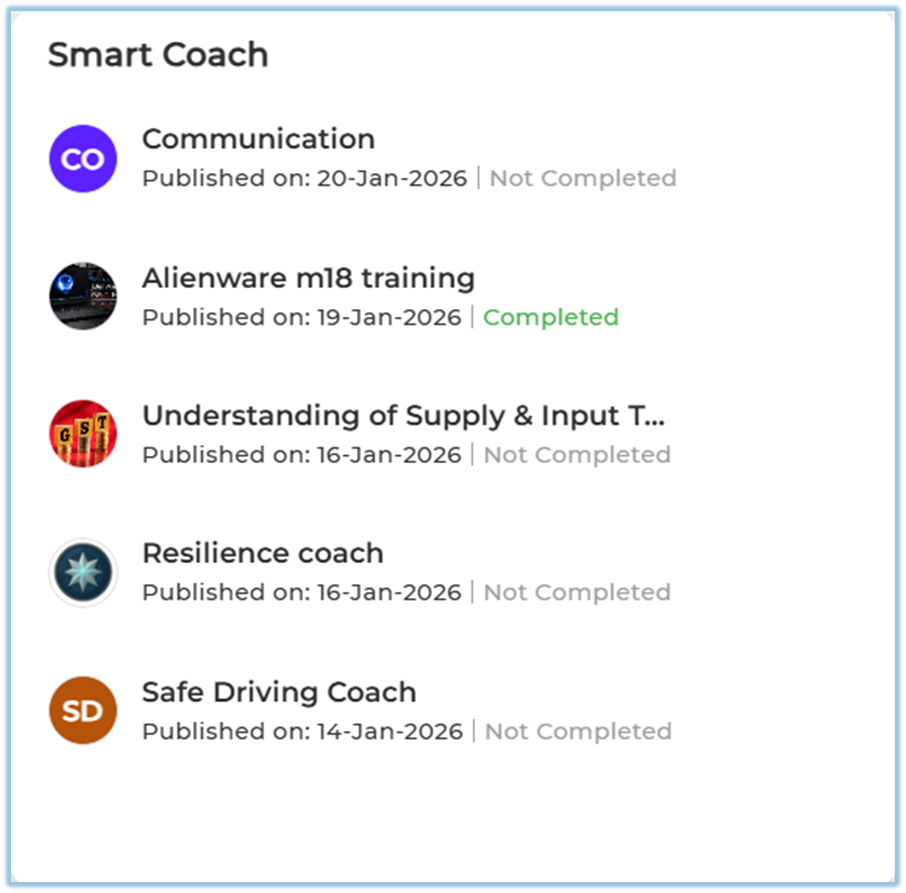
6. Reporting
-
Smart Coach reports are available from the Reports option inside Smart Coach.
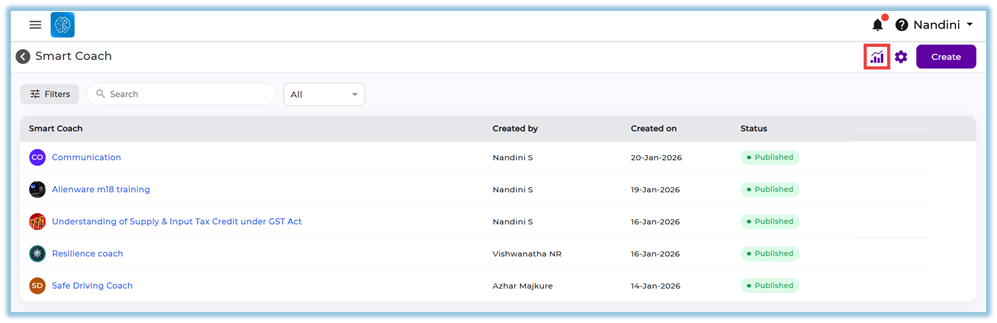
-
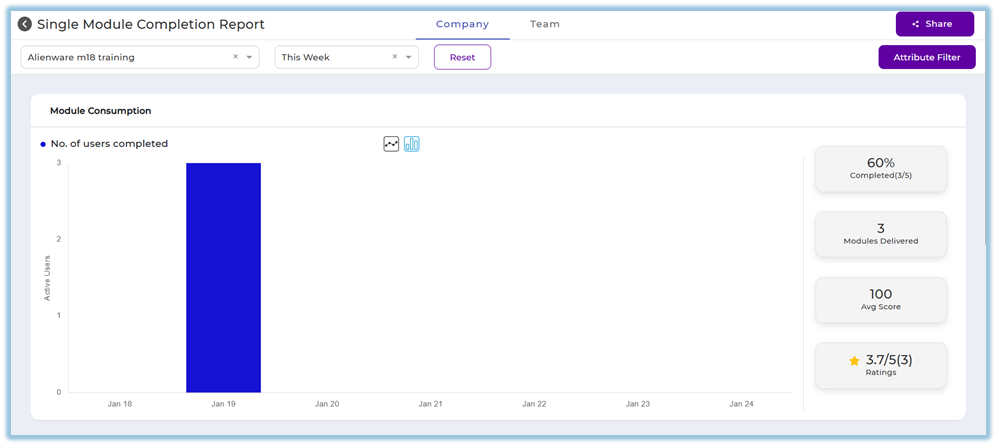
Reports include Single Module Completion Report with completion percentage, ratings, and delivery score.
-
Company Tab shows full organization data for admins.
-
Team Tab shows mapped user data for managers, trainers, and mentors.
-
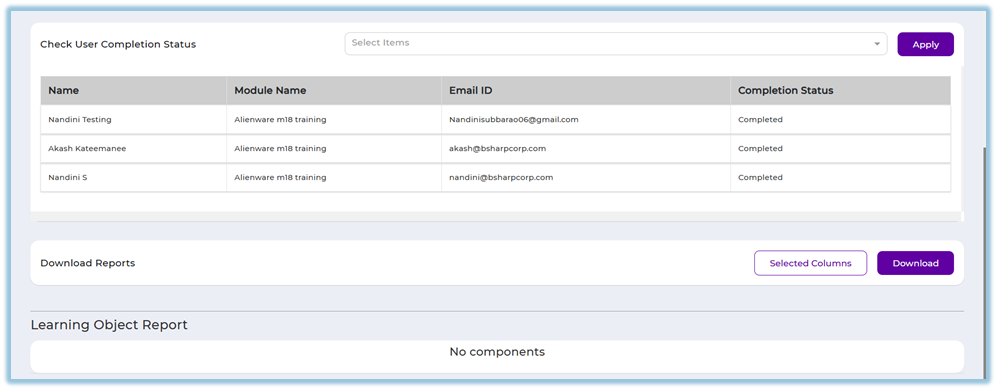
User completion status and document consumption details can be downloaded.
7. Best Practices
-
Upload clear and structured documents for accurate AI responses
-
Define rubrics carefully to ensure consistent evaluation
-
Use scenarios to encourage applied learning
-
Enable reminders to improve learner completion
8. Related Links / FAQs
Q: Who can create a Smart Coach?
Only admins can create Smart Coaches.
Q: Who can view the Team tab?
Managers, trainers, and mentors with access permissions.
Q: Can more than one document be uploaded?
No. Only one document can be uploaded per Smart Coach.
9. Version Notes
Last Updated: 10 Apr 2026
No Comments