
Tasks
1. Overview
The Tasks feature helps learners understand what they need to complete next on the platform. It provides a clear list of pending learning actions, making it easy for learners to stay focused and complete required learning on time.
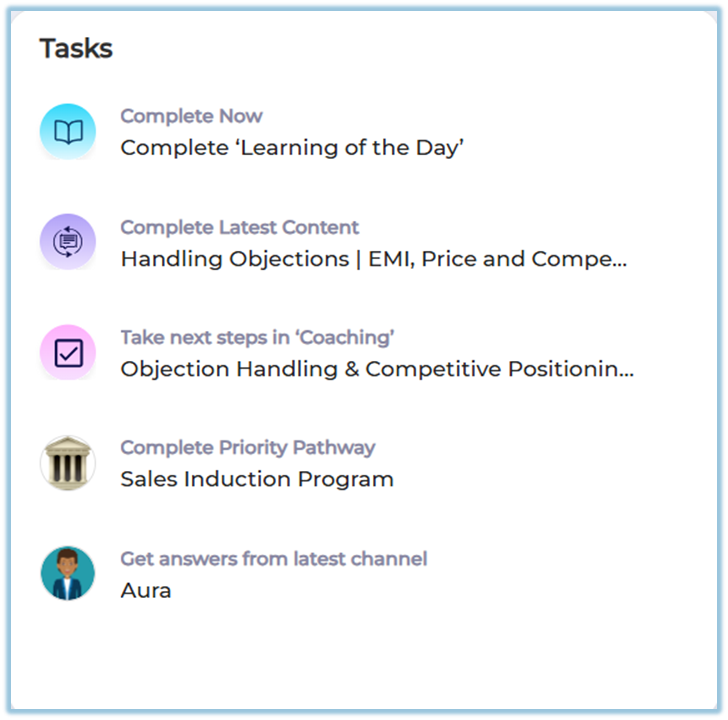
This feature improves learner engagement by guiding them step by step on what to complete next, without confusion.
2. When to Use
Use the Tasks feature when learners:
-
Want to know what learning items are pending
-
Need guidance on what to complete next
-
Have multiple assigned items across different features
This feature is especially useful for keeping learners on track without manual follow‑ups.
3. Concepts
-
Tasks Widget: A section visible on the Home page that lists pending learning items.
-
Automated Listing: Tasks are generated automatically by the system.
-
Incomplete Items: Only learning items that are not completed appear in Tasks.
-
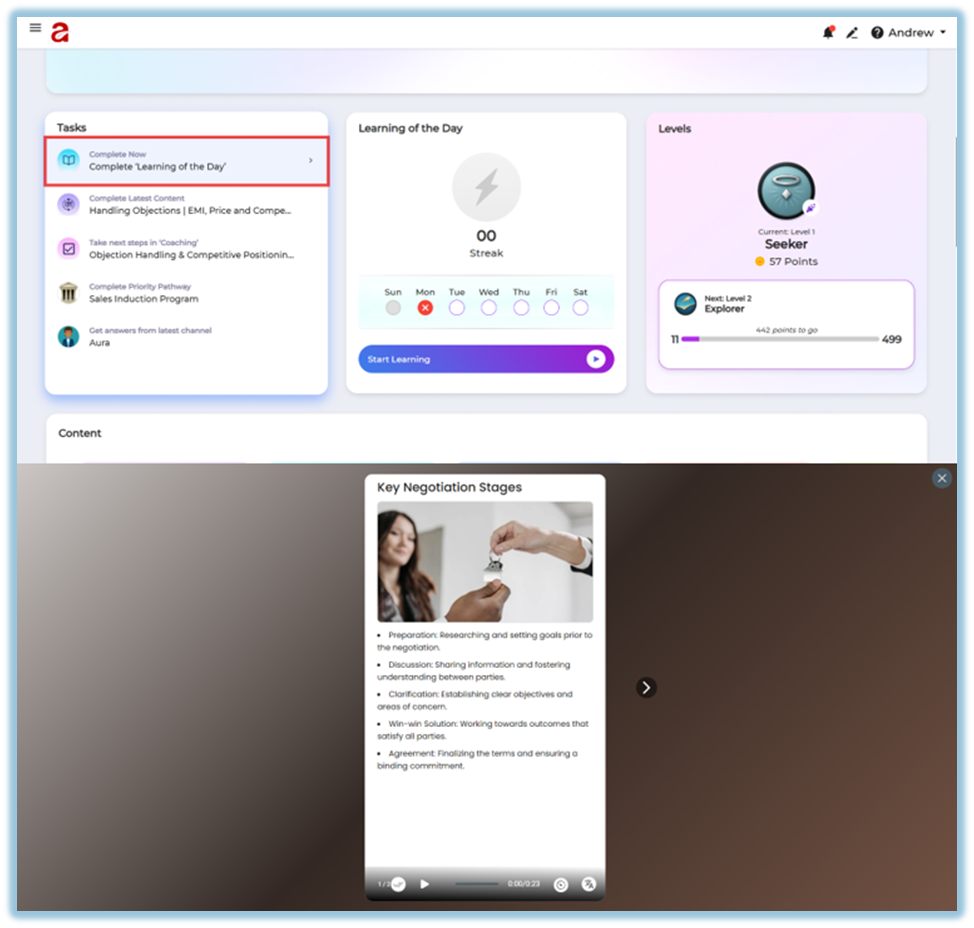
Redirect Action: Clicking a task takes the learner directly to the relevant page.
The Tasks widget checks incomplete items across these platform features:
-
Learning of the Day (LOTD)
-
Modules / Training content
-
Coaching
-
Learning Pathways
-
Instant Answers
4. Setup Guide
No setup is required for the Tasks feature.
-
Tasks are system‑generated.
-
Admins do not need to create or assign tasks manually.
-
Learners automatically see tasks based on their assigned and incomplete learning items.
5. User View
-
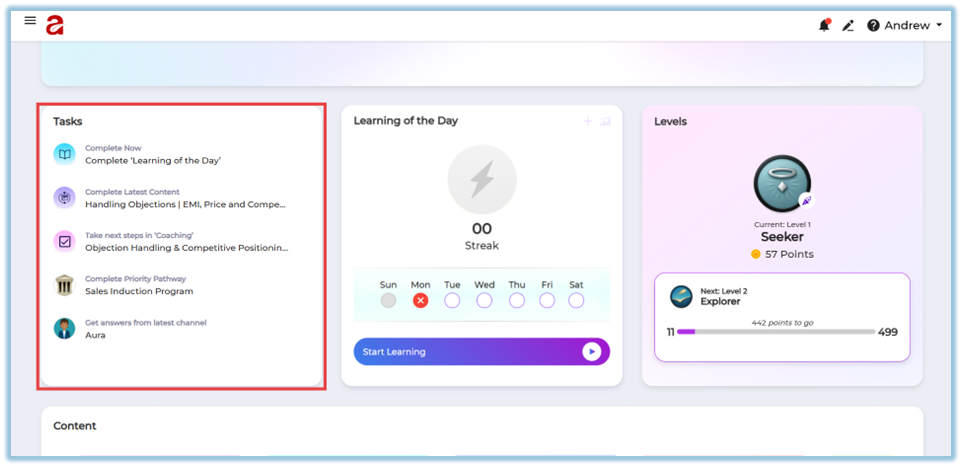
The Tasks widget appears on the Home page.
-
Learners can scroll down slightly to view the Tasks section.
-
Each task clearly shows what needs to be completed.
-
Selecting a task redirects the learner to the exact learning item (module, pathway, coaching, LOTD, or instant answer).
6. Reporting
-
Tasks do not have a separate report.
-
Completion is tracked within the respective feature (module, learning pathway, coaching, LOTD, or instant answers).
7. Best Practices
-
Learners should regularly check the Tasks section to stay updated.
-
Completing tasks helps ensure no assigned learning is missed.
-
Use Tasks as a daily checklist for learning progress.
8. Troubleshooting & FAQs
Q: Can admins manually add or remove tasks?
No. Tasks are fully automated and system‑driven.
Q: Why am I seeing many tasks?
Because there are multiple assigned learning items that are not yet completed.
Q: Will completed items still appear in Tasks?
No. Once an item is completed, it is automatically removed from the Tasks list.
Q: What happens when I click a task?
You will be redirected to the corresponding learning item.
9. Version Notes
Dec 16 2025
No Comments