
Monthly Activity Report
1. Overview
The Monthly Activity Report provides a consolidated view of user engagement across the platformplatform. forIt adisplays selectedactivity period,trends, includingfeature Modulesusage, Completion,completion Pathwaysmetrics, Completion,inactive Instantusers, Answerspublishing Activity, Learning of the Day Participation,trends, and Content Published trends, all visualizedleaderboards using charts,visual graphs,dashboards and asummary calendar view.cards.
2. When to Use
-
When you want to review overall
learnerengagementactivityacrossfortheaorganization.specific -
orWhen
range.analyzing feature usage trends such as Instant Answers, Daily Learning, and Content. -
When tracking
engagement across modules, pathways,module anddailypathwaylearning. When monitoring Instant Answers usage and querycompletion trends.-
When identifying inactive users or reviewing
contentmonthlypublishingleaderboardactivity over recent months.performance.
3. Concepts
-
DateCompanyRange SelectionTab –Defines the time period for whichDisplays activity dataisfordisplayed.the entire organization. -
Team Tab – Displays activity data limited to users mapped to the viewer.
-
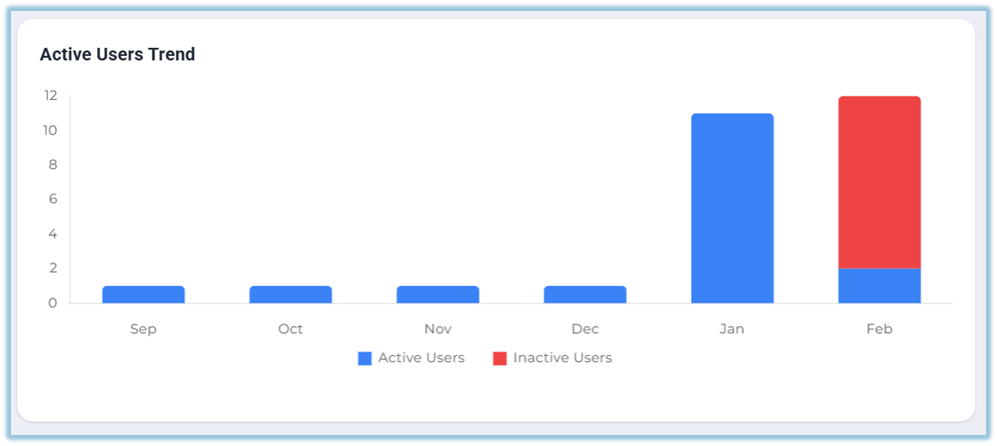
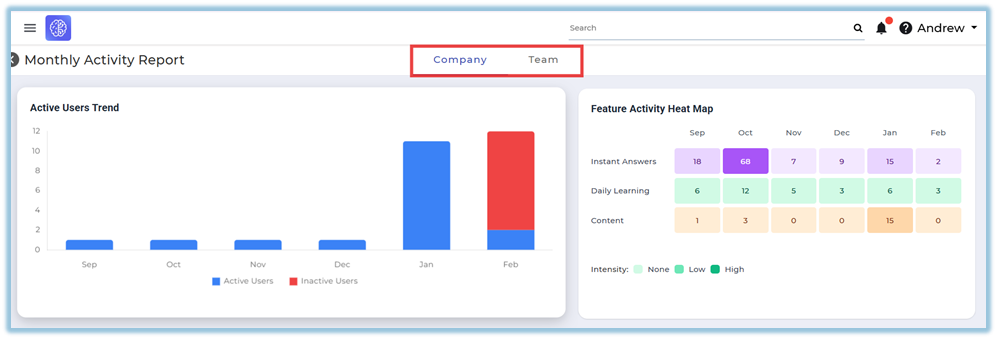
Active Users Trend – Shows monthly active and inactive user comparison.
-
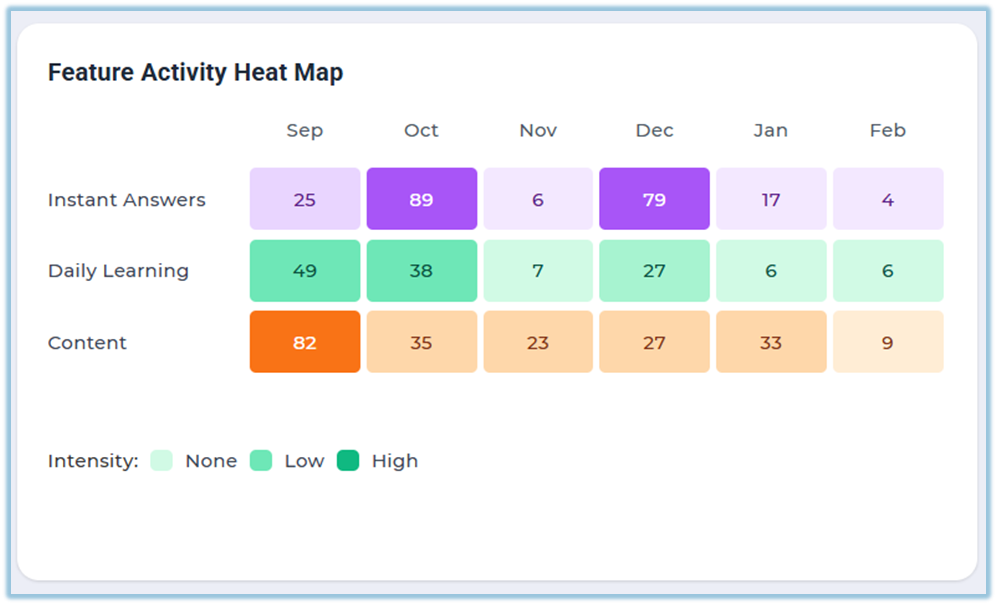
Feature Activity Heat Map – Displays usage intensity across features.
-
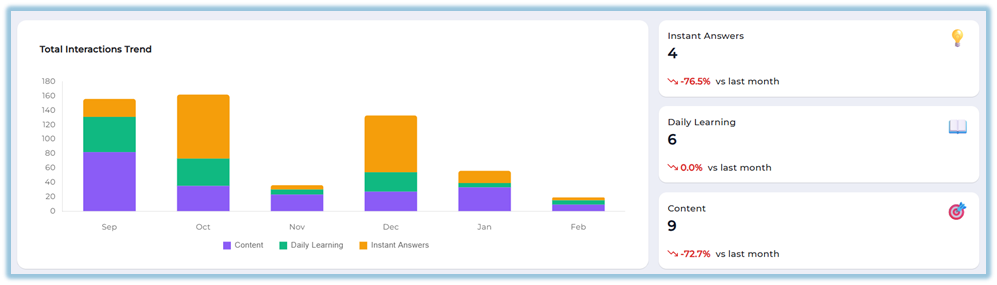
Total Interactions Trend – Shows total completed interactions across features.
-
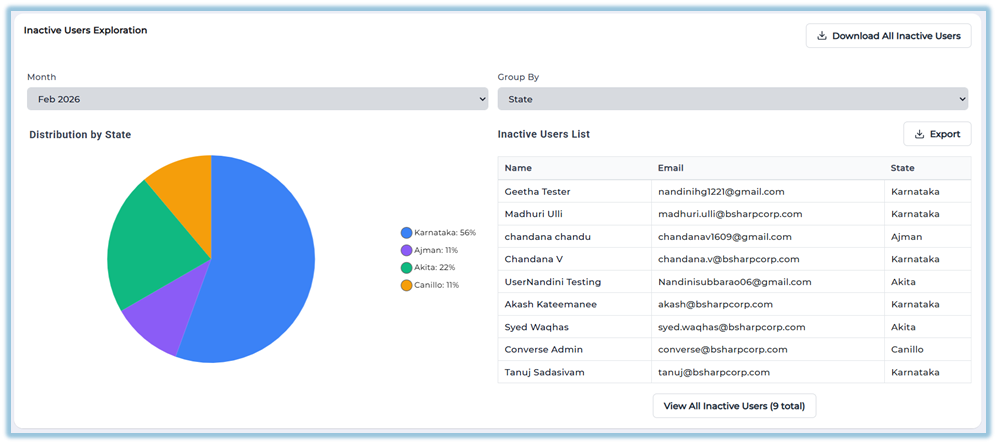
Inactive Users Exploration – Displays inactive user distribution and detailed list.
-
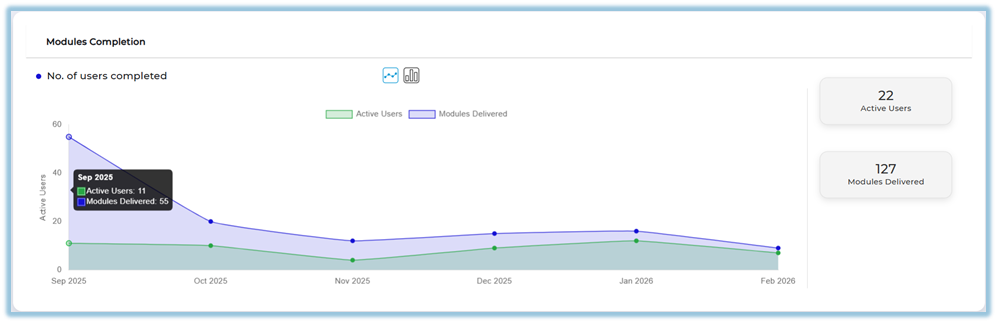
Modules Completion – Shows
usernumberparticipationofinusersassignedcompletedmodules.and modules delivered. -
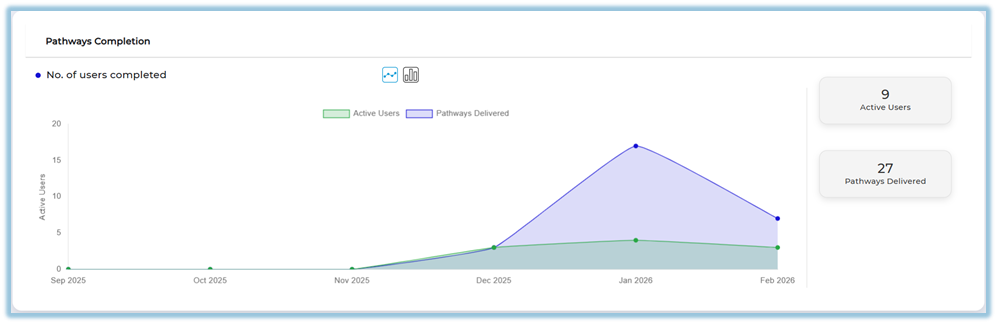
Pathways Completion – Displays
learnerpathwayactivitydeliveryforandlearningcompletionpathways.trends. -
Instant Answers Activity –
TracksShows query count and active users. -
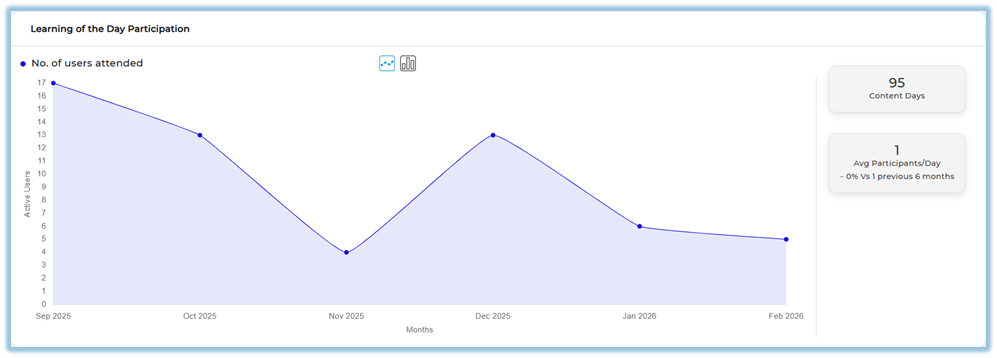
Learning of the Day Participation – Displays participation trends.
-
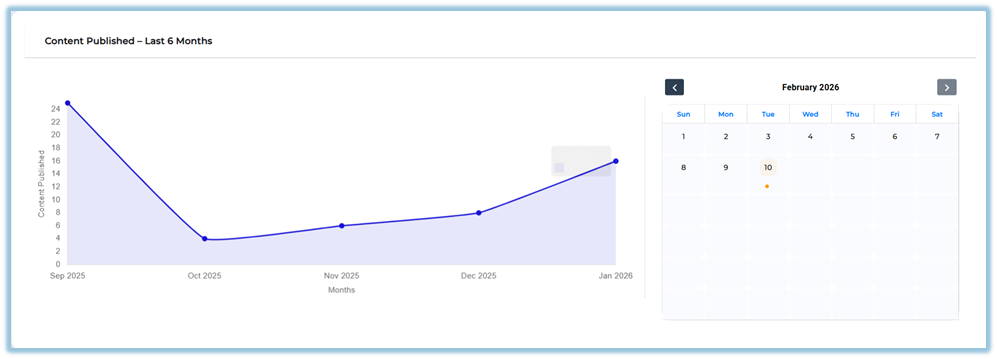
Content Published – Last 6 Months – Shows content publishing trends and calendar view.
-
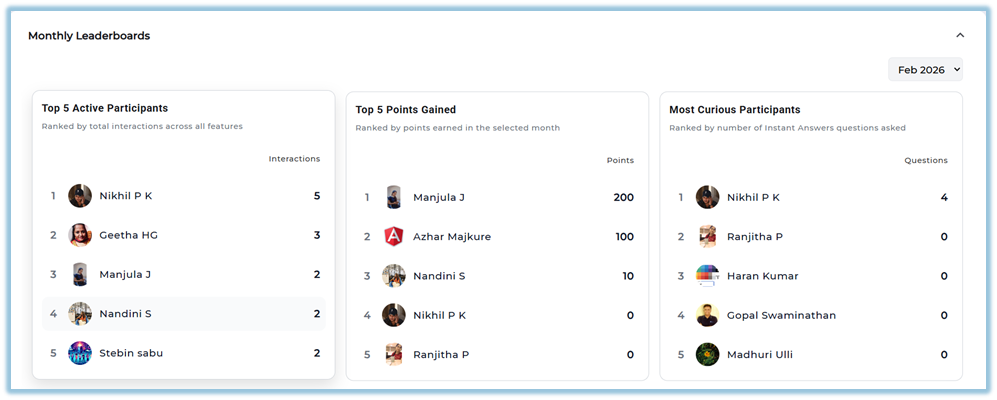
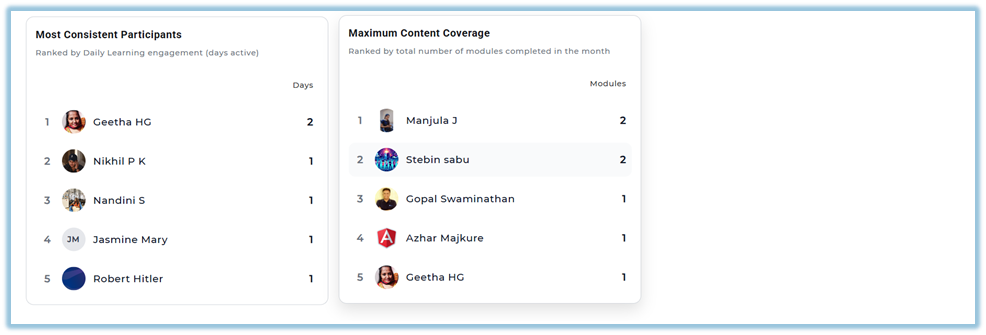
Monthly Leaderboards – Displays top participants based on different metrics.
4. Set Up Guide
-
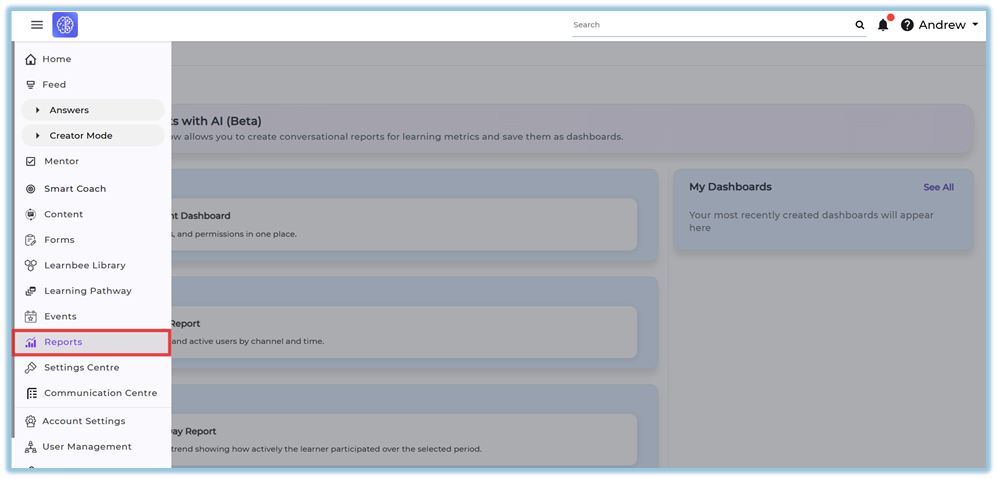
Click the three-line Menu from the homepage.
-
Click Reports.
-
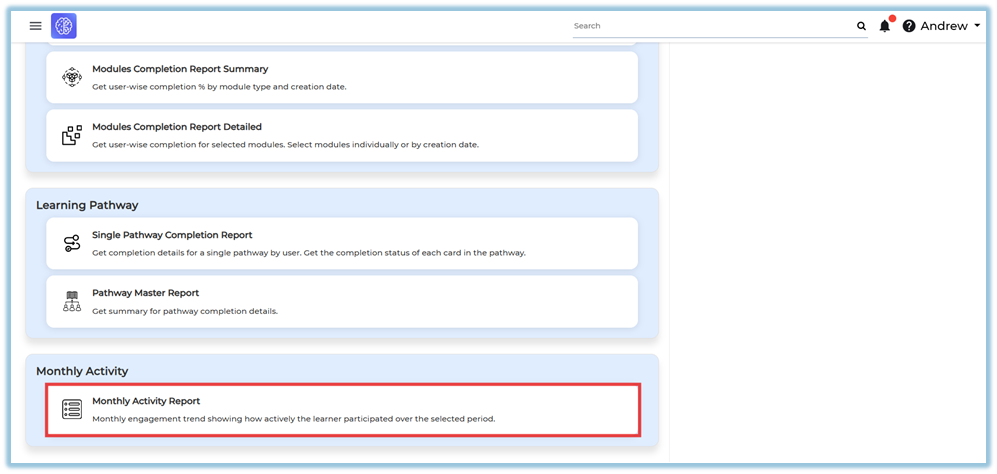
Select Monthly Activity Report.
-
The report opens with two tabs: Company and Team.
-
Select the appropriate tab based on your access level.
-
Review the Active Users Trend section to see monthly active and inactive users.
-
Review the Feature Activity Heat Map to analyze usage intensity for:
-
Instant Answers
-
Daily Learning
-
Content
-
-
Scroll to Total Interactions Trend to view interaction breakdown across features.
-
Review the summary cards for:
-
Instant Answers
-
Daily Learning
-
Content
-
-
Scroll to Inactive Users Exploration to:
-
Select the month
-
Choose grouping criteria (e.g., State)
-
View distribution chart
-
View inactive users list
-
Use Download All Inactive Users if required.
-
-
Review Modules Completion to compare Active Users and Modules Delivered.
-
Review Pathways Completion to track pathway activity trends.
-
Review Instant Answers Activity to analyze queries
raisedand active users.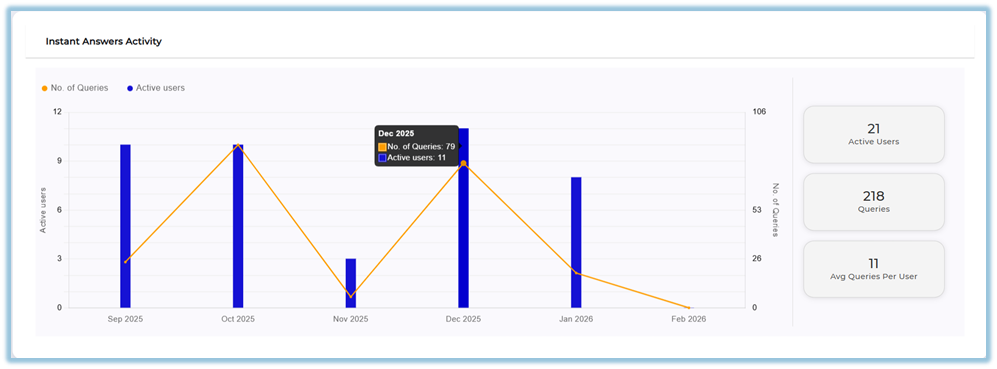
-
Review Learning of the Day Participation for participation trends.
-
Review Content Published – Last 6 Months and use the calendar view to identify publishing dates.
-
Scroll to Monthly Leaderboards to view:
-
Top 5 Active Participants
-
Top 5 Points Gained
-
Most Curious Participants
-
Most Consistent Participants
-
Maximum Content Coverage
-
5. User View
-
Admins can access the report under the Company tab, showing complete organizational data.
-
Managers, Trainers, and Coaches can access the report under the Team tab, showing only users mapped to them.
-
The report is presented entirely through visual dashboards including:
-
Bar charts
-
Line graphs
-
Heat maps
-
Summary metric cards
-
Pie charts
-
Calendar indicators
-
Leaderboard tables
-
6. Reporting
The Monthly Activity Report provides visual dashboards summarizing engagement trends.
-
Active Users Trend – Displays monthly comparison of active and inactive users.
-
Feature Activity Heat Map – Shows feature usage intensity across Instant Answers, Daily Learning, and Content.
-
Total Interactions Trend – Displays total completed interactions across features by month.
-
Inactive Users Exploration – Shows inactive user distribution and a detailed inactive users list.
-
Modules Completion – Displays active users and modules delivered over time.
-
Pathways Completion – Shows active users and pathways delivered trends.
-
Instant Answers Activity – Displays number of queries and active users.
-
Learning of the Day Participation – Shows
dailyuser participationtrends. Content Published– Displays content creation activitytrends over time.-
Calendar Indicator– Highlights dates on which content was created.
4. Set Up Guide
OpenMenuand navigate toReports.https://converse.bsharpcorp.com/celebrate/user-report-pageUnderReports, selectMonthly Activity Reportfrom theMonthly Activitysection.https://converse.bsharpcorp.com/celebrate/monthly_activity_report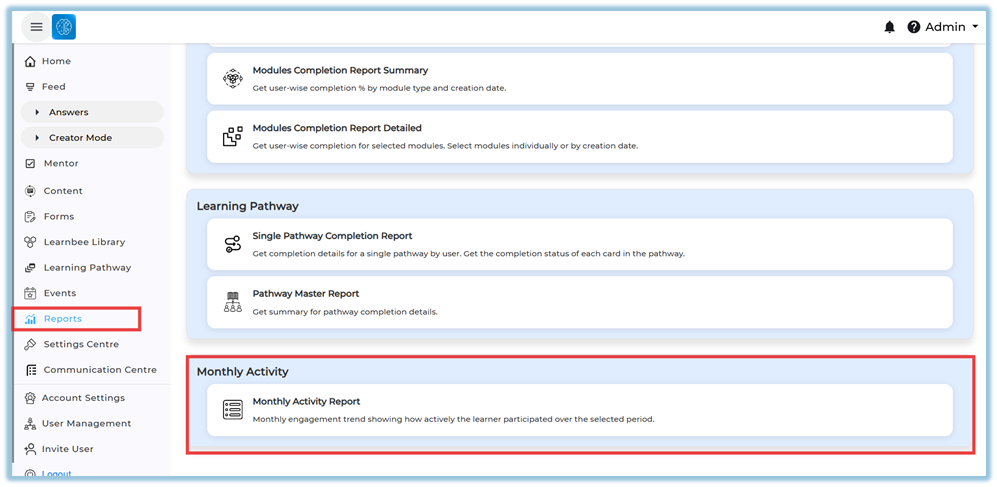
Select the requiredtime range(for example, Last 6 months) from the top-right filter.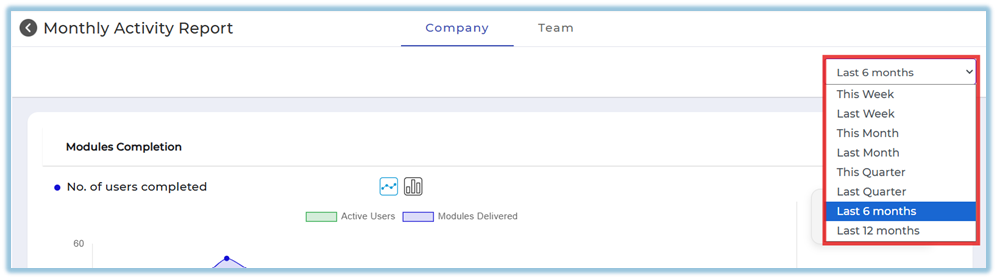
Review theModules Completionsection to view monthly active users and modules delivered.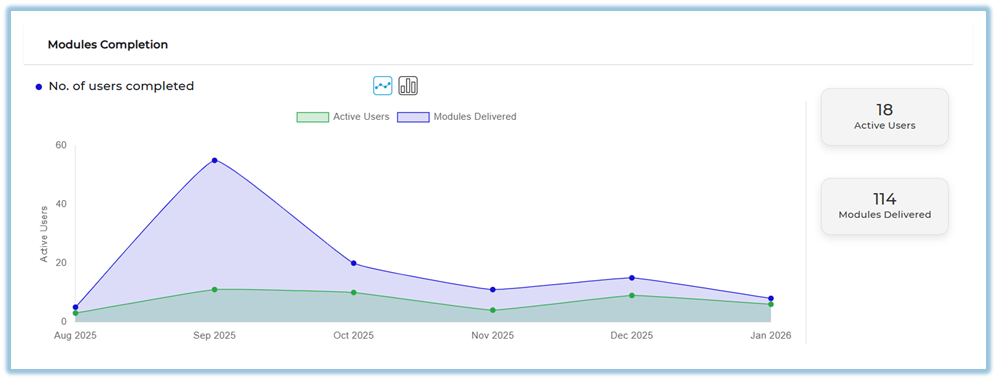
Scroll toPathways Completionto view pathway activity trends for the selected period.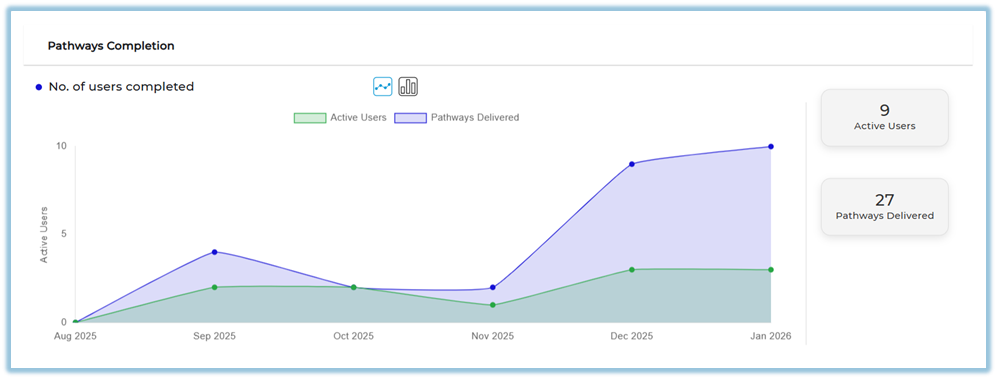
ReviewInstant Answers Activityto see the number of queries and active users per month.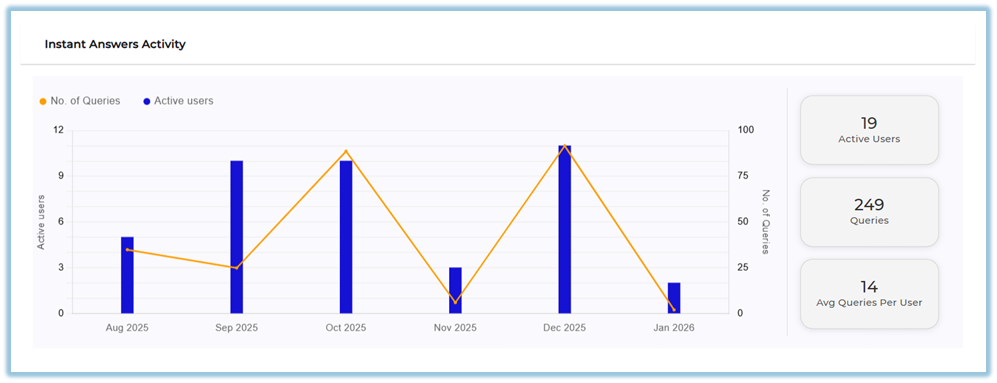
CheckLearning of the Day Participationto view user participation trends over time.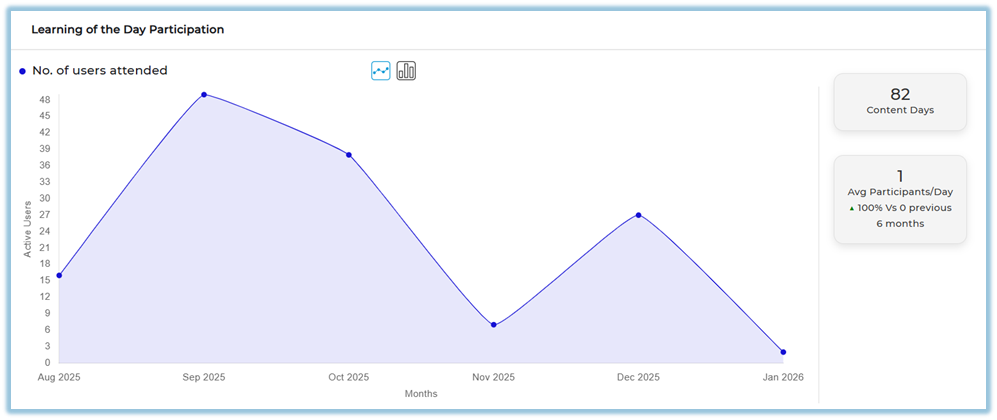
trendsReviewContent Published – Last 6 Monthsto–see monthly contentDisplays publishingtrends.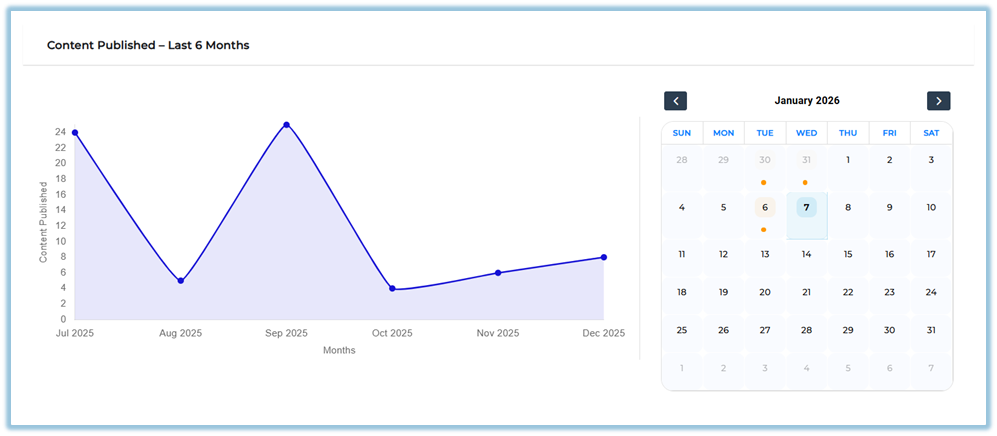 with
with - a
Use thecalendarviewto identify specific dates when content was published (orange dot indicates content creation on that date).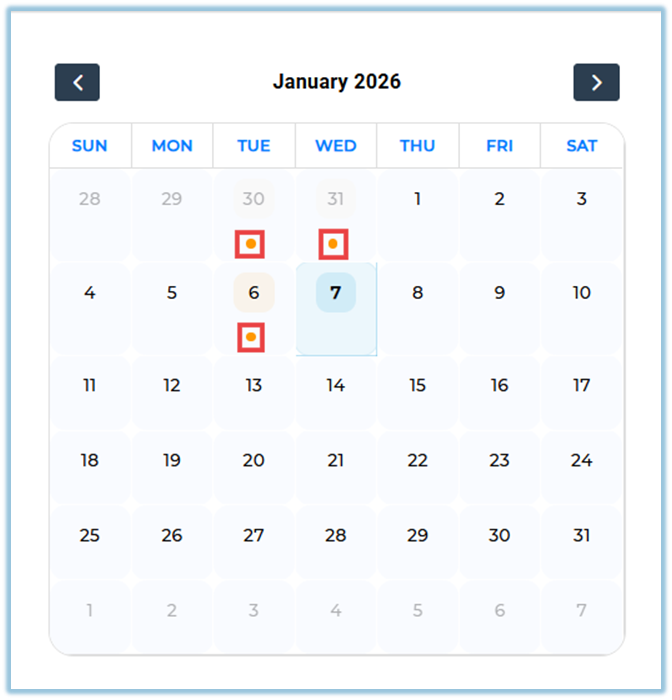
-
CompanyMonthlytabLeaderboards – Displays top participants based on interactions, points, curiosity, consistency, andTeamcontenttab visibility
Company tabis visibleonly to Admin usersand shows complete monthly activity data for the entire organization.Team tabis visibleonly to Managers, Trainers, and Coaches who have team access, and shows thesame dashboards as the Company tab, butrestricted to users mapped to them.coverage.
5. User View
Adminscan view the report only under theCompany tab, which displays all dashboards and activity data across the organization.Trainers, Managers, and Coachessee the report under theTeam tab, where thesame dashboards and chartsare shown, but only for users mapped to them.All users see activity data presented throughgraphs, bar charts, summary cards, and calendar indicators, based on their access scope.
6. Reporting
Monthly Activity Reportprovides visual insights only.Report download isnot availablefor this report.-
The report can be accessed
fromfrom:
Menu → Reports → Monthly Activity Report.https://converse.bsharpcorp.com/celebrate/monthly_activity_report
Full
7. Best Practices
Use broader date ranges to identify engagement patterns.-
Review multiple sections together for better
context.insight correlation. -
Monitor inactive users regularly for follow-up actions.
-
Use
theleaderboardcalendardataviewfortoperformancevalidaterecognition. -
Validate content publishing
days.using the calendar indicators. -
Compare feature usage patterns across months.
8. Related Links / FAQs
Q: What does the orange dot in the calendar indicate?
A: The orange dot indicates that onecontent or more modules werewas created on that specific date.date.
Q: IsWhat thereis anythe difference in data between Company and Team tabs?
A: The dashboardsCompany aretab theshows same,organization-wide butdata. The Team tab shows data is limited to users mapped to the viewer.viewer.
9. Version Notes
Last Updated: 611 Jan 2026