
Content
1. Overview
The Content section in the Settings Centre allows admins to configure all the background options required while creating learning modules. These settings define how content is categorized, organized, and displayed to users. Proper configuration here ensures a smooth and structured content creation experience.
2. When to Use
Use this section when you want to:
-
Set up product structures before creating modules
-
Define categories for feedback and content grouping
-
Create skills and sub-skills for learning alignment
-
Add supported languages for content delivery
-
Define module types such as video, PDF, or learning modules
Note: These configurations appear as selectable fields while creating a module.
3. Concepts
-
Product Family: A high-level grouping of related products
-
Product: Individual items under a product family
-
Category: Used mainly for feedback classification
-
Skill: A primary competency area
-
Sub-Skill: A detailed skill under a main skill
-
Language: Indicates the language of the content
-
Module Type: Defines the format of the learning content
4. Set Up Guide
Access Content Settings
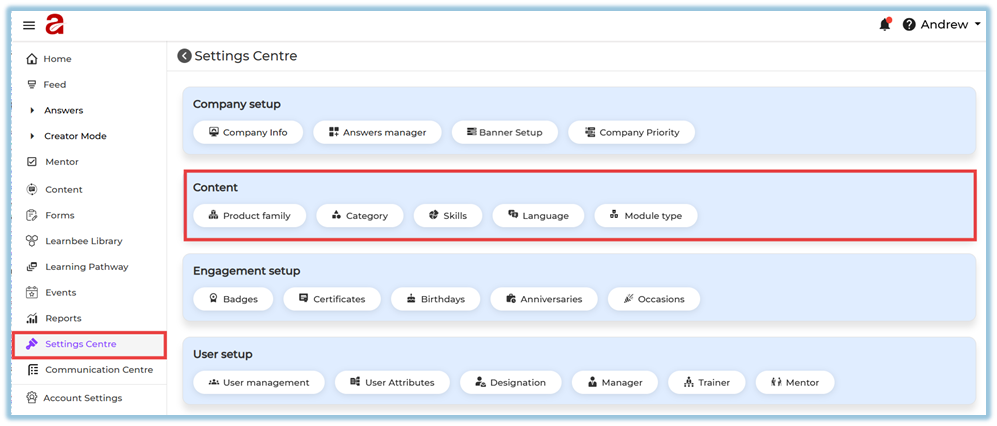
A. Product Family
Path:
Settings Centre → Content → Product Family
https://converse.bsharpcorp.com/celebrate/product-configuration
Purpose:
Used to group related products under a single family for better content organization.
Steps:
-
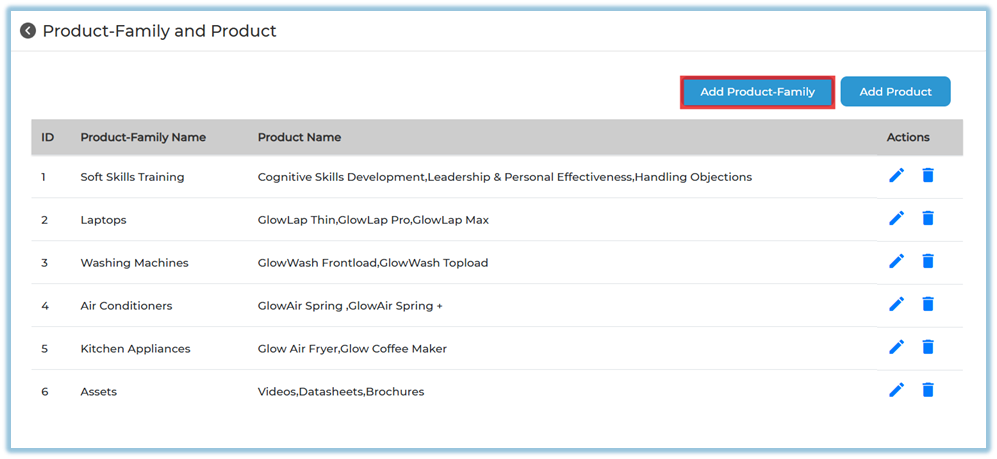
Click Product Family
-
View all existing product families and products
-
Click Add Product-Family
-
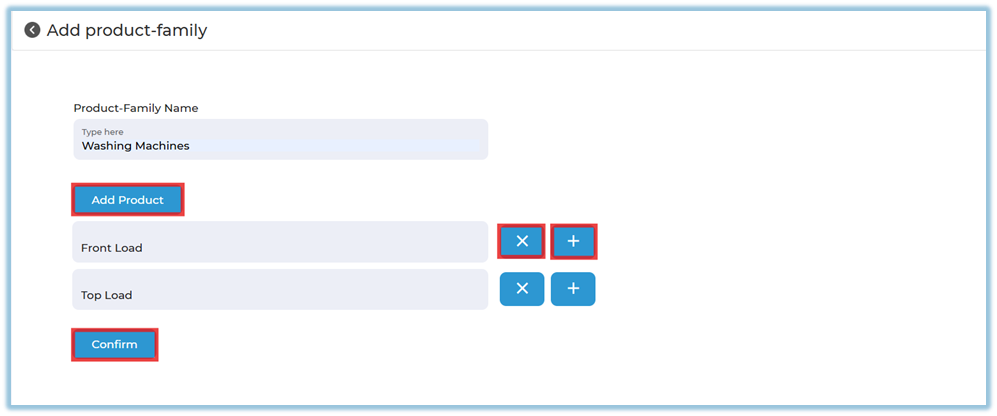
Enter the Product Family Name
-
Click Add Product
-
Add one or more products using the + icon
-
Click Confirm
Product
Path:
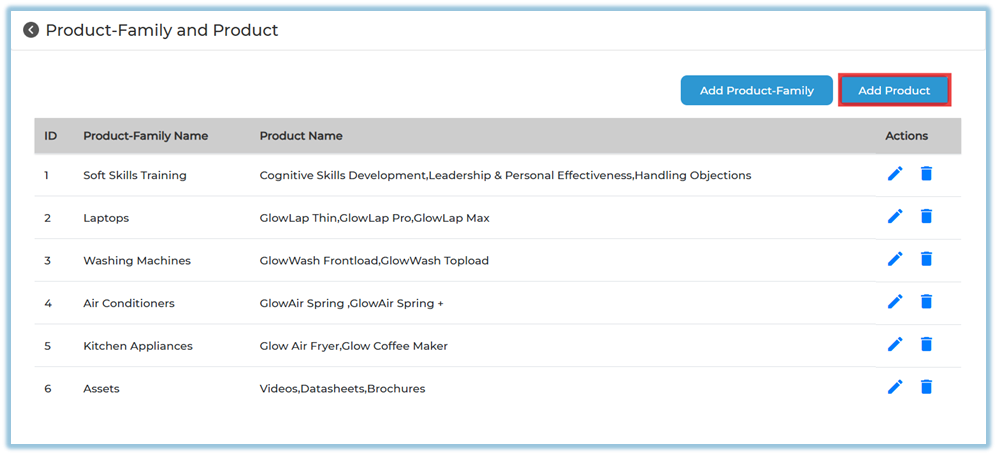
Settings Centre → Content → Product Family → Add Product
Purpose:
Used to add products under an already created product family.
Steps:
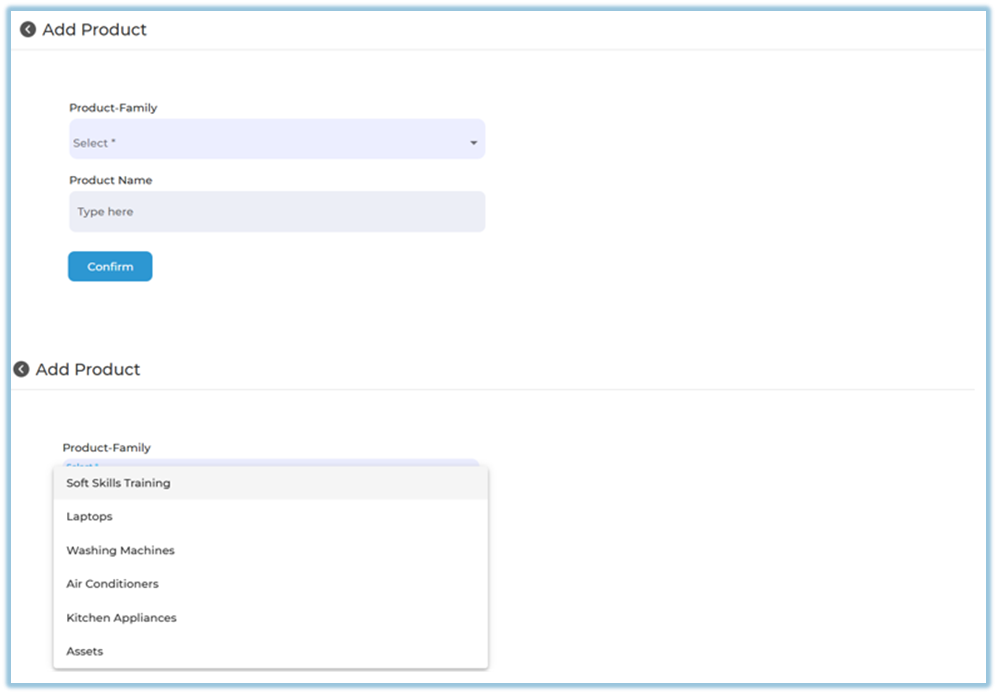
-
Click Add Product
-
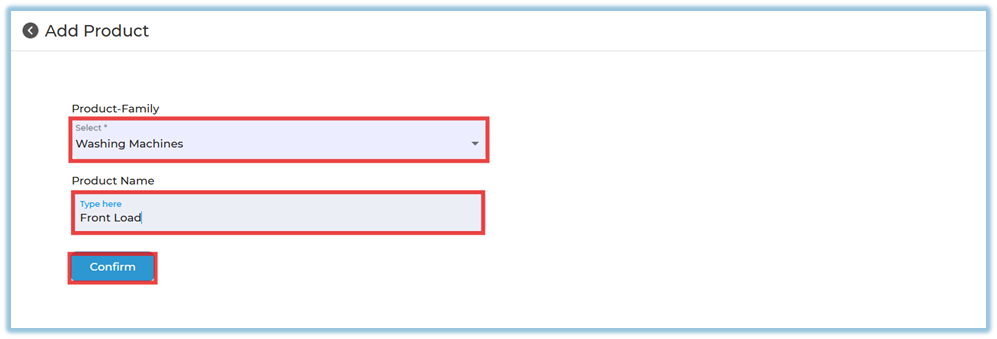
Select an existing Product Family
-
Enter the Product Name
-
Click Confirm
B. Category
Path:
Settings Centre → Content → Category
https://converse.bsharpcorp.com/celebrate/feedback_setup
Purpose:
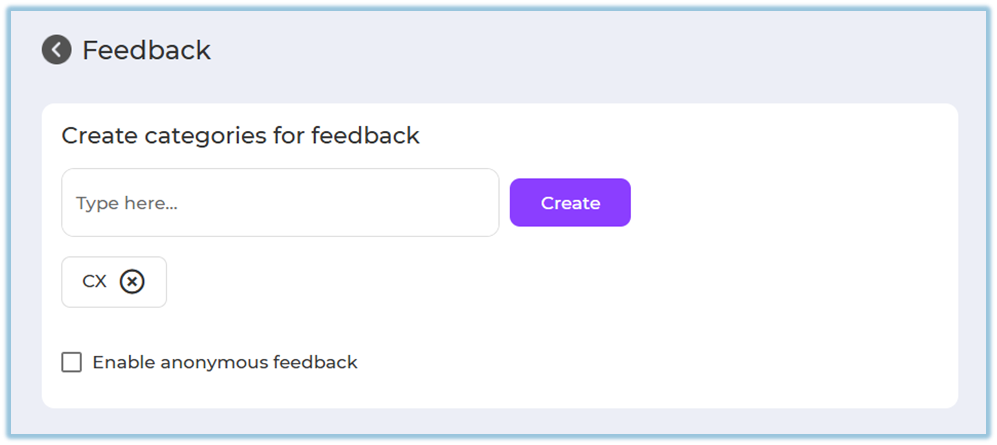
Used to create feedback categories for better classification.
Steps:
-
Enter the category name
-
Click Create
-
To remove a category, click the × icon
-
(Optional) Enable Anonymous Feedback
C. Skills
Path:
Settings Centre → Content → Skills
https://converse.bsharpcorp.com/celebrate/skill-configuration/0
Purpose:
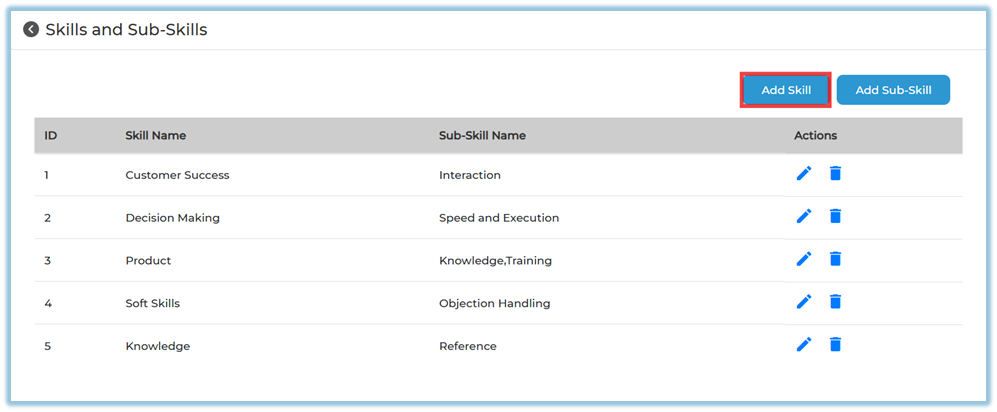
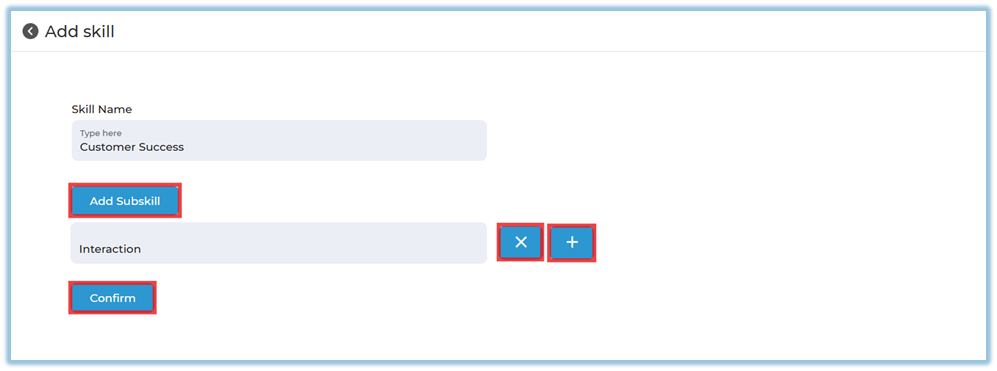
Used to define skill areas and map sub-skills for learning modules.
Add Skill:
-
Click Add Skill
-
Enter the Skill Name
-
Click Add Subskill
-
Add sub-skills using the + icon
-
Click Confirm
Add Sub-Skill:
-
Click Add Sub-Skill
-
Select an existing skill
-
Enter the sub-skill name
-
Click Confirm

D. Language
Path:
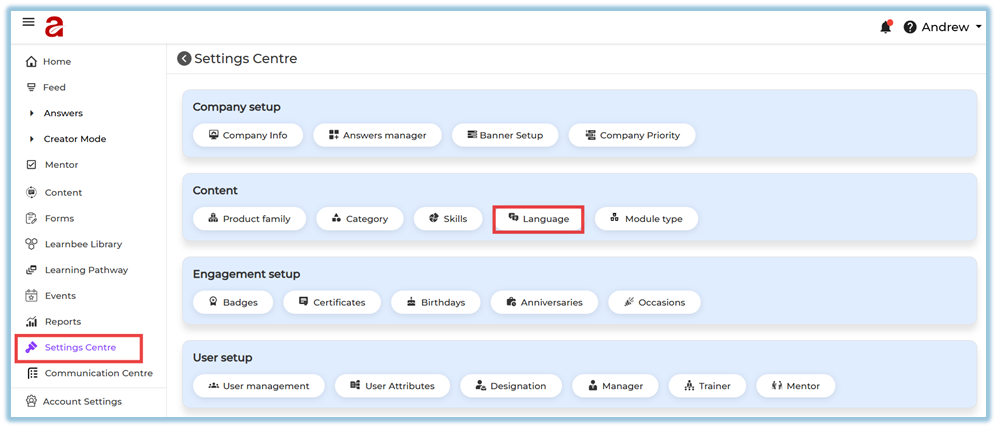
Settings Centre → Content → Language
https://converse.bsharpcorp.com/celebrate/language
Purpose:
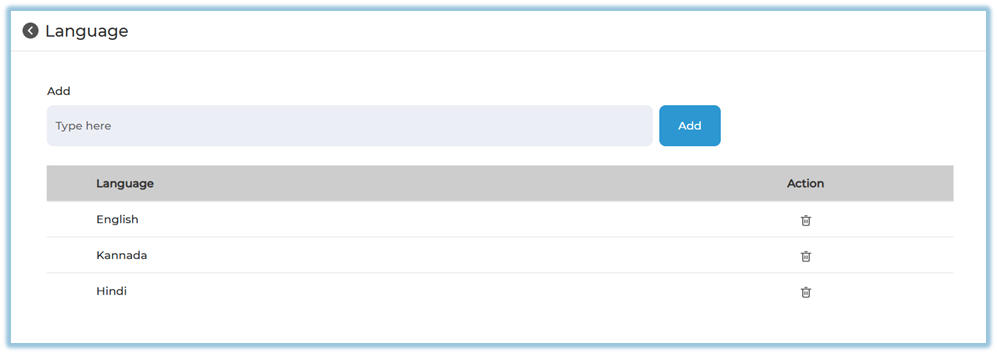
Defines the language in which learning content is created and delivered.
Steps:
-
Enter the language name
-
Click Add
-
Use the delete icon to remove a language
-
Use reorder option if required
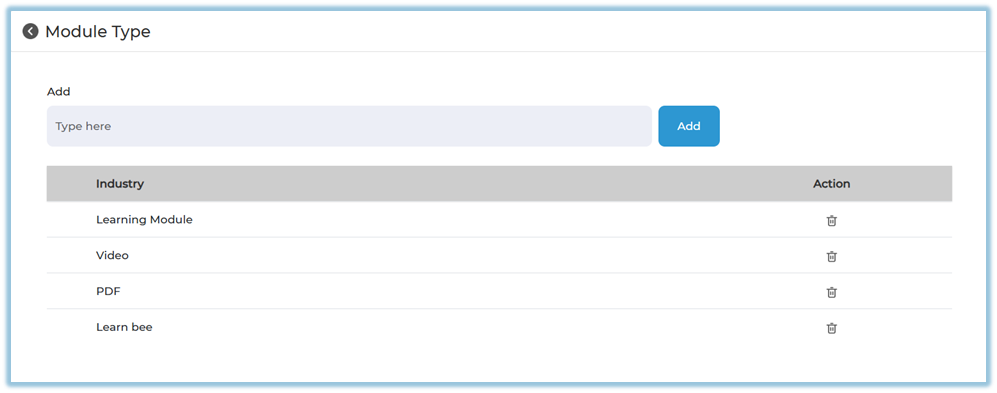
E. Module Type
Path:
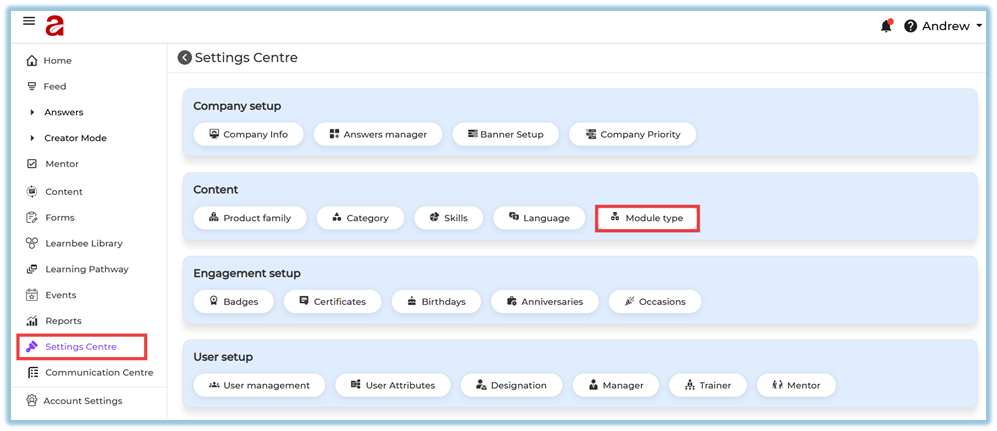
Settings Centre → Content → Module Type
https://converse.bsharpcorp.com/celebrate/module-type
Purpose:
Defines the format of the learning content.
Steps:
-
Enter the module type (example: Video, PDF, Learnbee)
-
Click Add
-
Use delete or reorder options as required
5. User View
These settings are not visible directly to users.
They appear as selectable dropdown options while:
-
Creating a module
-
Viewing module details
6. Reporting
There are no direct reports for Content settings.
However, they are reflected in:
-
Module metadata
-
Skill-based and product-based reporting
7. Best Practices
-
Complete all content setup before creating modules
-
Use consistent naming conventions
-
Avoid deleting values already linked to live content
-
Use reorder options to keep dropdowns user-friendly
8. Related Links / FAQs
9. Version Notes
Last Updated: 29 Dec 2025
No Comments