
How do I configure a geo map widget?
Overview
A geo map widget plots your data on a map, so you can see how a metric varies by location at a glance.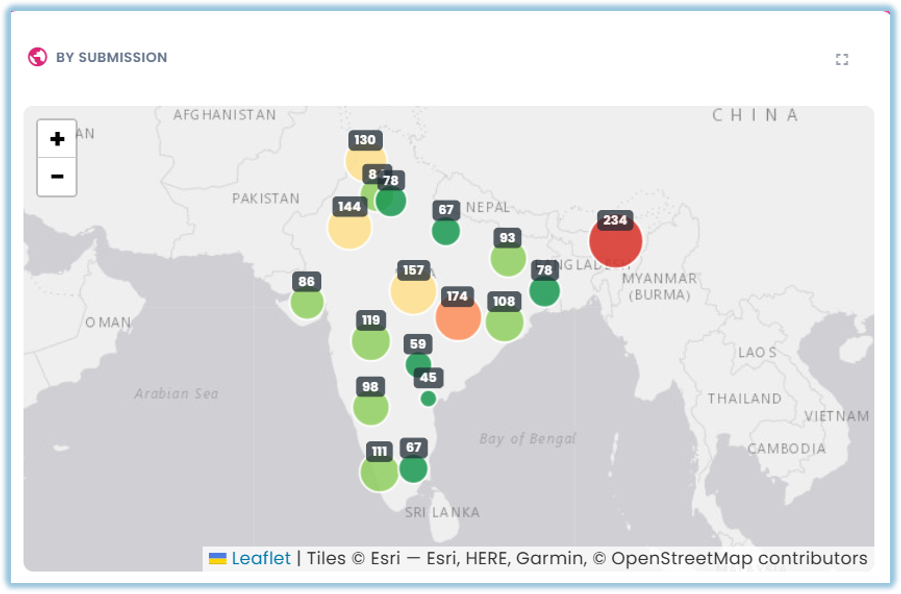
When to Use
Use this feature when:
- You want to see how a metric breaks down by geography — region, state, country, or a similar location field
- You want a visual, at-a-glance view of location-based patterns rather than a table of location values
Concepts
- Geo Map – A widget type that plots your data on a map, with values shown by location
- Location Field – The field in your data that identifies each map point or region, such as a region, state, or country column
- Metric – The value shown at each location, with an aggregation such as Sum, Count, or Average
- Basemap – The underlying map tiles the widget draws on top of, sourced from CARTO
Set Up Guide
- Go to a dashboard and click Add Widget, then set the Title, Apply Dashboard Filters, Widget Type (Geo Map), and Data Source as usual
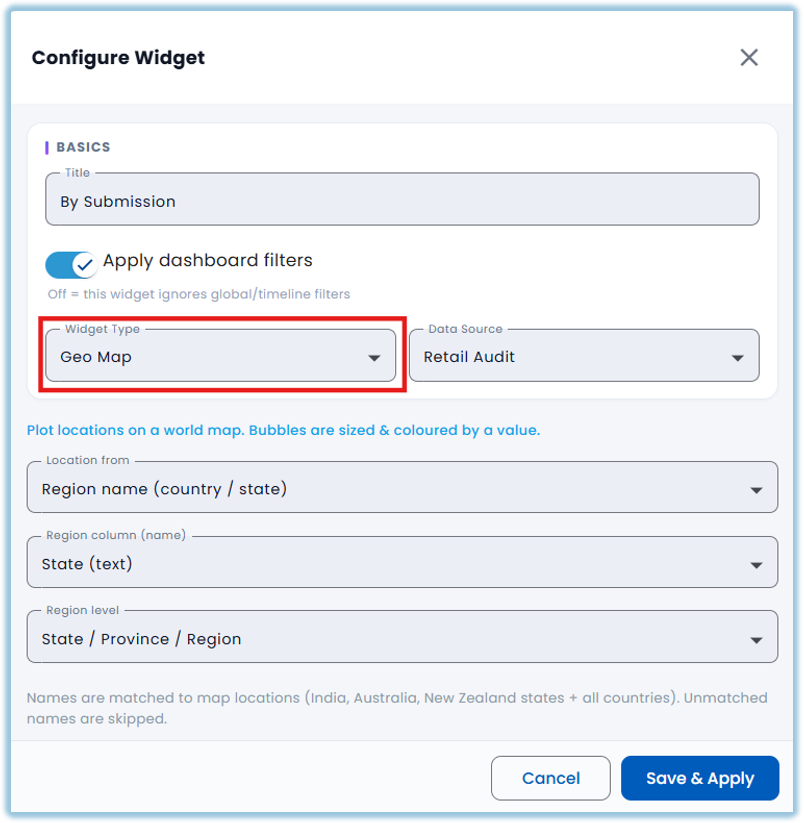
- Choose the Location field
- Choose the Metric field and aggregation
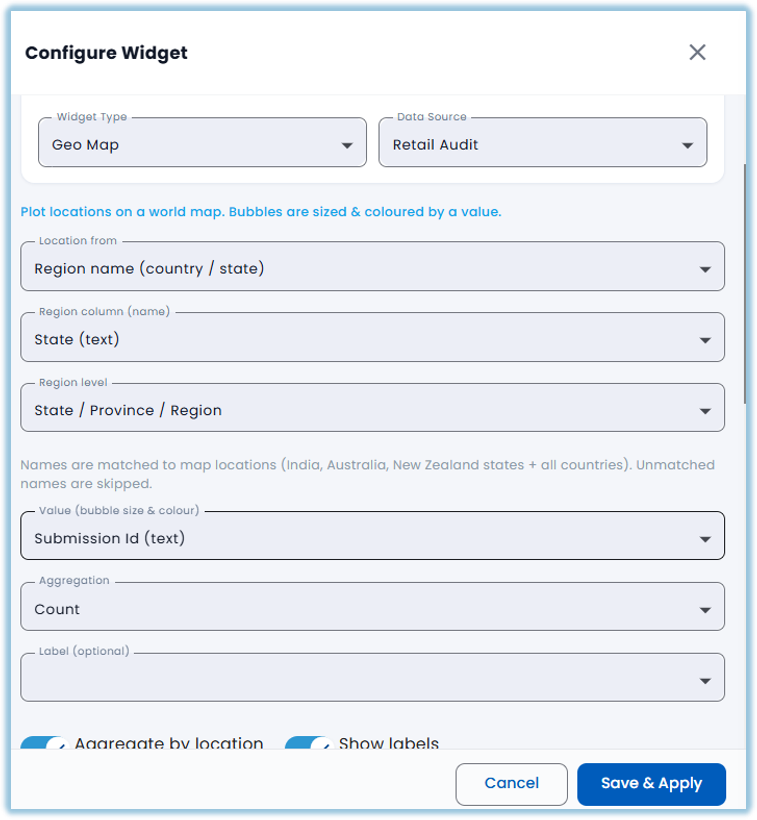
- Apply any filters you want the map to respect
- Click Save & Apply
Related Links/FAQs
- What widget types are available in Vantage?
- How do I configure a chart widget?
- How do I configure a summary table or pivot table widget?
FAQs
Why does the map show a watermark?
The map's basemap tiles come from CARTO, which began watermarking tile requests in September 2026. This is expected and not an error with your dashboard.
Version Notes
Last Updated: 22 Oct 2026
No Comments