
How do I sync Converse forms into Vantage?
Overview
Syncing a Converse form into Vantage turns its submissions into a Vantage data source, so you can build dashboards and widgets from them. Once set up, new submissions keep flowing in on their own.
When to Use
Use this feature when:
- You want to build dashboards or widgets from a Converse form's submissions
- You need form data available as a Vantage data source
- You want new submissions to keep syncing in without manual work
Concepts
- Add to Analytics – The action that turns a form's submissions into a Vantage data source
- Schema – The list of fields from the form and their data types, shown before the first sync
- DDE Columns – Store list, product catalogue, and other DDE (Dynamic Data) columns attached automatically during sync
- Resync – Manually pulls in submissions received since the last sync
- Published Form – Only published forms can be synced; drafts don't appear
Set Up Guide
- Go to the Forms section.
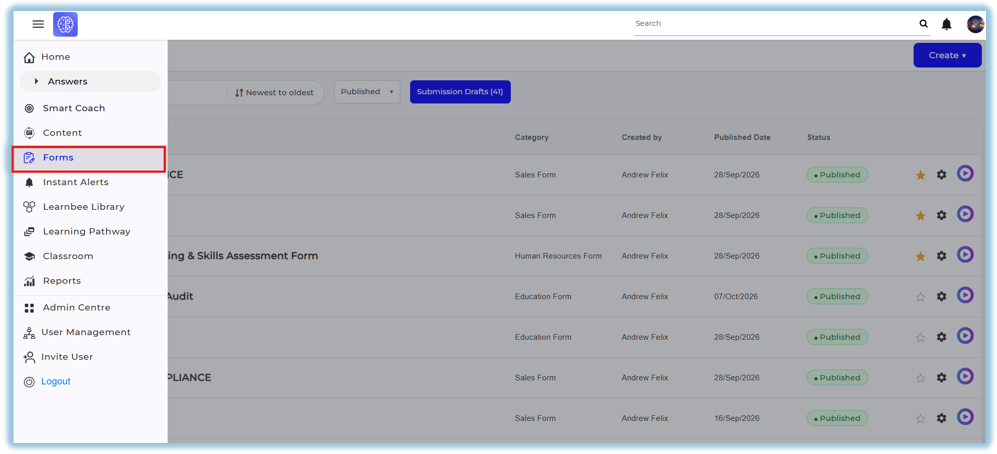
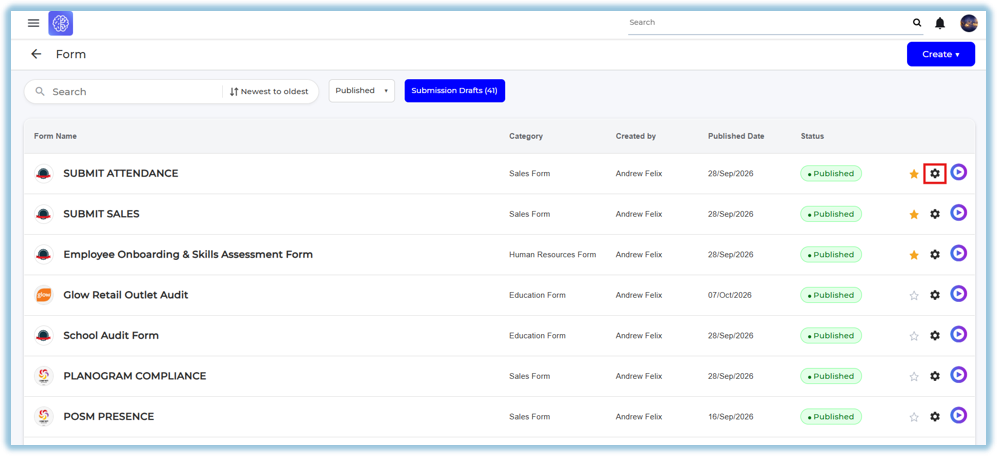
- Click the form you want to pull data from
- Click the form's Settings icon
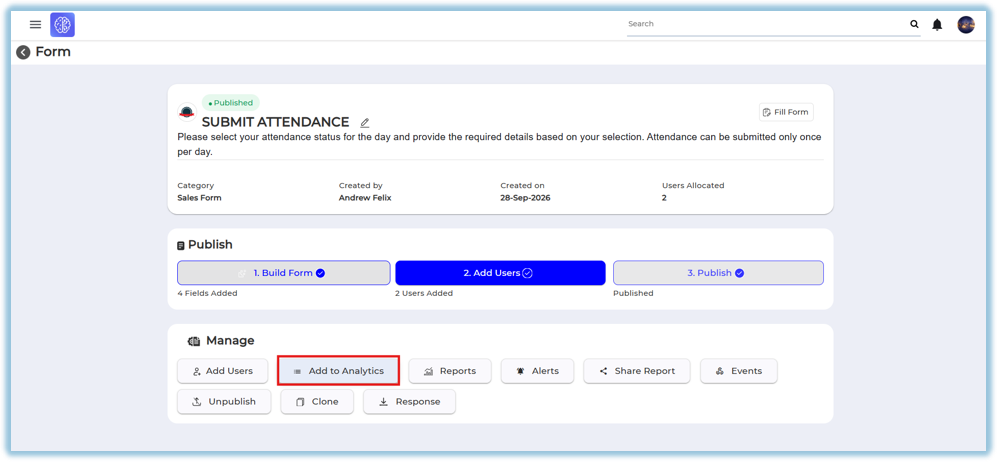
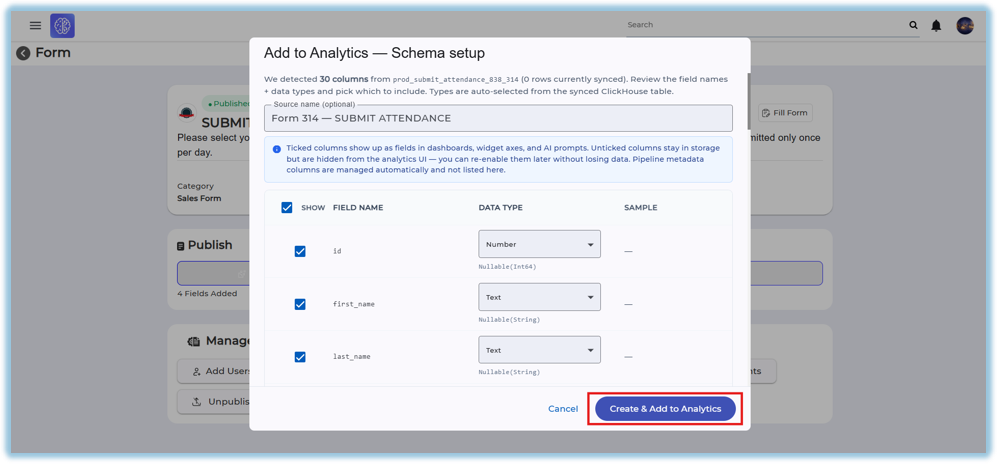
- Click Add to Analytics
- Review the schema that's shown — check the field types and update any that need fixing
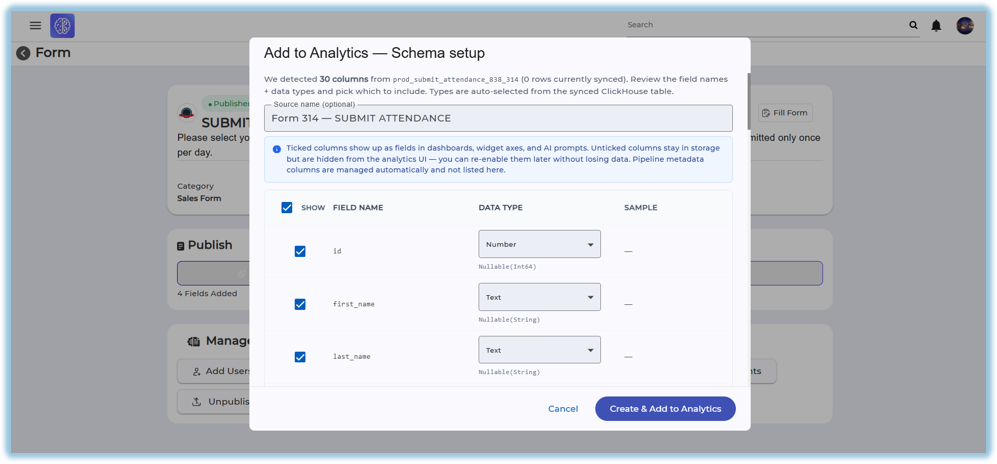
- Click Create Entry to send the form's data to Vantage
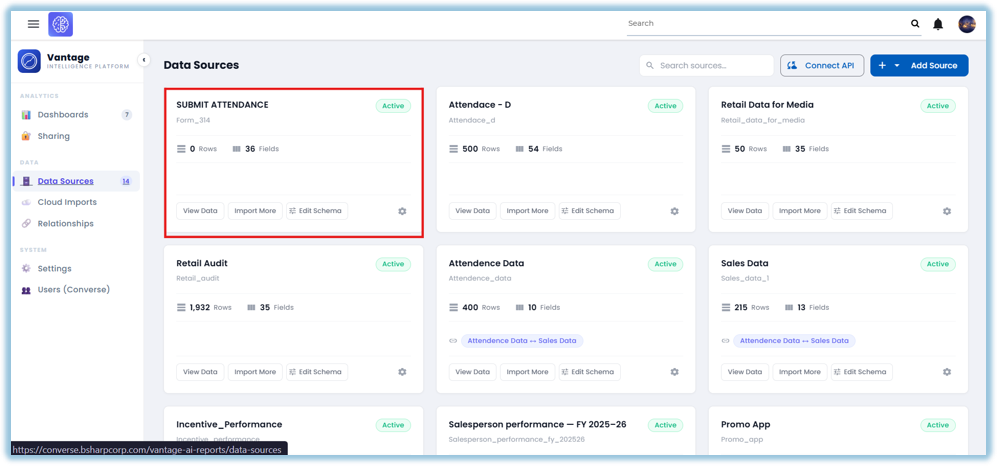
- The form now appears as a data source in Vantage, named after the form — its submissions show up there automatically
Best Practices
- Only published forms can be synced — publish the form first if it's still a draft
- Check the schema carefully before creating the entry — it's harder to fix field types after data has started syncing
- Use Resync if you need the latest submissions right away instead of waiting for the next automatic sync
Related Links/FAQs
FAQs
Can I sync a draft form?
No — only published forms can be synced.
Do I need to resync manually every time?
No — new submissions sync in automatically once the form is set up. Resync is only for pulling in a submission right away instead of waiting.
Version Notes
Last Updated: Oct 2026
No Comments