
How do I view and edit data in a source?
Overview
View Data shows you every row of information inside a source, like opening a table and looking through it. From here you can also search the data, download it, or fix a wrong value everywhere it appears.
When to Use
Use this feature when:
- You want to check what data actually came into a source
- You need to download the data as a CSV or Excel file
- You spot a wrong or inconsistent value and want to fix it everywhere at once
- You want to check how many rows a source has
Concepts
- View Data – The screen where you can see every row in a source, like opening a spreadsheet
- Find & Replace – A tool that changes a value everywhere it appears in a source, in one step (for example, changing "Banglore" to "Bangalore" everywhere at once)
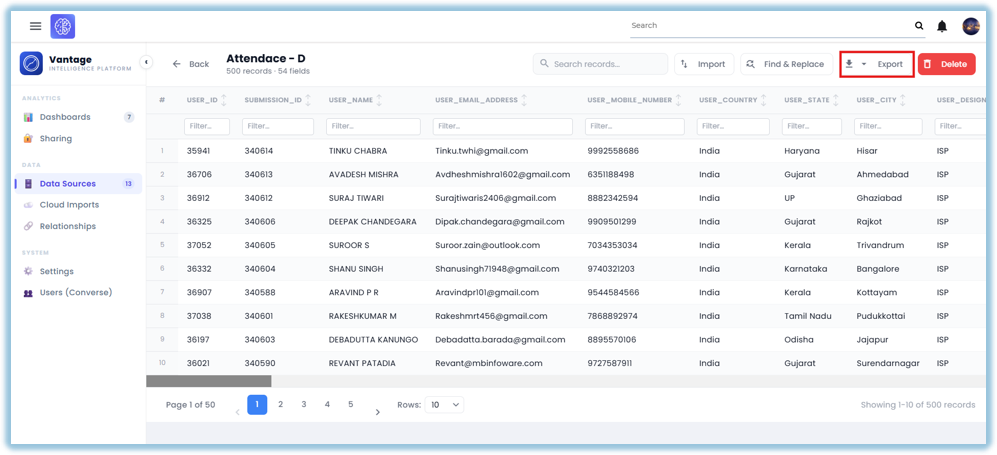
- Export – Downloading the source's data as a file you can open in Excel
- Row Count – The total number of rows in a source
Set Up Guide
- Go to Data Sources
- Click the source you want to check
- Click View Data
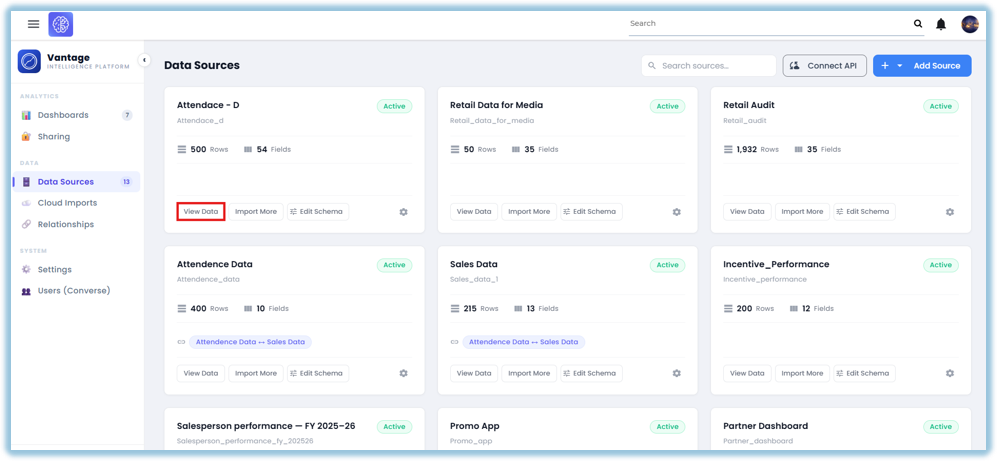
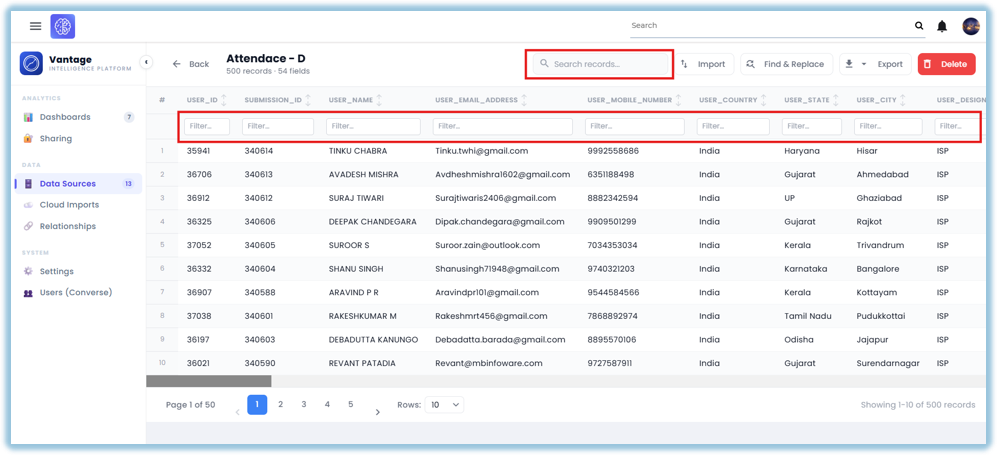
- Use search or filters to find the rows you need
- To download the data, click Export and choose CSV or Excel
- To fix a value, click Find & Replace
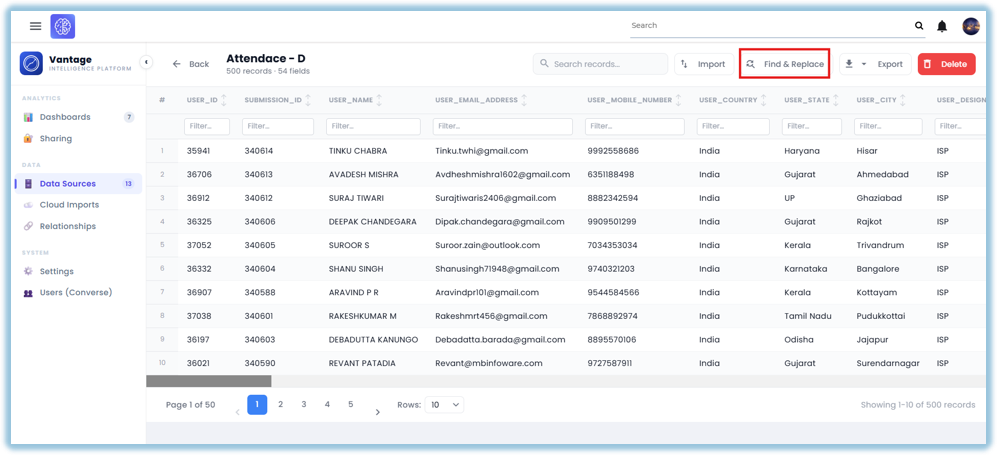
- Type the value you want to find (for example, "Banglore")
- Choose whether to match the full value or just part of it
- Turn on "match case" only if the fix should apply just to that exact spelling (capital or small letters)
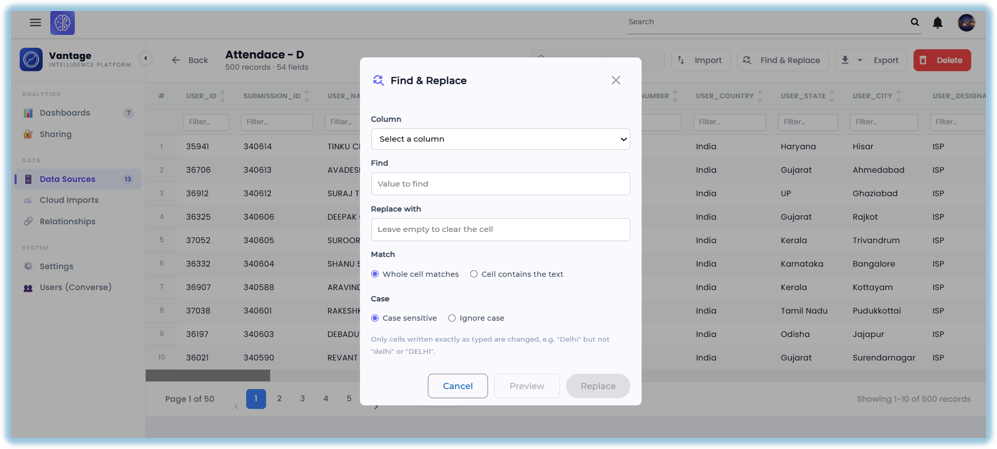
- Click Preview to see how many rows will be affected
- Click Apply to make the change
Best Practices
- You can't undo a Find & Replace, so always check the Preview count first
- Find & Replace only works on Excel and API sources, not on forms, DDE tables, or combined sources
- Number and date columns only match the full value, not part of it
- Row counts can take up to a minute to update
- For large sources, download only the rows you need instead of the whole file
Related Links/FAQs
- How do I resync or refresh a source?
- How do I define a relationship between two sources?
FAQs
Can I undo a Find & Replace?
No. Always check the Preview count before applying.
Can I use Find & Replace on any source?
No — only Excel and API sources support it.
Why didn't my download include everything?
Large files are limited to keep things fast — try downloading a filtered set instead.
Version Notes
Last Updated: Oct 2026
No Comments