
How to Set Up Instant Answers
1. Overview
Instant Answers is an AI-powered feature in Bsharp Converse that allows users to ask questions and get quick answers from uploaded documents and configured channels. Admins set up answer channels with knowledge content and experts, enabling users to find information instantly without searching through files.
https://bsharpcorp.com/converse/instant-answers/
2. When to Use This?
When to use:
-
When users frequently ask repetitive or common questions
-
When quick access to product, policy, or training information is required
-
When knowledge is spread across multiple documents
3. Concepts
-
Instant Answers: AI chat interface that responds based on uploaded content
-
Channel: A category under Answers (e.g., Product Specs, Aura)
-
Channel Expert: Subject matter expert responsible for the channel
-
Knowledge Base: Documents uploaded to train the Instant Answers
-
Tone: Style of AI responses (Neutral, Professional, Friendly, etc.)
-
Publish To: Controls who can access the channel (Admin / All)
4. Setup Guide
Follow these steps to set up Instant Answers:
-
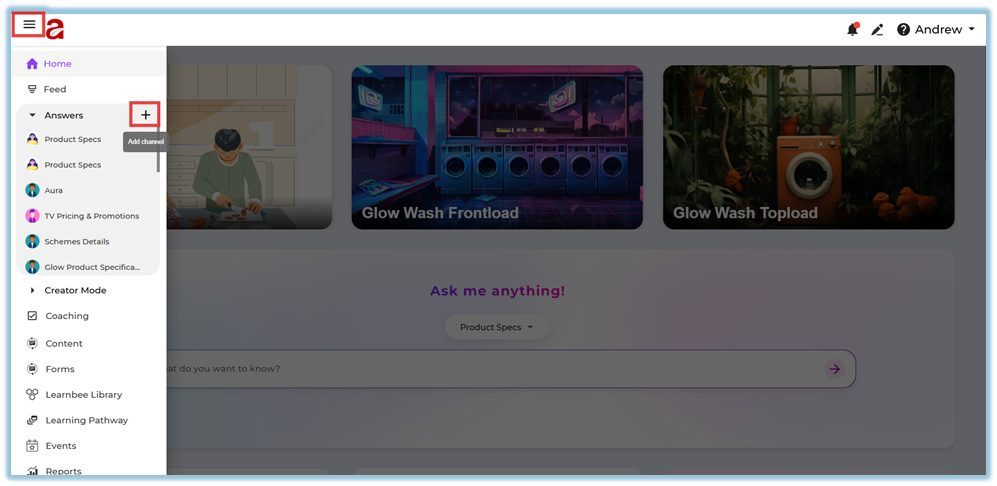
Click on the three-line (hamburger) menu on the top left.
-
From the left panel, click on Answers.
-
Click the “+” (Add Channel) icon next to Answers
-
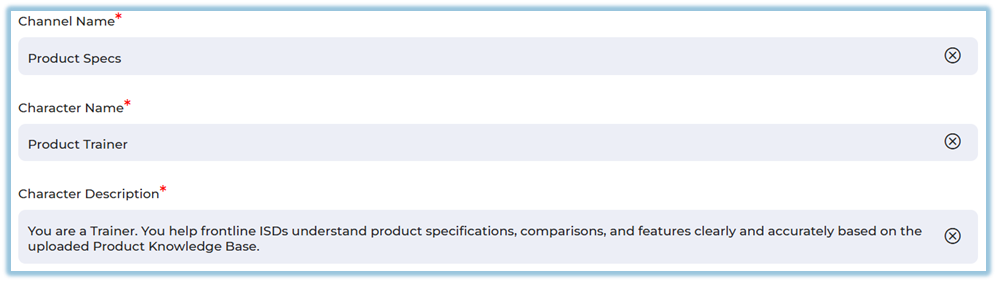
Enter the Channel Name, Character Name, & Character Description.
-
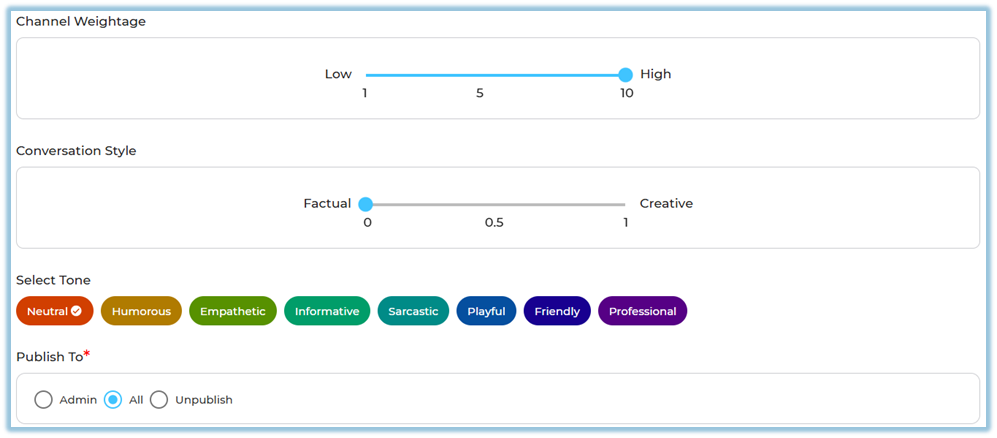
Configure the following settings:
-
Channel Weightage (Low to High)
-
Conversation Style (Factual ↔ Creative)
-
Select Tone (Neutral, Professional, Friendly, etc.)
-
-
Under Publish To, select:
-
Admin or All
-
-
Add Channel Experts (minimum 1, maximum 5).

-
Upload documents under Add your knowledge base here.
-
Click Save to activate the channel.
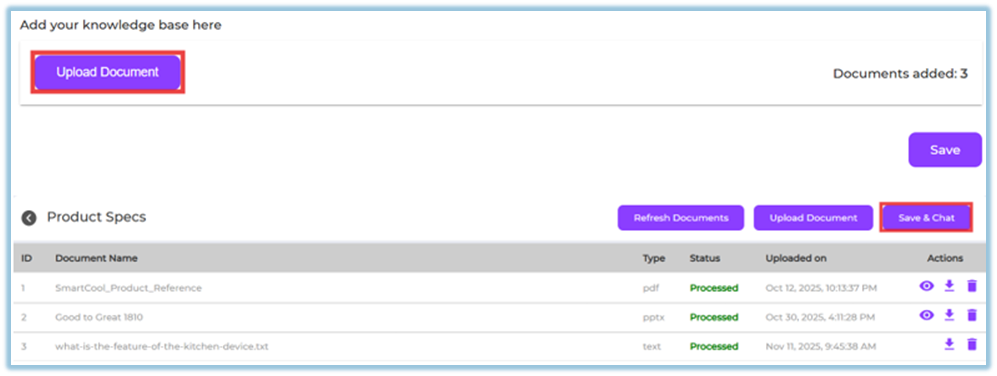
Once saved, the channel becomes available under Instant Answers.
5. User View
-
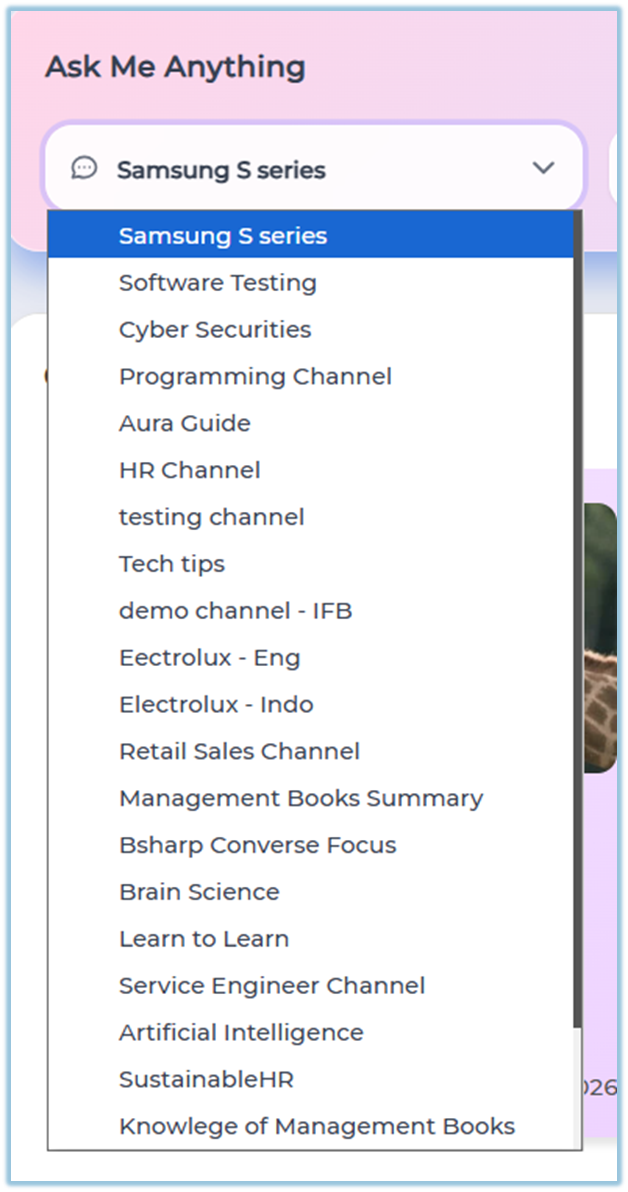
The “Ask me anything!” chat box is displayed

-
Users select a channel (for example: Product Specs)
-
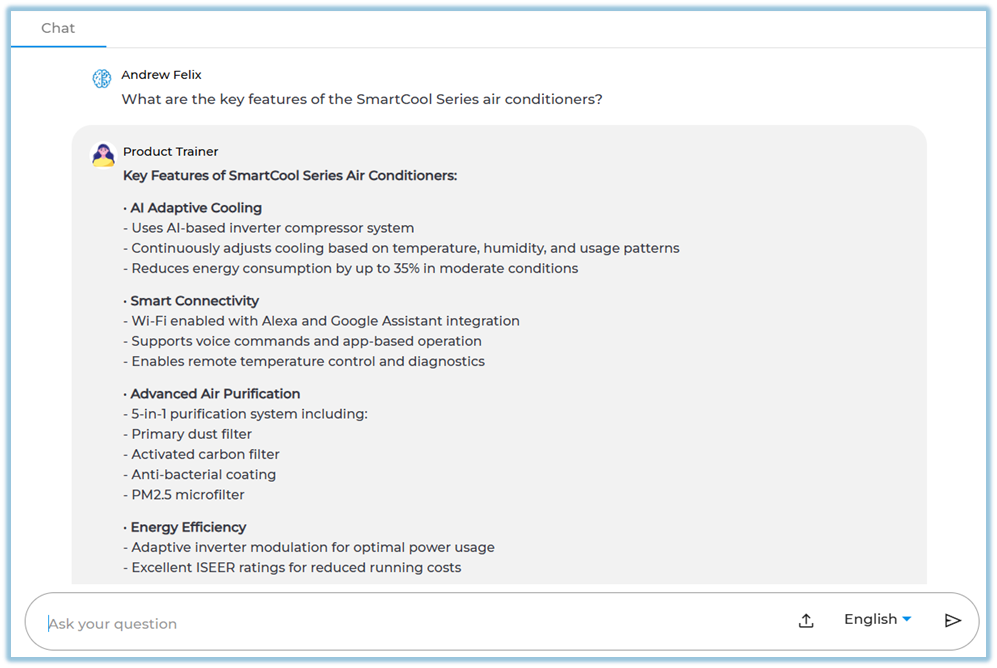
Users type their question in the input field
-
Click the arrow icon to submit the question

-
Instant Answers are shown based on the selected channel’s knowledge base
6. Reporting
-
Go to Reports from the left-side menu
-
Select Instant Answers Report
-
View the number of queries asked by users
-
Track active users using Instant Answers
-
Filter reports by channel and time period
-
Use the report to understand usage and engagement of Instant Answers
7. Best Practices
-
Upload clear and updated documents only
-
Avoid uploading duplicate or outdated files
-
Assign knowledgeable Channel Experts
-
Use Professional or Neutral tone for official content
-
Regularly refresh documents for accuracy
8. Troubleshooting / FAQs
Q: Instant Answers is not responding correctly
→ Check if documents are processed successfully.
Q: Users cannot see the channel
→ Verify the Publish To setting.
Q: Answers are inaccurate
→ Review uploaded documents and remove irrelevant files.
Q: Channel Expert not assigned
→ At least one expert must be added to save the channel.
9. Version Notes
Last Updated: 21 Apr 2025
No Comments