
Custom Widget
1. Overview
Custom Widget allows admins to add additional widgets on the Home Page.
It helps highlight important information, links, or content for users.
2. When to Use
Use this feature when:
- You want to display important announcements or content
- You need to highlight external links or campaigns
- You want to personalize the Home Page experience
3. Concepts
- Custom Widget – A configurable card displayed on the Home Page
- Widget Type – Layout of the widget (Compact / Full Width)
- Redirect Link – URL where users are redirected on click
- User Assignment – Controls which users can see the widget
- Live Preview – Real-time preview of widget design
4. Set Up Guide
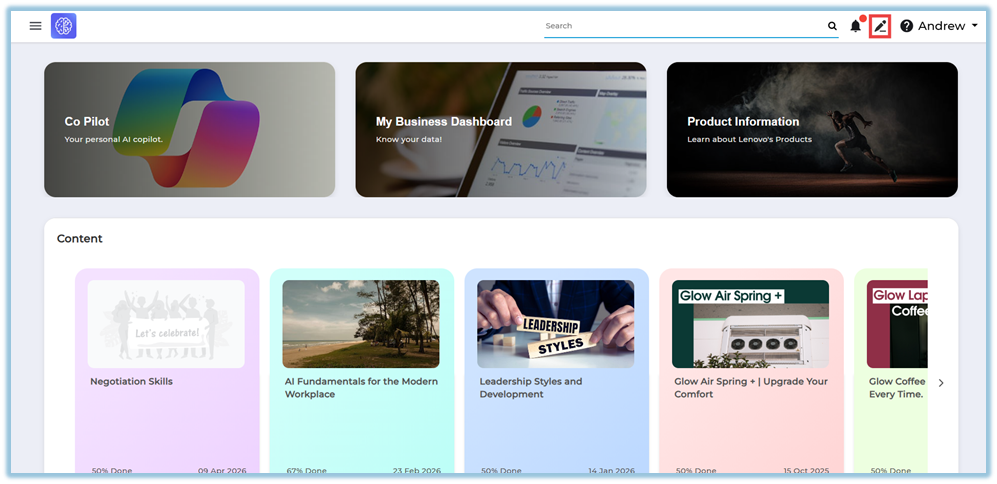
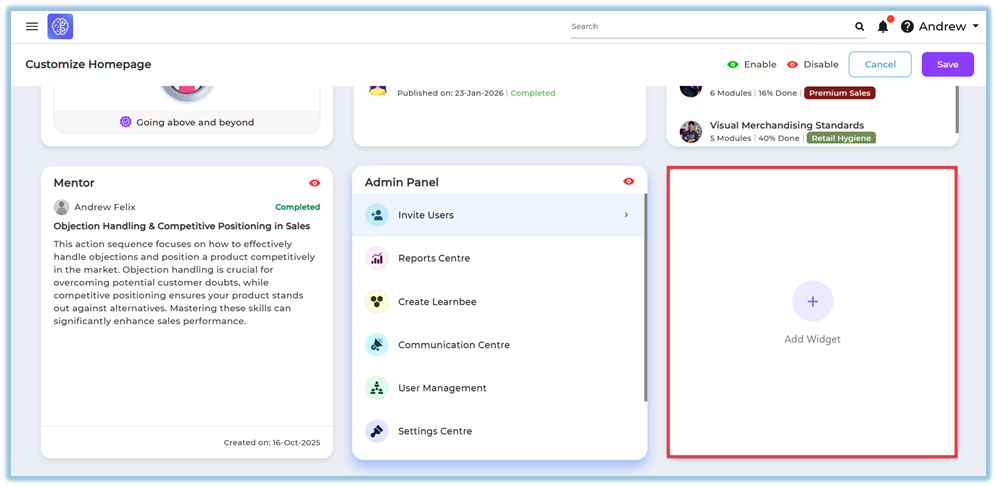
Access Widget Setup
- Go to Home Page
- Click Edit (✏️ icon)
- Click + Add Widget
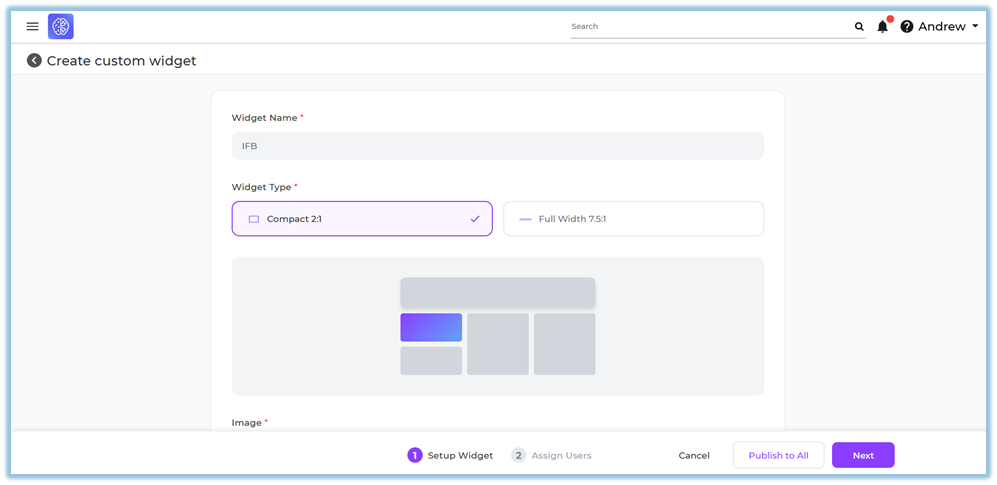
Step 1: Setup Widget
Fill the required details:
- Widget Name
- Widget Type
- Compact (2:1)
- Full Width (7.5:1)
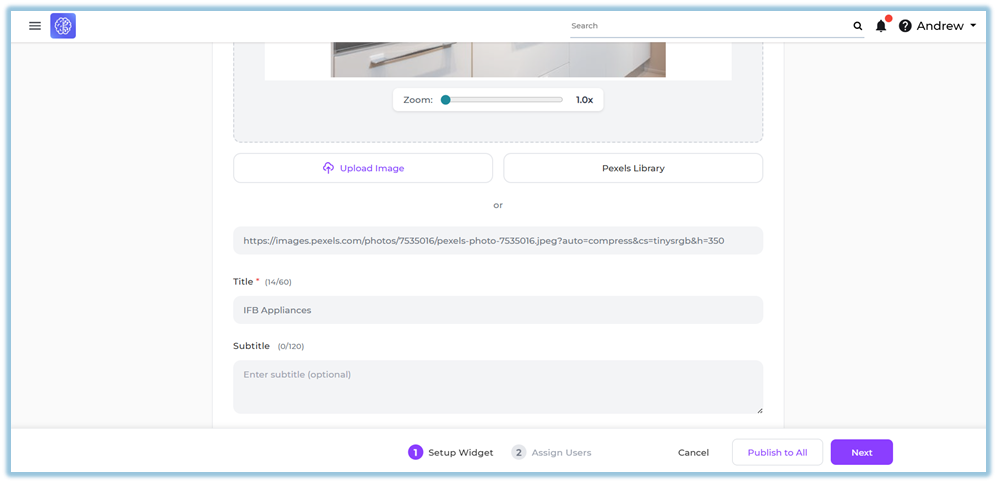
- Image Upload Options
- Upload from system
- Select from Pixel Library
- Add Image URL
- Content Details
- Title
- Subtitle
- Redirect Link
- External link (URL)
- Internal link
- Display Option
- App / Web / Both
- Live Preview
- View image, title, and subtitle before publishing
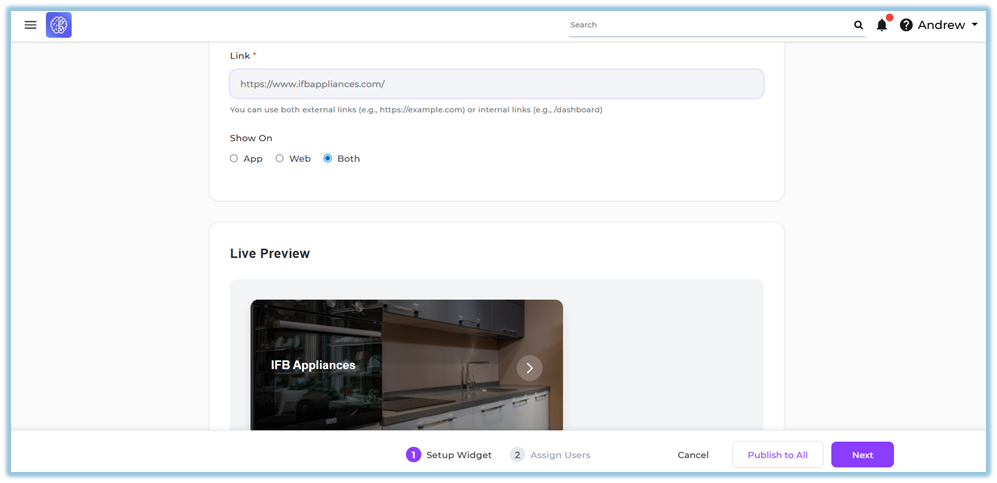
- View image, title, and subtitle before publishing
Click Next
Step 2: Assign Users
Assign widget visibility:
- Individual Users
- By Attribute
- Groups
- Assign to All Users
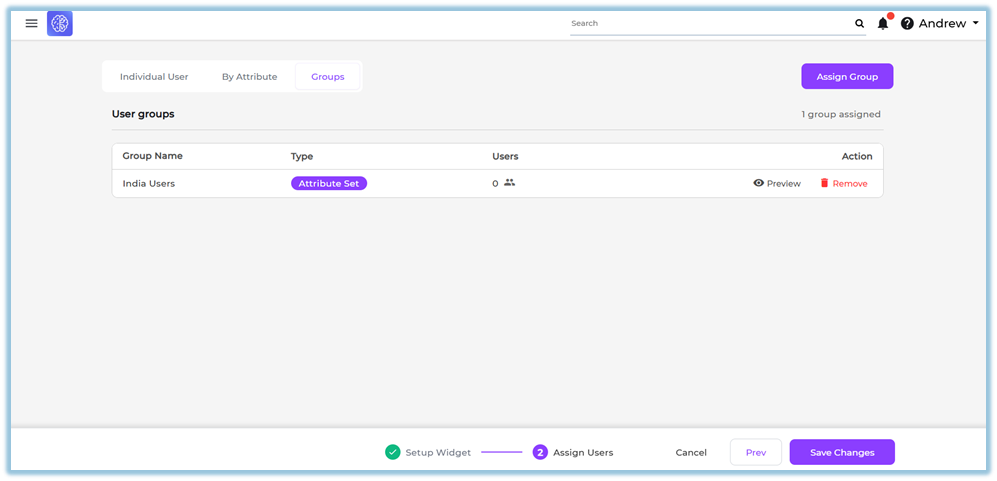
Click Save / Publish
5. User View
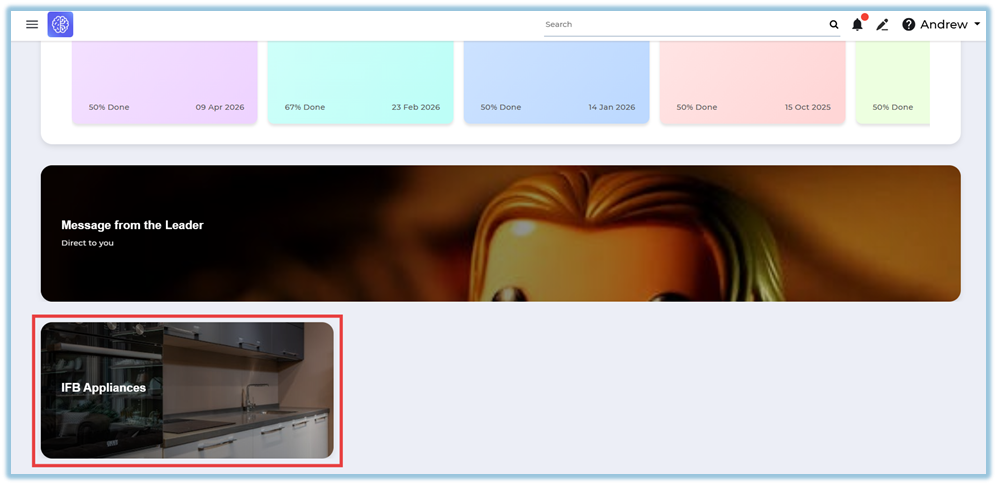
- Widget appears on Home Page
- Displays:
- Image
- Title
- Subtitle
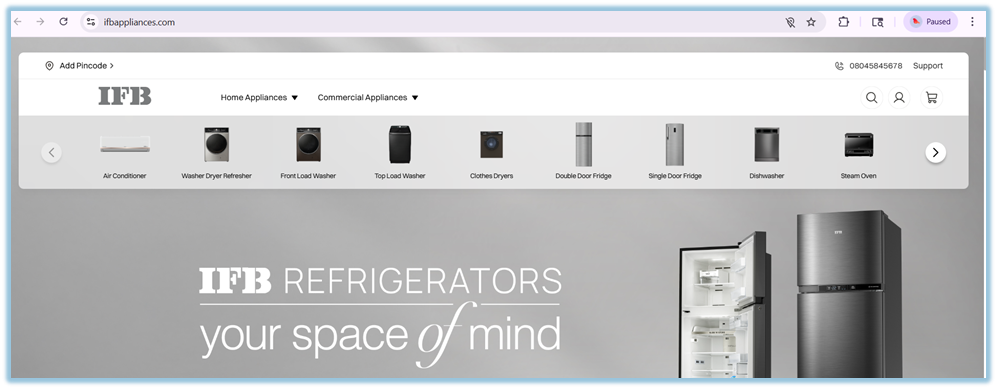
- On click → redirects to configured link
6. Reporting
- No direct reporting available for widgets
- Used mainly for visibility and navigation
7. Best Practices
- Use clear and high-quality images
- Keep title and subtitle short
- Use valid redirect links
- Assign widgets to relevant users/groups
- Preview before publishing
8. Version Notes
Last Updated: 16 Apr 2026
No Comments