
Single Module Completion Report
1. Overview
The Single Module Completion Report provides visibility into how users have engaged with and completed a specific module, including completion status, activity trends, scores, ratings, and learning object–level details, with views available at both company and team levels.
2. When to Use
-
When you need to track completion progress for a specific module across users.
-
When you want to review learner engagement, scores, or ratings for a single module.
-
When managers, trainers, or mentors need visibility into their team’s module completion.
-
When detailed user-level completion data is required for audits or follow-ups.
3. Concepts
-
Module Selection: Identifies the specific module for which completion data is displayed.
-
Date Range: Filters module data based on the selected time period.
-
Company View: Displays organization-wide module completion data.
-
Team View: Displays module completion data limited to mapped team users.
-
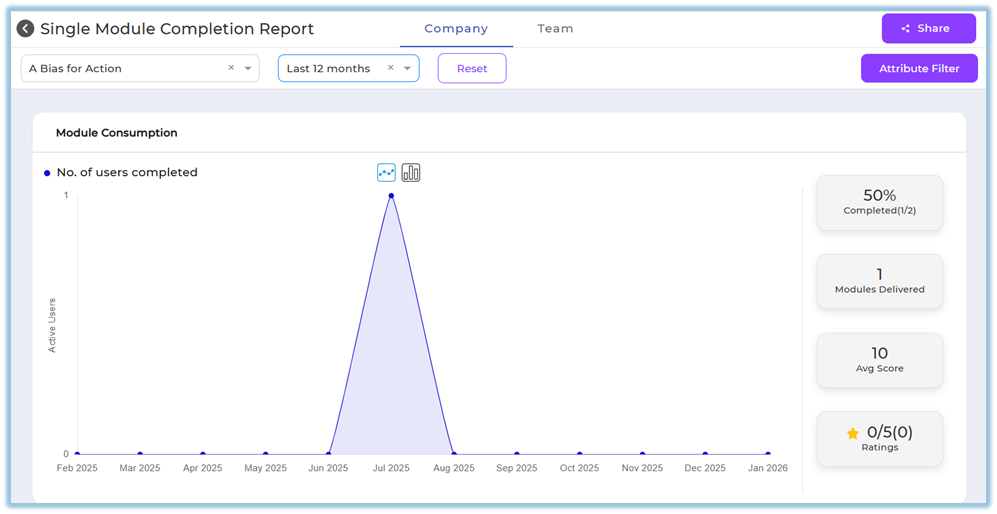
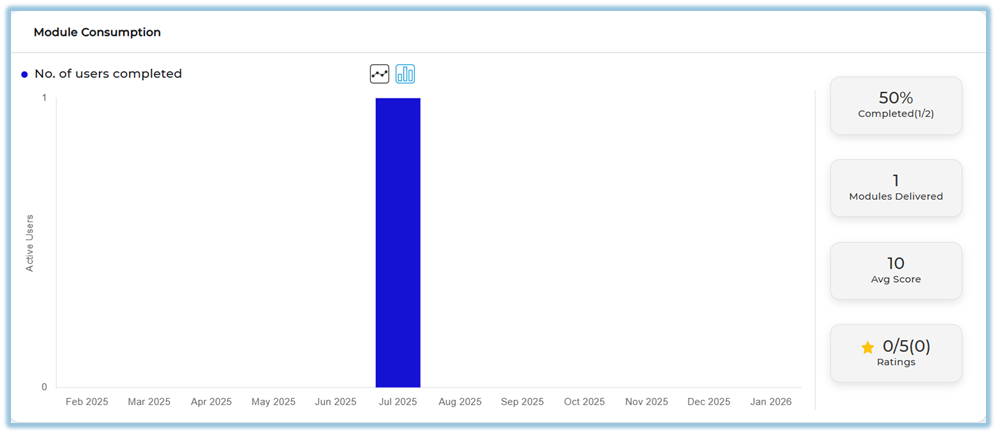
Completion Metrics: Summarized indicators such as completion percentage, modules delivered, average score, and ratings.
-
Completion Visualization: Graphical representation of active users and completed users.
-
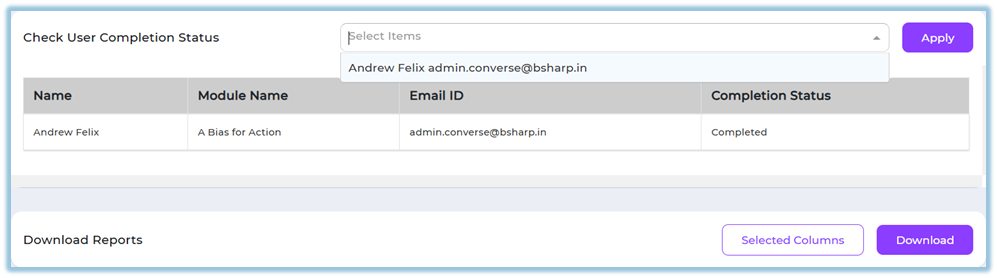
User Completion Status: User-level completion details for the selected module.
-
Learning Object Report: Item-level completion data for videos, PDFs, quizzes, or other content within the module.
-
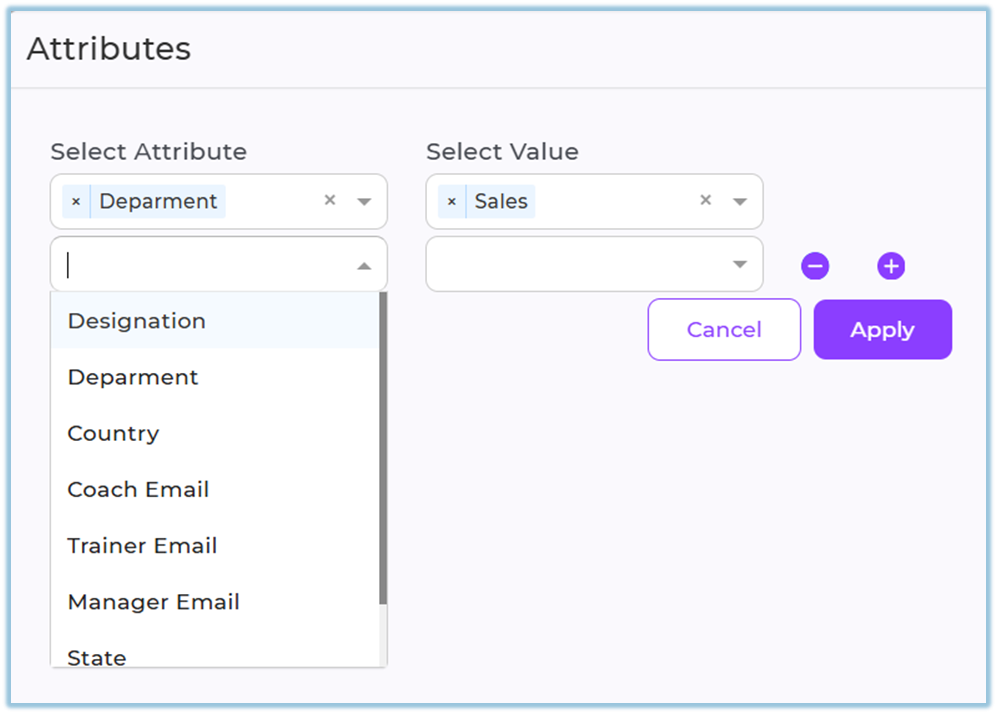
Attribute Filters: Filters report data using user attributes such as department or manager email.
-
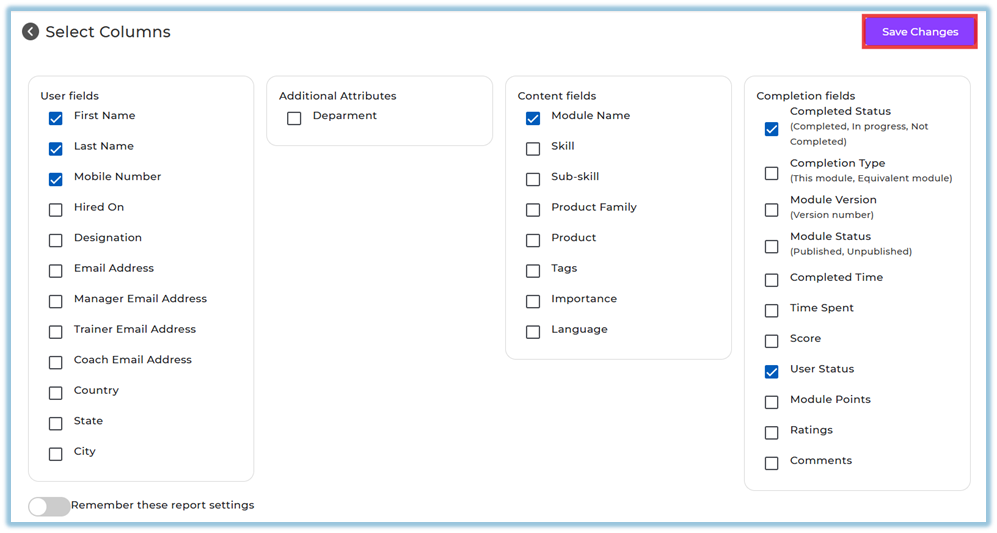
Column Selection: Controls which fields appear in the downloaded report.
-
Report Sharing: Allows controlled sharing of report access with selected users.
4. Set Up Guide
-
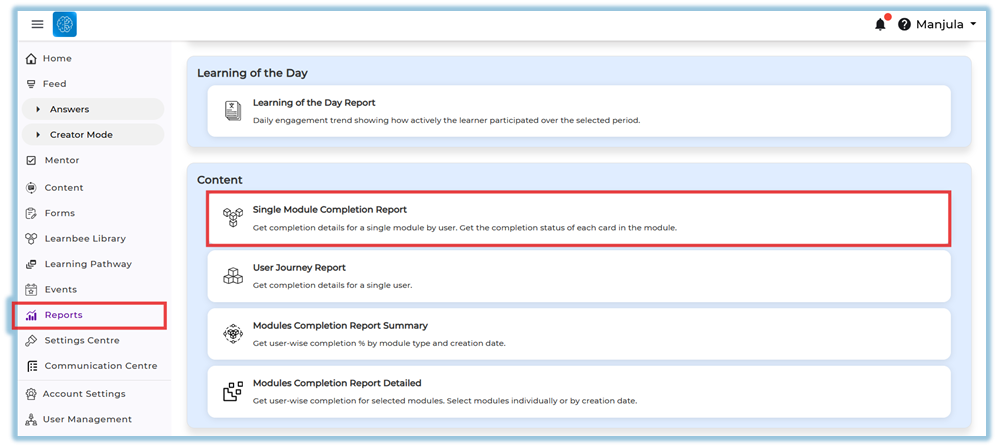
Open the Reports section from the Mega Bar navigation menu.
-
Navigate to the Content section within Reports.
https://converse.bsharpcorp.com/celebrate/user-report-page -
Select Single Module Completion Report from the list of available reports.
-
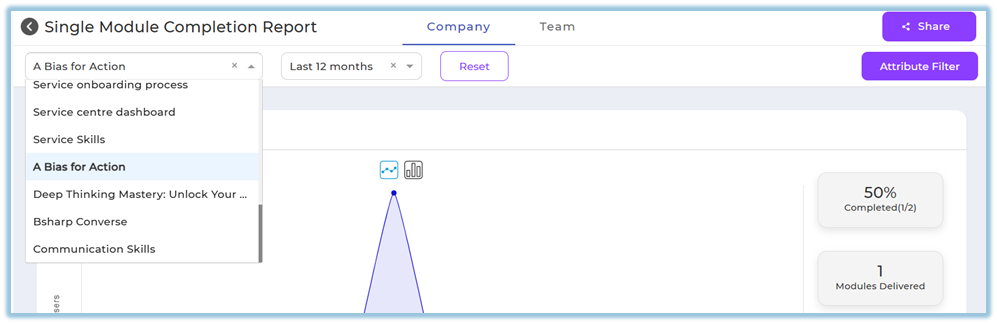
Choose the required module using the module selection field.
-
Select the appropriate date range using the date filter and use Reset if required.

-
Review the completion data displayed under the Company tab.
-
Switch to the Team tab to view the same report scoped to assigned team users.

-
Use Attribute Filter to apply attribute-based filtering if needed.
-
Select Selected Columns to customize the fields included in the report output.
-
Save column selections and download the report as required.
-
Use the Share option to share the report with selected users if access is permitted.

5. User View
Users with report access can view module completion summaries, graphical trends, and detailed completion tables. The Company tab is visible to admins, while the Team tab is visible only to users mapped as managers, trainers, or mentors. Users can interact with graphs, view completion status, and access downloadable report data based on permissions.
6. Reporting
-
Single Module Completion Report: Displays completion status, activity trends, scores, ratings, and learning object details for a selected module.
-
Learning Object Report: Shows completion data for individual content items such as videos, PDFs, and quizzes within the module.

-
Reports can be accessed from Reports → Content → Single Module Completion Report.
https://converse.bsharpcorp.com/celebrate/learning-module-program-page/learning-module-report/-1
7. Best Practices
-
Select a clear and consistent date range when comparing completion trends.
-
Use attribute filters to narrow data to relevant user groups.
-
Customize report columns before downloading to avoid unnecessary data.
-
Use the Team tab for role-based monitoring rather than company-wide analysis.
8. Related Links / FAQs
9. Version Notes
Last Updated: 31 Dec 2025
No Comments