
Modules Completion Report Summary
1. Overview
The Modules Completion Report Summary provides a consolidated view of how users are progressing across different types of modules within the platform. It helps administrators and team-level users understand overall completion trends, user participation, and average completion performance for published modules within a selected time period.
2. When to Use
-
When you want to review overall module completion performance across users.
-
When you need a summarized view of completion percentages by module type.
-
When managers, trainers, or mentors want to track completion status for their mapped users.
-
When preparing completion reports for internal reviews or audits.
3. Concepts
-
Module Type – The category of learning content such as Learning Module, Video, PDF, or Learnbee.
-
Published Date Range – The time period during which the selected modules were published.
-
Attribute Filters – User-based filters such as designation, department, country, manager, trainer, or location.
-
Completion Distribution – A visual breakdown of users grouped by completion percentage ranges.
-
Summary Metrics – High-level statistics including total users, total modules, and average completion percentage.
-
User Completion Status – User-level details showing assignment, completion count, and completion percentage.
-
Company View – Organization-wide completion data visible to administrators.
-
Team View – Completion data limited to users mapped to a manager, trainer, or mentor.
-
Report Download – Exportable report data with configurable columns.
4. Set Up Guide
-
Open the Menu Bar and click on Reports.
https://converse.bsharpcorp.com/celebrate/user-report-page -
Under the Content section, click on Modules Completion Report Summary.
https://converse.bsharpcorp.com/celebrate/user_completion_report -
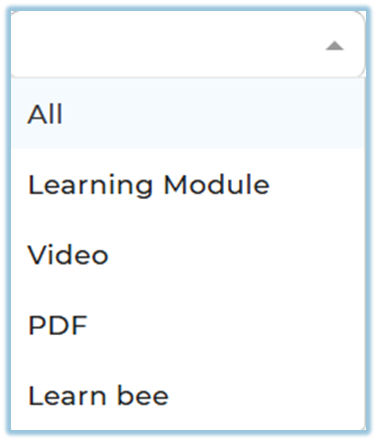
Select a value from Select Module Type (All, Learning Module, Video, PDF, Learnbee).
-
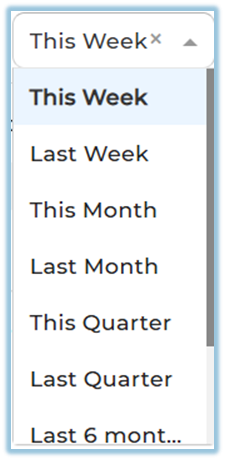
Choose a value from Modules Published Date (This Week, Last Week, This Month, Last Month, This Quarter, Last Quarter, Last 6 Months, Last 12 Months, or Custom).
-
Click Apply to load the report based on the selected filters.

-
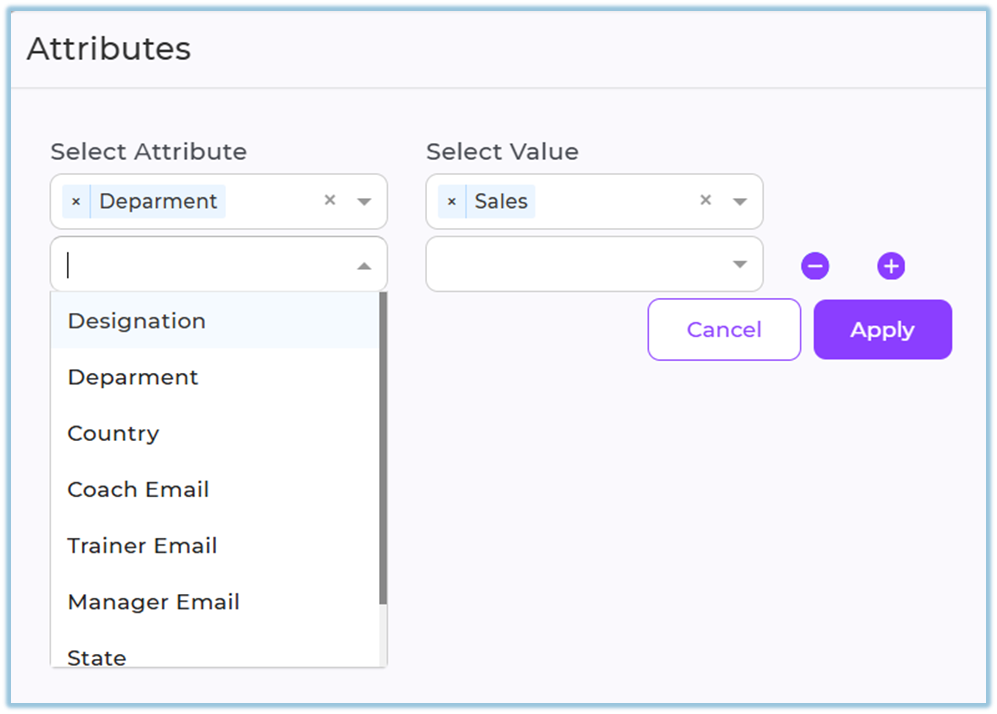
(Optional) Click Attribute filter to filter data by designation, department, country, coach email, trainer email, manager email, state, or city.
-
Select the required attribute values and click Apply to update the report.
-
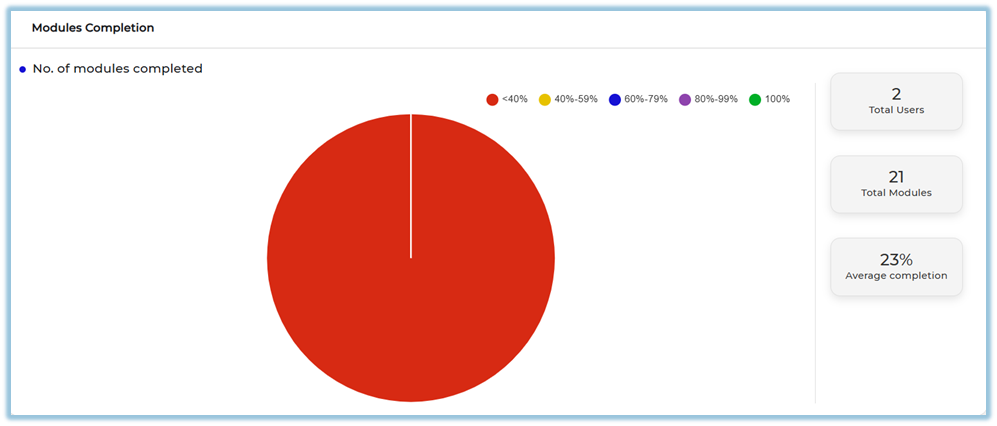
Scroll down to view the Modules Completion summary and charts.
-
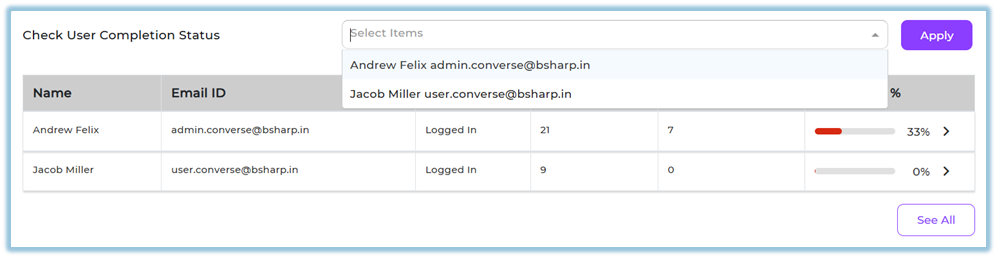
Use Check User Completion Status to view completion details for specific users.
-
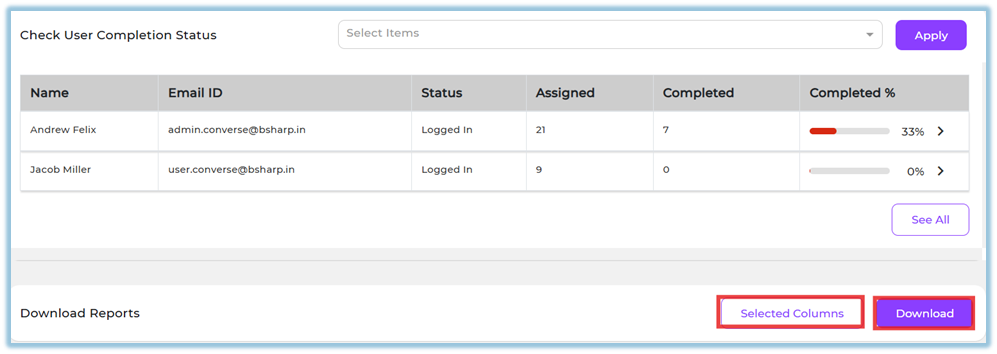
Click Selected Columns to customize the columns included in the report.
-
Click Download to export the report.
5. User View
-
Users with admin access can view the Company tab showing completion data for all users.
-
Users assigned as manager, trainer, or mentor can view the Team tab showing data only for their mapped users.
-
The dashboard displays completion distribution, summary metrics, and user-level completion details.
-
Users can visually interpret completion status using pie charts and percentage indicators.
6. Reporting
-
Modules Completion Report Summary
-
Displays total users, total modules, and average completion percentage.
-
Shows completion distribution grouped by percentage ranges.
-
Provides user-level completion status with assignment and completion details.
-
Accessible from Reports → Content → Modules Completion Report Summary.
https://converse.bsharpcorp.com/celebrate/user_completion_report -
Supports report export with customizable columns.
-
7. Best Practices
-
Apply date and module type filters before reviewing completion trends.
-
Use attribute filters to analyze performance for specific teams or regions.
-
Review user-level completion data to identify users needing follow-up.
-
Customize report columns before downloading to keep reports concise.
8. Related Links / FAQs
Q: Who can access the Team tab?
A: Only users mapped as managers, trainers, or mentors can access the Team tab.
Q: Can I download the report for selected users only?
A: Yes, by applying user and attribute filters before downloading.
9. Version Notes
Last Updated: 5 Jan 2026
No Comments