
Modules Completion Report Detailed
1. Overview
The Modules Completion Report Detailed provides a module-level and user-level view of completion activity across selected modules, allowing admins and team-level users to analyze module delivery and completion trends over a defined time period.
2. When to Use
-
When you need to review detailed completion data for specific modules
-
When you want to track user-level completion status for selected modules
-
When managers, trainers, or mentors need visibility into their team’s module completion
-
When downloading customized completion reports is required
3. Concepts
-
Module selection – Used to choose one or more modules for which completion data is displayed in the report.
-
Module created date – Defines the time period during which the selected modules were created.
-
Module consumed date – Defines the time period during which users consumed the selected modules.
-
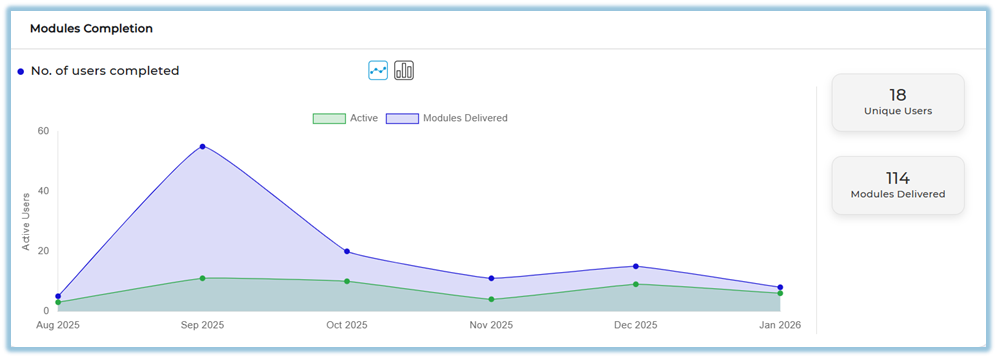
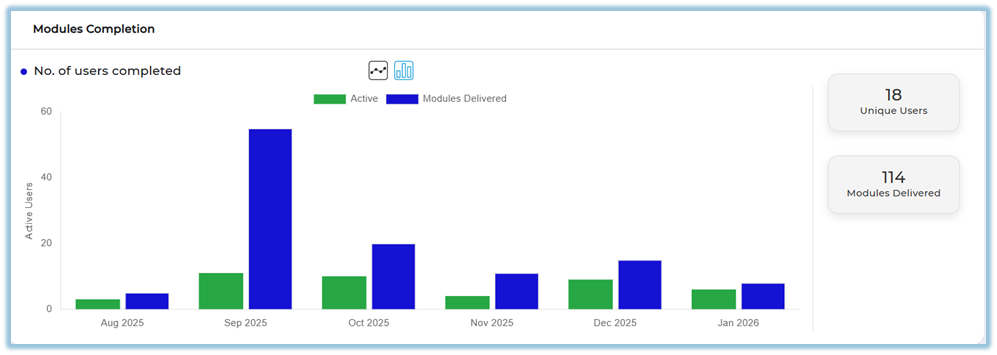
Modules completion graph – Displays module delivery and user activity trends for the selected time range.
-
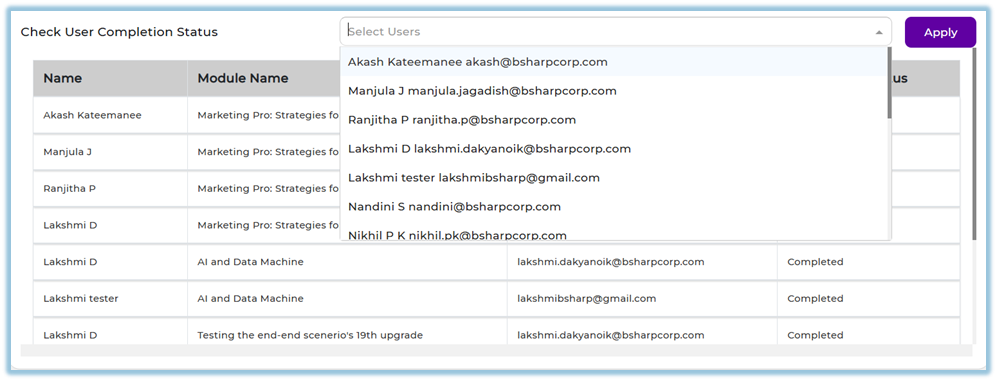
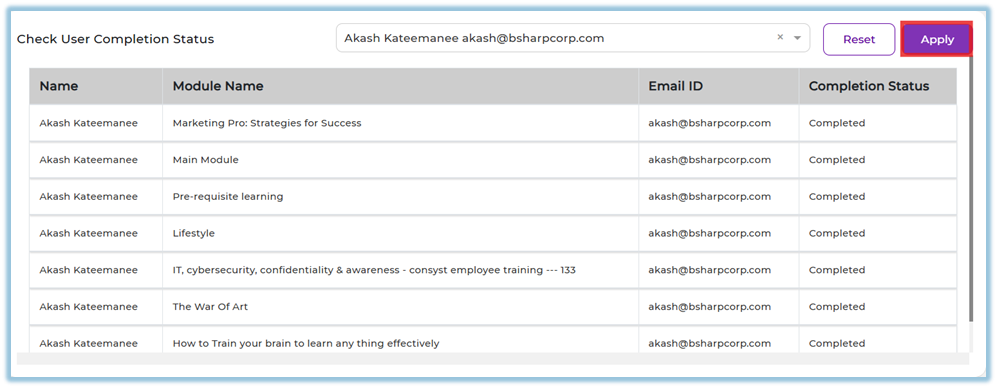
User completion status – Shows individual user-level completion details for the selected modules.
-
Report download and column customization – Allows selecting required data fields before downloading the report.
-
Company tab and Team tab access – Controls whether report data is shown at an organization level or limited to mapped teams.
4. Set Up Guide
-
Open the Menu bar.
-
Click Reports.
https://converse.bsharpcorp.com/celebrate/user-report-page -
Under Content, click Modules Completion Report Detailed.
https://converse.bsharpcorp.com/celebrate/modules_completion_report -
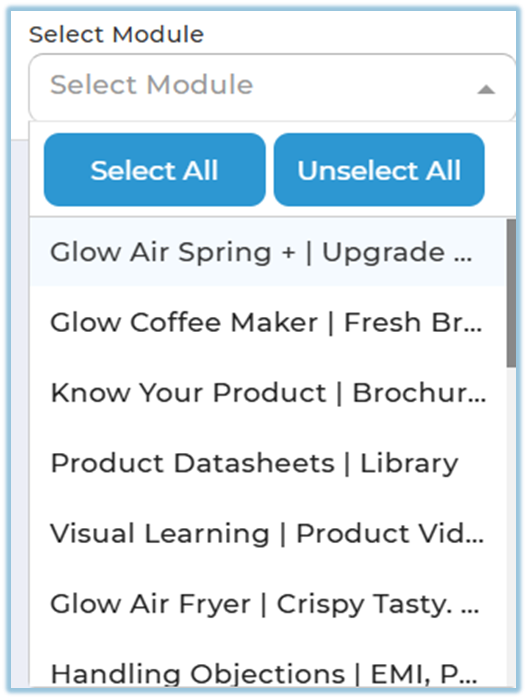
Select one or more modules using Select Module.
-
Use Select All or Unselect All if required.
-
Select a value in Select Modules Created.
(Shows users who completed modules that were created within the selected date range.)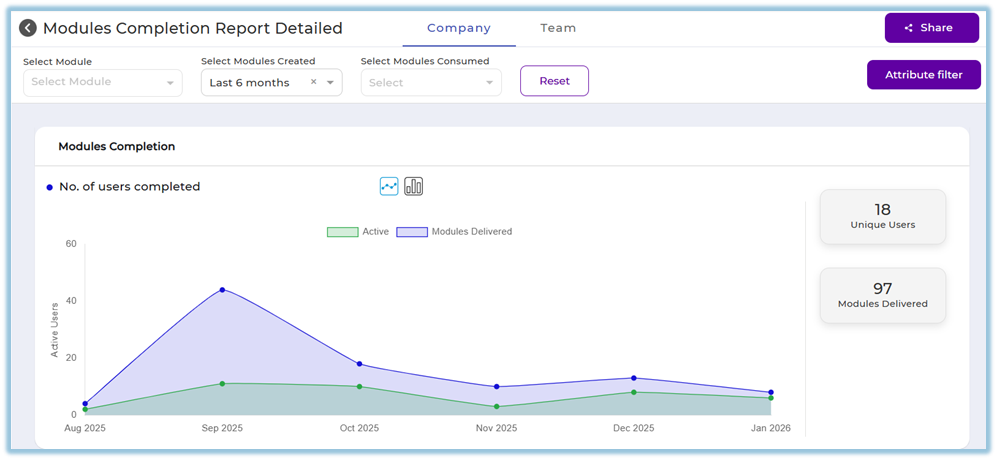
-
Select a date range in Select Modules Consumed (This Month, Last Month, This Quarter, Last Quarter, Last 6 months, Last 12 months, or Custom).
(Select Modules Consumed – Shows user completions based on when modules were consumed during the selected period.)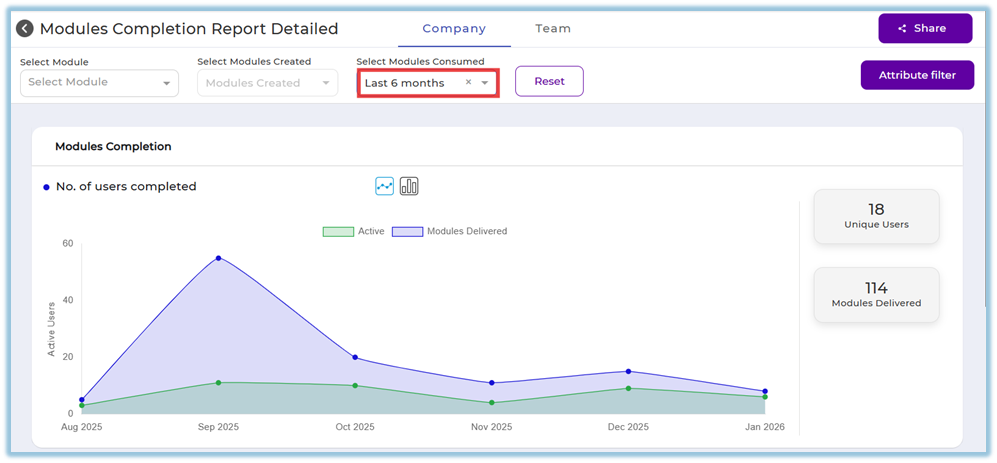
-
Click Reset to clear all selected filters if needed.

-
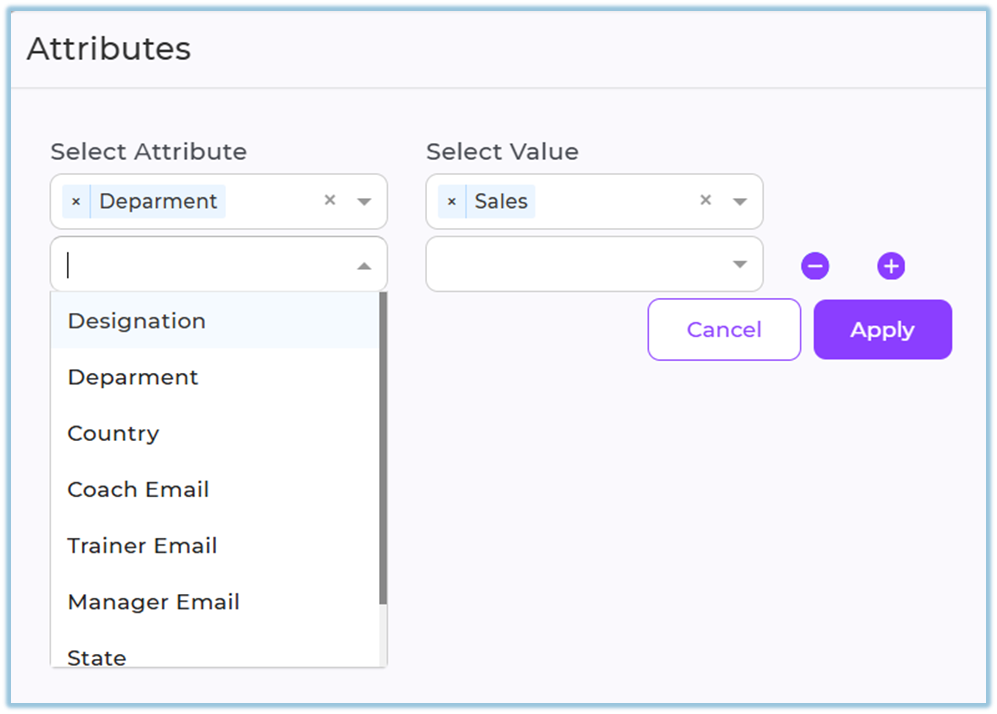
(Optional) Click Attribute filter, select attributes such as Designation, Department, Country, Coach Email, Trainer Email, Manager Email, State, or City, and click Apply.
-
Scroll to view the Modules Completion graph showing active users and modules delivered.
-
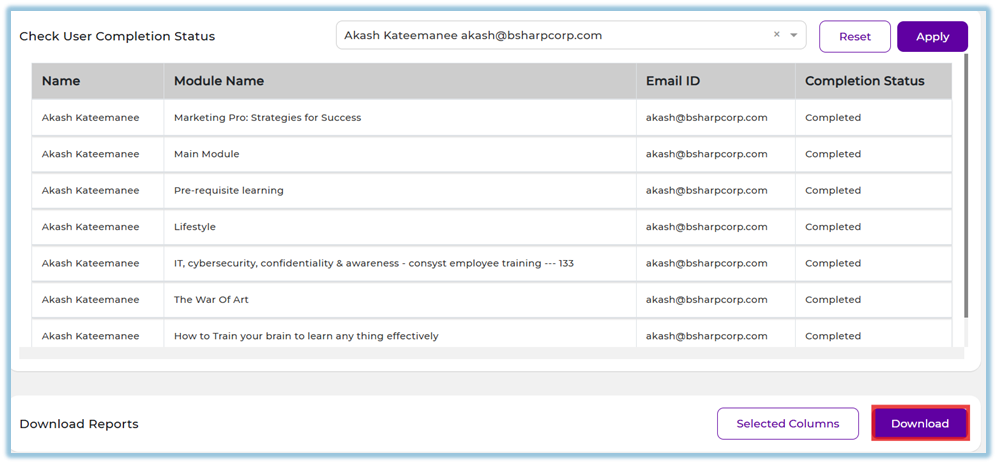
Scroll to Check User Completion Status and select users using Select Users.
-
Click Apply to view completion status for selected users.
-
Scroll to Download Reports.
-
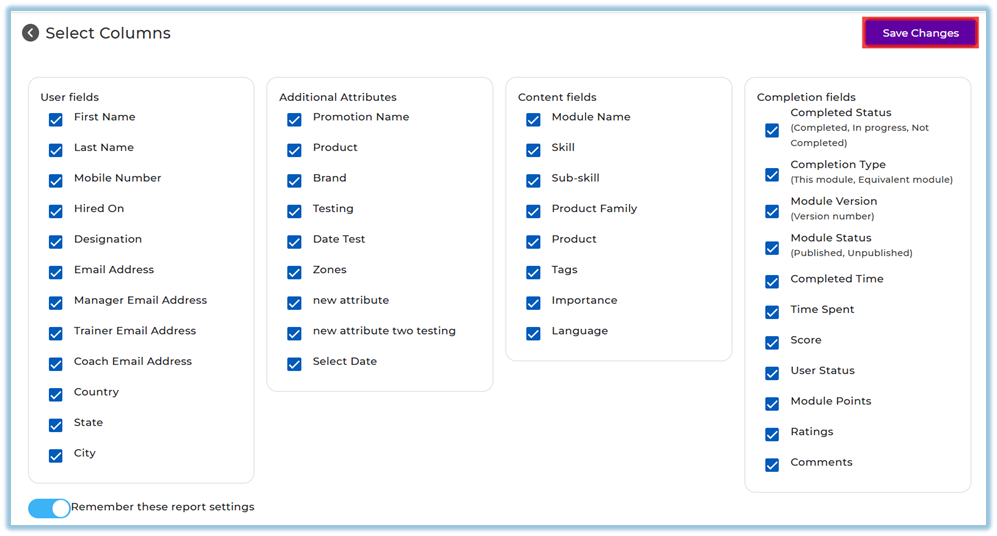
Click Selected Columns to customize report fields.
-
Click Save changes and then Download to export the report.
5. User View
Users can view a graphical representation of modules delivered and user activity, followed by a table showing individual user completion status, including module name, email ID, and completion status. Download options are available at the bottom of the page.
6. Reporting
-
Modules Completion Report Detailed
-
Shows module-wise and user-wise completion data
-
Displays active users and modules delivered through graphs
-
Provides user-level completion status in tabular format
-
-
This report is accessed from Reports → Content → Modules Completion Report Detailed
https://converse.bsharpcorp.com/celebrate/modules_completion_report
7. Best Practices
-
Apply date filters before selecting users to reduce data noise
-
Use Selected Columns to download only required report fields
-
Use Attribute filters for region- or role-specific analysis
-
Reset filters before starting a new analysis
8. Related Links / FAQs
Q: Who can access the Team tab?
Only users assigned as Managers, Trainers, or Mentors can access the Team tab.
Q: Is the Team tab different from the Company tab?
The data structure is the same, but Team tab shows only users mapped to the logged-in user.
9. Version Notes
Last Updated: 5 Jan 2026
No Comments